How To Fix Wi-Fi Problems In Your Home -2026 Guide

Two big things usually cause people to call me at my computer service company and say they need help with their Wi-Fi: 1. Low signal density (bars) and 2. Low speeds (low Mbps).

Wi-Fi uses short-range radio waves to deliver internet access throughout your home. While it can feel almost “magical,” it’s still bound by physics. Signals weaken over distance, struggle to pass through certain materials, and are easily disrupted by interference. The result is slow speeds, dropped connections, buffering, and frustrating dead zones.

Understanding 2.4 GHz vs 5 GHz

2.4 GHz and 5 GHz Wi-Fi come down to a trade-off between range and speed. 2.4 GHz reaches farther and passes through walls better, but it’s slower and more prone to interference from devices like microwaves, Bluetooth, and nearby networks. 5 GHz, on the other hand, offers faster speeds and less interference, but it has a shorter range and weaker signal through walls.

In general, use 2.4 GHz for devices farther from the router or for basic connectivity, and 5 GHz for faster activities like streaming or gaming when you’re closer to the router.

What is a Dead Zone?

A dead zone is any area of your home where you should have Wi-Fi coverage but don’t, so you have “low signal density.”

What I do as a computer repair technician is walk through the home with a phone, tablet, or laptop and observe your signal strength and speed. You’ll quickly notice where performance drops off. If you have four bars, each bar represents a 25% signal measurement. If you have five bars, each is 20%, right? So you can calculate your drops as you walk through the house. If you are all the way out at your mailbox and you still have four of four bars, you have good signal density.

What Causes Low Signal Density or Poor Mbps Download Speeds?

  • Your home is large: Bigger homes, multi-story layouts, and long floor plans are difficult to cover with a single router, especially if it’s located in one corner or tucked away. Often you need an upgraded router if you have over 3,500 square feet.
  • Building materials block signals: Certain materials absorb or reflect Wi-Fi signals, including plaster walls such as those in older homes or those with wire mesh, brick, concrete, stone, metal, and even large mirrors or aquariums.
  • Electronic interference is everywhere: Common sources of interference include microwaves, baby monitors, wireless security systems, Bluetooth devices, and older cordless phones. In today’s homes, the number of connected devices has increased dramatically, adding more congestion.
  • Network congestion in your area: If you live in a neighborhood with many nearby networks, overlapping Wi-Fi signals can slow your connection due to channel interference.
  • Your router is outdated or failing: Older routers often can’t keep up with modern demands like streaming, gaming, video calls, and smart home devices. Hardware can also degrade over time and cause inconsistent performance.
  • Your internet provider may be the issue: Sometimes the problem isn’t inside your home. Issues with your modem, wiring, or ISP can result in slow or unstable service. So sometimes it can be a problem outside of the house.
  • You might not be paying for much of a plan: Make sure you’re paying for at least 200 Mbps service from your ISP. Most areas have 1,000 Mbps plans now or even higher. You can test your internet speed here for free.

How To Fix Wi-Fi Dead Zones

  • Reposition your router: Place your router in a central location. Higher is better, so elevate it off the floor, and avoid basements or corners. Proper placement alone can significantly improve coverage.
  • Upgrade to a modern router or mesh system: Mesh Wi-Fi systems are now one of the best solutions for larger homes. They use multiple units to create consistent coverage throughout the house. Upgrading to Wi-Fi 6 or newer can make a noticeable difference.
  • Reduce interference and optimize placement: Keep your router away from large metal objects and other electronics. Use less congested channels and take advantage of 5 GHz or 6 GHz bands when available.
  • Use Ethernet where possible: Wired connections provide the fastest and most stable performance. This is especially useful for desktops, TVs, and gaming systems.
  • Test your internet speed and equipment: Run a speed test directly from your modem and compare it to your Wi-Fi speeds. Restart your equipment and make sure your modem supports your current internet plan.
  • Upgrade your plan: Make sure you’re paying for at least 200 Mbps service from your ISP. Most areas have 1,000 Mbps plans now or even higher.

Wi-Fi dead zones are extremely common, especially in larger or older homes, but they can almost always be fixed. Sometimes the solution is simple, like moving your router, and other times it may require upgraded equipment or a better network layout. Either way, improving your Wi-Fi setup can make your entire home faster, more reliable, and far less frustrating to use.

Internet Security Threat: Understanding The “Password Compromise” technique.

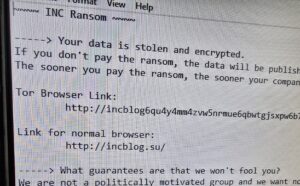
I just did a job at a lawyer’s office in Louisville where all the data on the server was encrypted. They almost lost everything. It was a password compromise issue. As more of our lives move online, internet security has become one of the most critical concerns for both individuals and businesses. Cybercriminals are constantly evolving their methods, often relying on simple but highly effective techniques to gain unauthorized access to accounts and systems.Understanding how these attacks work is the first step toward protecting yourself or your organization.

 
Password Compromise Techniques: They are Guessing, Spraying, Harvesting, Cracking, Stuffing.

 
1. Guessing
 
Guessing is one of the most basic forms of compromise. In this attack, a threat actor attempts to log into an account by trying commonly used passwords or combinations based on personal information.
 
Attackers may try:
 
Simple passwords like “123456” or “password”
Names, birthdays, or addresses
Slight variations of known passwords that are often from known data breeches
“The PC Sunflower” (looking for post-it notes with your password over your shoulder at work, or in your home, at the airport, etc.)
 
Why it works:
Many users still rely on weak or predictable passwords, making accounts easy targets.
 
How to protect yourself:
 
Use long, complex passwords
Avoid personal information use as passwords (instead make them random)
Enable multi-factor authentication (MFA)
 
2. Spraying
 
Password spraying is a technique where attackers try a small number of common passwords across a large number of accounts, instead of repeatedly attacking a single account.
 
For example:
 
Trying “Welcome123” across hundreds of usernames
Avoiding lockouts by limiting attempts per account
 
Why it works:
It bypasses security systems designed to stop repeated login attempts on a single account.
 
How to protect yourself:
 
Enforce strong password policies
Use MFA across all accounts
Monitor for unusual login activity
 
3. Harvesting
 
Harvesting refers to the collection of usernames and passwords, typically through deceptive methods like phishing.
 
Common tactics include:
 
Fake emails posing as legitimate companies
Fraudulent login pages that capture credentials
Malicious links or attachments
 
Why it works:
It exploits human trust rather than technical weaknesses.
 
How to protect yourself:
 
Be cautious with unexpected emails
Always verify website URLs
Educate users and employees about phishing
 
4. Cracking
 
Cracking involves using specialized software to break encrypted passwords, often after hackers obtain stolen data from breaches.
 
Common methods include:
 
Brute force attacks (trying every combination)
Dictionary attacks (using common word lists)
Rainbow table attacks (precomputed hash matching)
 
Why it works:
Weak passwords and outdated encryption can be broken quickly with modern computing power.
 
How to protect yourself:
 
Use strong, unique passwords (12+ characters)
Avoid common words and patterns
Ensure modern password hashing is used (for businesses)
 
5. Stuffing
 
Credential stuffing uses stolen username and password combinations from previous data breaches to access other accounts.
 
Because many people reuse passwords, attackers can gain access to multiple accounts using the same credentials.
 
Why it works:
Password reuse is widespread, and massive databases of stolen credentials are easily available online.
 
How to protect yourself:
 
Never reuse passwords across sites
Use a password manager
Enable MFA on all important accounts
Monitor for data breaches
 
Final Thoughts
 
Even though these attack methods vary in complexity, they all take advantage of the same weaknesses: weak passwords, password reuse with mild variations, and human error.
 
By understanding how guessing, spraying, harvesting, cracking, and stuffing work, you can take the needed steps to secure accounts and reduce risk.
 
Cybersecurity doesn’t have to be complicated—but it does have to be taken seriously. Hopefully these thoughts about the common problems I see as an actual computer repair practitioner at my local computer service company and some of these preventative techniques will save you from having to have me or someone like me out after a data loss catastrophe.
 

How to Use AI on Your Computer or Phone

Lately, it seems like all anyone talks about in the news is Artificial Intelligence (AI). Oddly, I never get any questions from customers about this. Not sure why. Anyway, it has quickly become one of the most useful tools available on modern computers and smartphones. Many people have heard about AI, but they are not always sure how to actually start using it. The good news is that using AI is much easier than most people think.


Today there are several major AI systems that anyone can use for free. These tools can help you write emails, answer questions, research information, summarize documents, help with homework, and even generate images.


The four most widely used AI systems today are ChatGPT, Google Gemini, Microsoft Copilot, and Grok.


Understanding what these tools are and how to access them is the first step to using AI effectively.


Even beginners with very little technical experience can learn to use modern AI tools in just a few minutes.


The Four Major AI Systems Everyone Should Know


Chat GPT


ChatGPT is one of the most popular AI systems available today. It was developed by Sam Altman and OpenAI and is designed to answer questions, help write documents, explain complicated topics, and assist with research.


Many people use ChatGPT to:


  • Write emails
  • Summarize articles
  • Help with school assignments
  • Generate ideas
  • Troubleshoot computer problems


ChatGPT works through a simple chat interface. You type a question and the AI responds with an answer.


Google Gemini


Gemini is Google’s artificial intelligence system. It integrates closely with many Google services such as Google Search, Gmail, and Google Docs.


Gemini can help users:


  • Research topics
  • Draft emails
  • Generate summaries
  • Assist with writing
  • Answer technical questions


Because Gemini is built by Google, it often works well for research and general knowledge questions.


Microsoft Copilot


Microsoft Copilot is Microsoft’s AI assistant. It is built into many Microsoft products including Windows, Microsoft Edge, and Microsoft Office.


Copilot can help with tasks such as:


  • Writing documents
  • Creating spreadsheets
  • Summarizing web pages
  • Generating reports
  • Answering questions


Many newer Windows computers already have Copilot installed.


Grok


Grok is an AI system created by Elon Musk’s company xAI. It is integrated into the social media platform X but it is a separate webpage(formerly Twitter).


Grok can help users:


  • Research current events
  • Answer general questions
  • Generate ideas and summaries
  • Provide explanations of complex topics


Grok is designed to be conversational and often focuses on real-time information.


How to Use AI on a Smartphone


Using AI on a phone is usually done through an app.


Most AI systems offer official apps that can be downloaded from the Apple App Store or Google Play Store.


Once installed, the app works just like a messaging system. You type a question and the AI provides an answer.


Many people prefer using AI on their phone because it is convenient and always available.


How to Use AI on a Desktop Computer


Using AI on a desktop or laptop computer is usually even easier.


Most AI systems work directly in a web browser. You simply visit their website and start asking questions.


A good way to keep them handy is to add them to your browser favorites or bookmarks. This allows you to open them quickly whenever you need them.


Many people keep AI tools bookmarked along with their email, banking, and other commonly used websites. You can enable bookmark/favorite bar to show all the time in Edge, Chrome or Firefox.


What Can AI Help You Do in Everyday Life?


Artificial intelligence can assist with many everyday computer tasks, including:


  • Writing emails and letters
  • Researching topics
  • Summarizing long articles
  • Explaining technical subjects
  • Helping with homework
  • Creating outlines for reports
  • Generating ideas for projects


AI is not perfect and sometimes makes mistakes, so it is always a good idea to double-check important information. However, despite its limitations AI is quickly becoming one of the most important tools people can learn to use on a computer or smartphone. I encourage all my clients to use it. Many businesses, schools, and professionals are already using AI to write documents, research information, organize ideas, and complete everyday tasks more efficiently. People who learn how to use AI now can save time, work more productively, and stay competitive in a rapidly changing technological world. Those who do not use it will fall behind as AI becomes a normal part of how work and communication are done. Learning how to use AI does not mean replacing human thinking – it means using a powerful tool to assist with everyday tasks and make better use of your time. Learn to use it!


I Think My Computer Has Been Hacked – What To Do Now

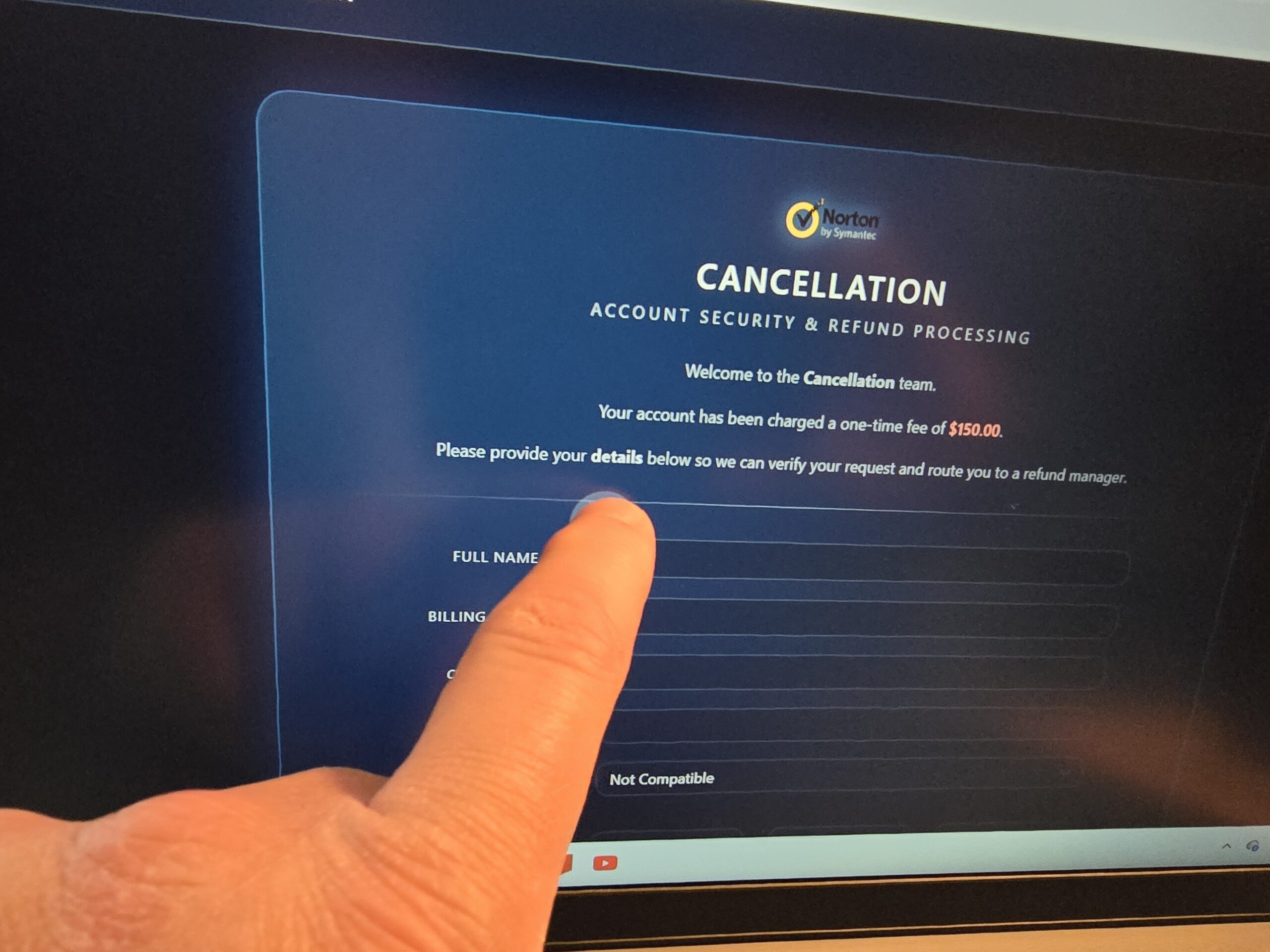
See the photo on this blog post? It’s fake. Every week at my Louisville, Kentucky computer repair business I receive calls from people who believe their computer has been “hacked.” Sometimes the problem turns out to be a virus, sometimes it is a false security warning, and other times it is a tech support scam designed to scare someone into paying money or giving a stranger remote access to their computer. Other times they may have simply forgotten a password to something like their Facebook account.


When something unusual appears on the screen and your computer starts behaving in ways it never has before, it is easy to panic. The good news is that most of these situations can be fixed if you act quickly and avoid a few common mistakes.


Below are some of the warning signs to watch for and the first steps you should take if you think your computer may be experiencing a problem like this.


How Did This Happen?


Some people encounter the problem while browsing the internet when a website suddenly displays a full-screen warning claiming their computer is infected or locked. These messages often include loud alarms or flashing alerts telling the user to call a support number immediately.


Other times the problem starts with an email. Scam emails often pretend to be from companies like Microsoft, PayPal, Amazon, or a bank and warn that there is a security problem with your account. The message may include a link that leads to a fake website designed to steal passwords or install malware.


Phone calls are another method scammers use. Someone may call claiming to be from “Microsoft support” or a security department and say your computer has been sending out spam or has been compromised. In reality, these callers are usually trying to convince you to give them remote access to your computer.


What Signs to Look For


Some unusual behavior on a computer may include your browser redirecting you to unfamiliar websites, new programs appearing that you do not remember installing such as new browsers or toolbars, or the computer suddenly becoming much slower than normal.


In many cases the computer has not actually been hacked by a person. Instead, it has been exposed to malware, or a pop-up has frozen your browser with a scary security message designed to frighten you into taking action such as calling a 1-800 number.


The Most Common Computer Scam Right Now


One of the most common scams I see these days involves fake Microsoft security warnings. A webpage suddenly fills the screen with alarms and flashing messages claiming your computer is infected or locked.


The message often instructs you to call a phone number for immediate help. When someone calls the number, the person on the other end pretends to be a Microsoft technician and asks for remote access to the computer.


Once connected, they may run a few commands, claim they discovered serious problems, and demand payment to “repair” the system. In some cases they also attempt to install additional software or collect personal information.


It is important to understand that Microsoft does not display warnings asking you to call a phone number, and legitimate security alerts do not lock your browser this way.


What Not To Do


If you believe your computer may be compromised, there are a few things you should avoid doing.


Do not call the phone number shown in a pop-up warning. Those numbers almost always connect you to scammers.


Do not give anyone remote access to your computer unless you contacted them first and know exactly who they are.


Do not enter credit card or banking information into a suspicious website.


And do not immediately reinstall Windows or erase the computer unless you have already backed up important files.


What You Should Do Right Away


If you encounter a suspicious warning or believe malware may be active on your computer, the first step is to disconnect from the internet. This can stop malicious software from communicating with outside servers.


Next, restart the computer. Many browser-based scam warnings disappear after a reboot because they are only trapped inside the web browser.


If you believe your passwords may have been exposed, change them from another device such as a phone or a different computer.


Finally, it is often best to have the computer examined by a professional.


When It Is Time To Call a Technician


Some situations require professional help as soon as possible. A compromise like this is often considered a computer emergency, so it is important to call a professional right away.


If your computer is locked with a ransom message, if important files seem to be missing, or if you entered sensitive information into a suspicious website, the system should be checked immediately.


A technician can remove malware, look for hidden remote access software, repair any damage caused by the infection, and secure the computer so the problem does not happen again.


Chris Calkins owns On-Site Louisville Computer Repair Company in Louisville, Kentucky and has been repairing computers for residential and business customers for over 30 years. He writes about real-world computer problems, scams, and technology issues he encounters every day on the PC News blog.

How to Keep Yourself Out of a Microsoft OneDrive Nightmare

Every week I have multiple encounters with customers having Microsoft OneDrive problems. OneDrive is often presented as a safety feature, but many users discover it only after something has already gone wrong. Files seem to vanish, folders multiply, or a familiar Desktop suddenly looks completely different. In most cases, the problem isn’t user error — it’s that OneDrive was enabled quietly and began reorganizing files without the user fully realizing what was happening. It gets worse when “Backup” is turned on beccause if backup is ever turned off the files don’t return to their correct and normal location in Windows. They all remain in the OneDrive folder.
 
Sometime during a Windows setup, a Microsoft Office sign-in, or when a major Windows update occurs — OneDrive is accidentally configured. And this can cause a mess. And, lately, MS is more insistant about turning on backup prompts. OneDrive may automatically begin syncing the Desktop, Documents, and Pictures folders. From that point on, those folders are no longer just local. Files may live on the computer, in the cloud, or only online, and Windows does a poor job explaining which is which.
 
A file that looks like it’s been deleted may simply be in a different OneDrive folder. A folder that appears twice may actually be the result of OneDrive being turned on, off, and on again. Users often try to fix the situation by dragging files around or toggling OneDrive settings, which can make the mess worse.
 
Common Ways OneDrive Causes Problems
 
OneDrive issues tend to follow familiar patterns. Files appear to disappear even though they still exist somewhere. Duplicate folders with slightly different names show up. Syncing stops when storage fills up, sometimes without a clear warning. In multi-computer setups, a change made on one device instantly affects the others, including deletions.
 
It’s important to understand that OneDrive is a syncing service, not a backup. Syncing means everything stays the same everywhere — including mistakes. If a file is deleted or overwritten, that change is pushed to every connected device.
 
Why Updates Make Things Worse
 
Windows updates frequently prompt users to “finish setting up” their device. Clicking through those screens can re-enable OneDrive or folder syncing, even if it was previously disabled. The result can be a moved Desktop, missing icons, or files suddenly stored online instead of locally.
 
Because these changes happen in the background, users often don’t connect the update to the file problems until much later.
 
How to Avoid Getting Into Trouble
 
The safest approach is clarity and consistency. Either OneDrive is used intentionally and understood, or it’s turned off correctly. Many of the worst problems come from partial or accidental use.
 
If OneDrive is enabled, it’s important to know exactly which folders are being synced and how much storage is available. Relying on OneDrive alone for file protection is risky. A separate backup that keeps older versions of files is still necessary.
 
It’s also wise to slow down during Windows setup and update screens. These are the moments when OneDrive is most often reintroduced without clear explanation.
 
Small Businesses Should Be Especially Careful
 
In business environments, OneDrive problems can have larger consequences. Shared files, accounting data, and office systems don’t handle surprise syncing well. A single misconfiguration can overwrite important files or create conflicts that go unnoticed until work is disrupted.
 
If OneDrive is used in a business, it should be planned and documented, not enabled by default.
 
When to Stop and Reassess
 
If files are missing, duplicated, or behaving unpredictably, it’s often best to stop making changes and assess what OneDrive is actually doing before continuing. Randomly turning settings on and off can permanently overwrite newer data with older versions.
 
Most OneDrive nightmares aren’t caused by carelessness — they’re caused by software making decisions silently. Understanding that behavior, and deciding whether OneDrive truly fits your needs, is the key to keeping control of your files instead of chasing them.
 
Final Thoughts
 
Don’t use Microsoft One Drive and if it’s turned on and you’re not sure how remove it call a professional computer tech to remove it permanently.
 

Follow us on , , , Youtube, LinkedIn, 2026 © All rights reserved. On-Site Louisville Computer Repair Co.