At my computer repair shop in Louisville I see these three problems over and over. Sometimes it is the result of normal wear-n-tear. Parts wear out, right? And there are plenty of lemon parts with computers. I’ve seen a new hard drive fail in the first thirty days of use, for example. But sometimes accidents happen. And, often mistakes are made due to the fact that people don’t know how to properly maintain and handle their computer equipment. This article will make you aware of lurking dangers so you can avoid accidents and maintain your equipment properly, and avoid these costly and preventable laptop repairs completely.
DC Jack Repair
DC Jacks or charging ports take a lot of abuse. I know I’ve had several ignitions in my car replaced over the years. When I was a starving college student I remember one winter I would spray deicer in the ignition so my key would work. It got me through the winter, but finally I had to replace the ignition. The DC Jack on a laptop is the hole where the power adaptor or “charger” plugs into the computer. In most laptop units, the DC jack is directly soldered onto the motherboard — which not only makes it delicate but also expensive to repair. Often the entire laptop has to come apart to do the repair as there is no access anywhere around the jack. The three most common reasons the jack breaks is: 1.A child or animal trips on the cord. 2. People jerk the cord out hard and at an angle and do not realize it is not that difficult to break a solder joint and 3. People travel — either across the room or across the city — with the charger still connected to the laptop. Don’t do it!
Screen Repair
Perhaps even more common is laptop screen repair and replacement. I have seen laptop screens break when someone picked up a laptop by the corner of the screen to move it off of the floor up onto a table. Their thumb went right through the screen. I almost did it once myself. It is a very delicate screen. It does not have to be a dropped or take a hard impact to cause a cracked laptop screen. Another common scenario is closing something in the laptop. A mouse, a letter opener, even a flash drive left on the keyboard when the laptop is closed can cause a screen to break or fail. It is an expensive repair depending on the laptop screen and computer make and model. So, be aware of this “soft spot” on your laptop and be extremely gentle with it.
Motherboard Failure
Perhaps the most expensive and devastating, but rather common laptop repair is motherboard repair. This is what I consider a “catastrophic event” in the computer repair business. The entire machine has to come apart, the board taken out, and repaired at the microscopic level with expensive equipment. Sometimes this part simply fails, but often it is the result of what’s known in the industry as a “thermal event.” That is a heat related issue. To prevent this from happening, keep your laptop computer as cool as possible. Despite the name, a laptop should NOT be anyone’s lap. While the exhaust fan for the CPU is often located on the side of a laptop, the air intake is often located on the bottom. If your laptop is on your lap you are probably covering up the air intake for your exhaust fan which is extremely dangerous. You want to keep your laptop on a flat, cold, hard surface at all times! You can install free software such as the core temp monitor (be careful not to get a virus infection when you’re downloading free utilities) to monitor the actual temperature of your laptop from the inside. Also you can leave the battery out. I’ve never even had a battery in my laptop it’s still in plastic. It is not necessary to power a laptop that is plugged in to a wall outlet and only generates more heat. Keep the fan basins blown out with compressed air – especially if your home is dusty or you have dogs or cats. And as the computer starts to age if the heat monitor utility shows your laptop heat is on the rise, you can even go to the power options and turn your processor down a bit. As your laptop ages you probably don’t need your processors to run at 100% constantly. Mine is set to 95% and that alone gave me about a 5 degree drop in core temperature.
My old laptop, which is now my field machine, lived the first years of its life set up in my home office. It hardly ever went mobile (only when I traveled out of town). It is way past average life expectancy and still runs great at ten years old. So, heed the warnings and follow these simple suggestions and avoid these expensive and common laptop repairs in your future. You can find more information on laptop repair here.


How To Set Up Your New Computer
 At On-Site Louisville Computer Repair Co. I often get asked to set up new computers for people. This is a good idea since there is much involved in the process. Nevertheless, there are many people that like to do things themselves, so I wrote this article for you “Do-it-yourselfers” which covers the process. Hope this helps.
Get Your Files off Your Old Machine
If you have files and folders on your old machine you need to put them on a portable storage device, a flash drive, and then move them to your new machine after you set your computer up… I would leave a copy of the files on the flash drive and that is your back-up should you experience a catastrophic machine failure in the future.
Plug In, Go Through Set-up Menu and Run Your Updates:
When you turn your new computer on you will be prompted to choose settings for the computer name, time zone, language, network, updates, etc. This is very intuitive — just fill in the blanks. This is also a good time to register the computer and software. Then you are ready to run updates. Since your machine has been sitting on a warehouse or retailer’s shelf for a while you will have updates due at the time of purchase.
Uninstall Bloatware and Activate Antivirus Software Suite
Bloatware is the software that will come preloaded with your brand new laptop or desktop in the form of 30 day trials or trail subscriptions or other junk. While this software may not be harmful (debatable) most of the times they are just a waste of space. To remove simply go to Control Panel > Add/Remove> Uninstall. If your machine has a one year subscription to an antivirus suite you can activate that at this point. Otherwise you can uninstall the 30 day antivirus trial and read my article on “Five Free Antivirus Suites You Can Try for Zilch.”
Creating a System Restore Disk
You can create a restore disk in case something happens and you need to restore your computer to its factory state. Since most computers come with a recovery partition that allows you to recover your computer to factory state, making is disks is optional; however, there are circumstance where the recovery manager will not function normally, such as destruction of the partition by a virus infections, etc. Therefore many people still choose to create disks in case of emergency. To do this:
♦Go to start menu.
♦In the search bar, type “backup”.
♦Click on the “backup and Restore” option.
♦On the left side of the panel, you will see an option “create a system repair disc”.
♦Click on the option and follow the process.
Configure Power Options:
Familiarize yourself with the power settings and options available in your computer. In Windows Vista and 7 just go to start and search for “Power Options.” You can configure all your power options here including when the screen turns off, when or if the computer sleeps, what happens when you close the lid and what the power button does.
Choose Your Home Page and Make Bookmarks
When you get on the internet with Internet Explorer you probably want the page that comes up to be your favorite search engine, or your Email Login Page (which are often the same place). Most people set their homepage to Google, Yahoo, or Bing. In your browser window go to Tools>Internet Options> and then set your home page to the preferred URL. This is also a good time to visit your Bank Website, Favorite Shopping Site, and other places you visit on a regular basis and add those websites to your favorites, favorite’s toolbar, or bookmarks.
Transfer Your Files From Your Old Machine
Remember the files we pulled off your old machine earlier? Now is a good time insert your flash drive and drag old documents, photos, and music to your new computer. Plug in the flash drive and wait for it to populate “Computer” screen. Then drag a copy of your files, photos and music to the appropriate folder on your new machine and get back to computing as usual on your new computer!

Should You Buy a Tablet, Laptop, or Desktop in 2025?
With so many computing devices available today, choosing between a tablet, laptop, or desktop can feel overwhelming. Each has its advantages and drawbacks, depending on your needs. Let’s break down the pros and cons of each to help you make the best decision for your lifestyle and work habits.
Tablets: Portable and Versatile
Tablets have come a long way in the past decade. Once seen as secondary devices for media consumption, they are now more powerful than ever, capable of handling tasks that were once reserved for laptops. With advancements in attachable keyboards, stylus functionality, and cloud-based software, tablets can be a great choice for people on the go.
Pros:
- Extremely lightweight and portable, usually under a pound.
- Long battery life compared to most laptops.
- Great for casual browsing, reading, and note-taking.
- Touchscreen and stylus support for creative tasks.
- Some models, like the iPad Pro and Microsoft Surface, can be used for professional work.
Cons:
- Limited software compared to a full laptop or desktop.
- Smaller screen size can be a drawback for serious work.
- Lacks the full functionality of a desktop or powerful laptop.
If you primarily need a device for browsing, email, media consumption, or light productivity, a tablet might be a great option.
Laptops: The Best of Both Worlds?
Laptops continue to be the go-to device for students, professionals, and travelers. With a full keyboard, larger screen options, and the ability to run powerful applications, they strike a balance between portability and performance.
Pros:
- More powerful than tablets, capable of running full software suites.
- Portable yet powerful enough for work and entertainment.
- Comes with built-in keyboards, webcams, and trackpads for all-in-one functionality.
- Can connect to external monitors and accessories when needed.
Cons:
- Generally heavier and bulkier than tablets.
- Shorter battery life compared to tablets.
- Can be more expensive, especially for high-performance models.
If you need a device for work, school, gaming, or creative software like Photoshop or video editing, a laptop is a solid choice. Many professionals even use a laptop as their primary workstation by connecting it to an external monitor and accessories when at home.
Desktops: The Powerhouses
Desktops remain the most powerful and customizable option. While they lack portability, they make up for it with performance, upgradability, and a larger display experience.
Pros:
- Best performance for intensive tasks like gaming, video editing, and 3D rendering.
- Easier to upgrade and repair than laptops or tablets.
- No battery concerns – always plugged in.
- Supports large monitors for an immersive work or gaming setup.
- More secure – desktops are rarely stolen compared to laptops and tablets.
Cons:
- Not portable – you’re tied to one location.
- Requires more space for a tower, monitor, keyboard, and mouse.
- Typically uses more power than a laptop or tablet.
If you need serious computing power and don’t require mobility, a desktop is the way to go. Many professionals and gamers still prefer desktops for their superior performance and longevity.
Which One Should You Buy?
- For portability and casual use → Tablet
- For work, travel, and versatility → Laptop
- For performance, gaming, and longevity → Desktop
Technology has blurred the lines between these devices, but knowing your specific needs will help you choose wisely. Whether you’re editing videos, working remotely, or just browsing the web, there’s a perfect device out there for you!

Is it Safe to Bank and Buy on the Internet? Updated 2026

5 Smart Ways to Stay Secure in 2026
Online banking and shopping are no longer just convenient—they’re essential. From paying bills to ordering groceries, most people rely on the internet daily. So obviously I’m alarmed when I constantly see data breaches at my in-home service calls with elderly clients. With that convenience of the internet comes a growing wave of cyber threats, scams, and data breaches. So in this environment it’s essential to be more careful.
So the question still stands: Is it safe to bank and buy online? The answer is yes—if you follow modern security practices.
1. Watch Out for Phishing (Now Smarter Than Ever)
Phishing scams have evolved far beyond the obvious fake emails of the past. Today’s attacks can look incredibly convincing and may come through email, text messages (smishing), phone calls (vishing), or fake login pages that look identical to your bank. Criminals often pretend to be your bank, Amazon, Norton, PayPal, IRS, FedEx, or even Microsoft.
To stay safe, never click login links in emails or texts. Go directly to the website by typing it in or using your bookmark. Be suspicious of urgency like “your account will be locked,” or “your photos will all be deleted and you will not be able to recover” and other nonsense. And always check the sender email carefully for subtle misspellings. If something feels off, it probably is.
2. Always Use Secure Websites (HTTPS Isn’t Enough Anymore)
Seeing “https://” and a lock icon used to be enough, but today even scam sites can have HTTPS. You need to go a step further.
Make sure the domain name is exactly correct with no extra letters or misspellings. Pay attention to browser warnings, avoid clicking ads that lead to login pages, and stick with well-known, trusted retailers and banking apps. The lock icon only means the connection is encrypted—it does not guarantee the site is legitimate.
3. Use Two-Factor Authentication (2FA)
This is one of the biggest improvements in online security. Even if someone gets your password, they still cannot access your account without a second verification step.
Common methods include text message codes, authentication apps like Google Authenticator or Microsoft Authenticator, and biometric logins like fingerprint or face recognition. If your bank or any online account offers 2FA, turn it on.
4. Avoid Public Wi-Fi (or Use Protection)
Public Wi-Fi at airports, hotels, or coffee shops like Starbucks is still a major risk. Attackers can intercept your data, create fake networks, or monitor activity on unsecured connections.
The safest option is to use your home network or your phone’s hotspot. If you must use public Wi-Fi, use a VPN to protect your connection. Never access banking or sensitive accounts on public Wi-Fi without protection.
5. Keep Your Devices and Software Updated
Outdated systems are one of the easiest ways for hackers to get in. Whether you’re using Windows 11, macOS, or a smartphone, updates are designed to fix security vulnerabilities.
Turn on automatic updates, keep your browser current, use modern antivirus protection, and remove old or unused software. Updates may seem inconvenient, but they are one of your strongest defenses.
Final Thoughts
Online banking and shopping are safer than ever, but only if you stay alert and follow good habits. Most cybercrime today relies on tricking people rather than breaking through systems.
If you avoid suspicious links, verify websites carefully, use 2FA, stay off public Wi-Fi for sensitive tasks, and keep your devices updated, you can enjoy the convenience of the internet without putting your money or identity at risk.

How to Transfer Photos From a Smartphone to a PC
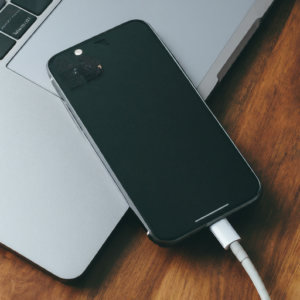 With a smartphone, clicking and transferring pictures is an easy task! Just keep clicking and when done transfer them to your computer. Only how to do it? Transferring pictures from a Smartphone to computer can be done in a number of ways . . . here are the most popular below.
Send As Multimedia Messaging Service (MMS)
Ever texted someone a picture? You just used MMS. Smartphones have an option to send images via MMS usually just by touching the image you wish to send and following some simple menu commands. To send the image to your computer, instead of filling the cell number, you will need to fill your Email in the send section. Once sent, you can login to your email and quickly download the photo, which comes as an attachment.
USB Cable Method
All Smartphones should come with an USB cable, which connects to any computer directly. If not you can call your cell phone provider and request a USB transfer cable. Your phone needs to be ON, when you plug the cable into your phone and computer. A new drive will come up (or populate in the “my computer” window of your PC where your other drives can be accessed), then search your phone for images right from your computer. You open the files in your phone, just like you would open a flash drive — two quick left clicks. Then drag and drop pictures wherever you store your photos on your computer.
Memory Card Method
Most smartphones have an internal memory card called a micro SD chip; check if your phone has one by removing the back cover and looking for a small chip with a memory designation such as “2gb” on it. If you need help you can visit your cell phone provider and they will help you for no charge. Pictures which you would like to transfer can be plugged directly into your computer usually SD to Micro SD adapter which can be purchased for about $10 almost anywhere with an electronics department.
Sync Method
Sync your phone and computer and the photographs will be automatically transferred to the computer. If you have syncing enabled on your phone once you plug your phone to your computer it will quickly prompt the computer to open the specific photo application that displays the pictures on the Smartphone. Select to upload photos and place them in your photo folder on your PC>
Bluetooth Method
Activate the Bluetooth of your Smartphone. It is usually found in Settings or Control. Ensure that Bluetooth is turned ON in your computer. Bluetooth settings are usually in the system tray of tiny icons in the bottom right hand corner of your taskbar. With Mac’s it is located on the upper toolbar, ride side. Open the pictures gallery in your Smartphone and select send or copy option. Next choose the Bluetooth option. After confirming that you intend to enable Bluetooth, you will find the menu usually pops up automatically. Click ‘look for devices’ and select your Computer name or ID from the list. A request will be immediately sent requesting communication from your computer and phone. Then simply then simply drag your pictures to the appropriate folder on your computer.


RSS Feed
