How to Keep Yourself Out of a Microsoft OneDrive Nightmare

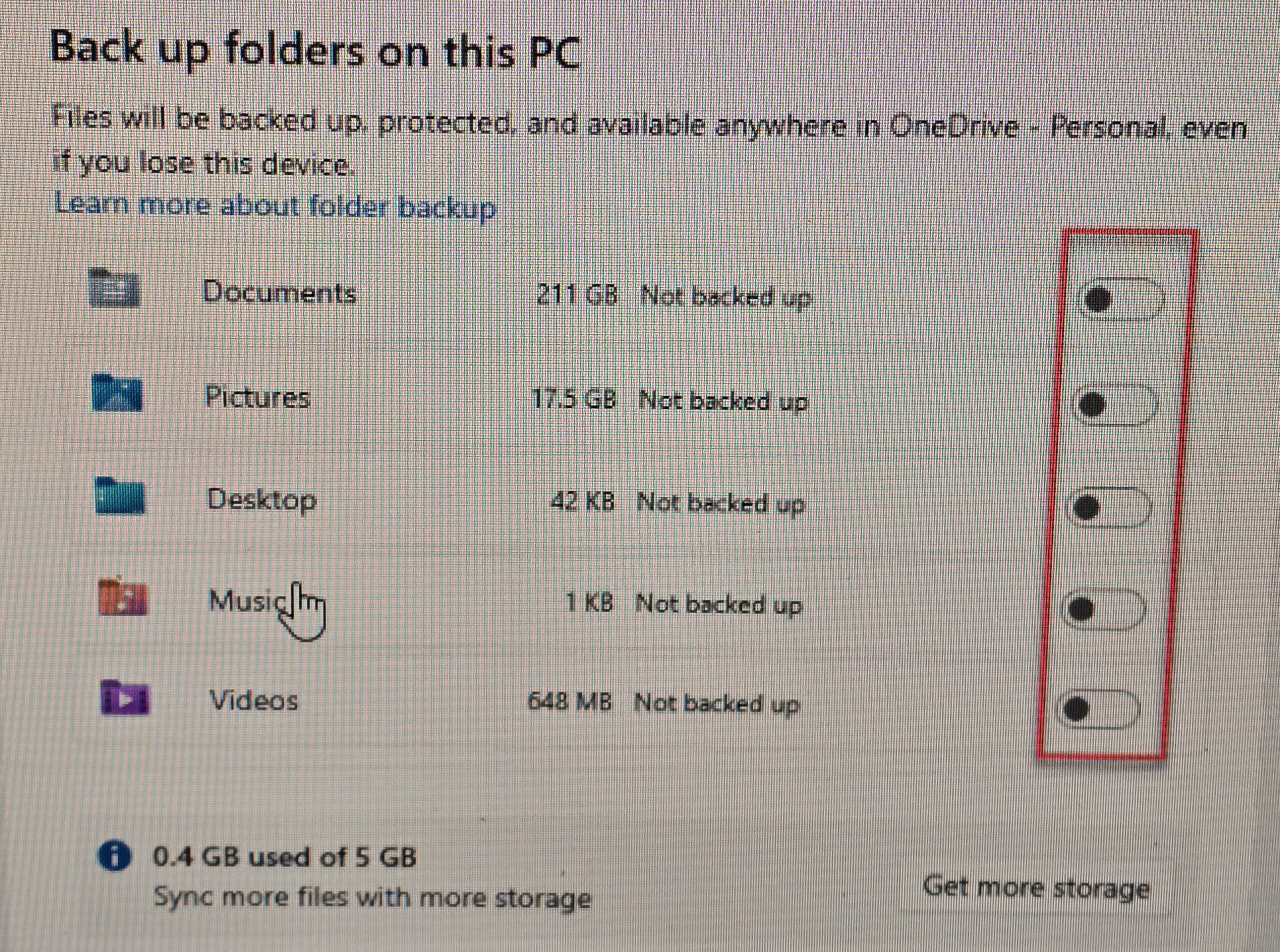
Every week I have multiple encounters with customers having Microsoft OneDrive problems. OneDrive is often presented as a safety feature, but many users discover it only after something has already gone wrong. Files seem to vanish, folders multiply, or a familiar Desktop suddenly looks completely different. In most cases, the problem isn’t user error — it’s that OneDrive was enabled quietly and began reorganizing files without the user fully realizing what was happening. It gets worse when “Backup” is turned on beccause if backup is ever turned off the files don’t return to their correct and normal location in Windows. They all remain in the OneDrive folder.
 
Sometime during a Windows setup, a Microsoft Office sign-in, or when a major Windows update occurs — OneDrive is accidentally configured. And this can cause a mess. And, lately, MS is more insistant about turning on backup prompts. OneDrive may automatically begin syncing the Desktop, Documents, and Pictures folders. From that point on, those folders are no longer just local. Files may live on the computer, in the cloud, or only online, and Windows does a poor job explaining which is which.
 
A file that looks like it’s been deleted may simply be in a different OneDrive folder. A folder that appears twice may actually be the result of OneDrive being turned on, off, and on again. Users often try to fix the situation by dragging files around or toggling OneDrive settings, which can make the mess worse.
 
Common Ways OneDrive Causes Problems
 
OneDrive issues tend to follow familiar patterns. Files appear to disappear even though they still exist somewhere. Duplicate folders with slightly different names show up. Syncing stops when storage fills up, sometimes without a clear warning. In multi-computer setups, a change made on one device instantly affects the others, including deletions.
 
It’s important to understand that OneDrive is a syncing service, not a backup. Syncing means everything stays the same everywhere — including mistakes. If a file is deleted or overwritten, that change is pushed to every connected device.
 
Why Updates Make Things Worse
 
Windows updates frequently prompt users to “finish setting up” their device. Clicking through those screens can re-enable OneDrive or folder syncing, even if it was previously disabled. The result can be a moved Desktop, missing icons, or files suddenly stored online instead of locally.
 
Because these changes happen in the background, users often don’t connect the update to the file problems until much later.
 
How to Avoid Getting Into Trouble
 
The safest approach is clarity and consistency. Either OneDrive is used intentionally and understood, or it’s turned off correctly. Many of the worst problems come from partial or accidental use.
 
If OneDrive is enabled, it’s important to know exactly which folders are being synced and how much storage is available. Relying on OneDrive alone for file protection is risky. A separate backup that keeps older versions of files is still necessary.
 
It’s also wise to slow down during Windows setup and update screens. These are the moments when OneDrive is most often reintroduced without clear explanation.
 
Small Businesses Should Be Especially Careful
 
In business environments, OneDrive problems can have larger consequences. Shared files, accounting data, and office systems don’t handle surprise syncing well. A single misconfiguration can overwrite important files or create conflicts that go unnoticed until work is disrupted.
 
If OneDrive is used in a business, it should be planned and documented, not enabled by default.
 
When to Stop and Reassess
 
If files are missing, duplicated, or behaving unpredictably, it’s often best to stop making changes and assess what OneDrive is actually doing before continuing. Randomly turning settings on and off can permanently overwrite newer data with older versions.
 
Most OneDrive nightmares aren’t caused by carelessness — they’re caused by software making decisions silently. Understanding that behavior, and deciding whether OneDrive truly fits your needs, is the key to keeping control of your files instead of chasing them.
 
Final Thoughts
 
Don’t use Microsoft One Drive and if it’s turned on and you’re not sure how remove it call a professional computer tech to remove it permanently.
 
[socialring]

HP Printer Issues in 2025: Lawsuits, Firmware Failures & Ongoing Consumer Headaches

HP computers are OK, but HP printers are not OK. HP is one of the most recognized printer brands in the world — but over the past few years I have been seeing more problems with HP printers and customers have been reporting growing problems that go beyond occasional paper jams or low ink warnings. From controversial firmware updates that allegedly brick printers to lawsuits over ink cartridge restrictions, HP printers have become the subject of significant scrutiny. Here’s a breakdown of what’s happening and why many HP owners are frustrated. I walked out of an on-site service call today due to a printer than would not work and had no solution. It was disabled due to the ink program problem.
 
1. Firmware Updates That Break Printers
 
One of the biggest sources of frustration has been a series of firmware updates pushed to HP printers that have caused devices to malfunction or stop recognizing cartridges entirely. In March 2025, HP released firmware version 20250209 for several LaserJet models (like the M232–M237 series). Users began reporting printers displaying Error Code 11 and refusing to print — even with genuine HP toner installed. HP acknowledged the issue and said it was working on a solution, but many owners were left without a functioning printer.
 
This isn’t an isolated incident — similar updates in past years have also been blamed for bricking printers. Such updates often install automatically, leaving users with little control over when or if they accept them.
 
2. Lawsuits Over Ink Cartridge Restrictions
 
A major root of the problems lies in what HP calls Dynamic Security — a firmware-level system that can prevent printers from working with non-HP ink or toner cartridges.
 
Because third-party ink is usually much cheaper than HP’s own cartridges, many consumers have used compatible cartridges to save money. But HP’s dynamic security system can suddenly block those cartridges from working — sometimes without clear warning.
 
Class Action
 
This practice has led to multiple legal challenges:
 
In January 2024, plaintiffs filed a class-action lawsuit alleging HP used firmware updates to force customers into buying only HP cartridges, effectively creating a monopoly and raising prices unfairly.
 
In late 2024 and early 2025, a separate class-action settlement was approved that didn’t award monetary damages but required HP to give users the option to decline firmware updates that include dynamic security features.
 
An ongoing antitrust case in Illinois is still challenging the practice and seeking stronger legal remedies.
 
ESA Blog
 
3. Instant Ink Subscription Complaints
 
Another area of controversy is HP’s Instant Ink program — a subscription service that automatically sends replacement cartridges when your printer reports low ink levels.
 
While the service sounds convenient in theory, many subscribers have complained that it fails to deliver ink on time, leaves them with printing errors, or even disables ink cartridges if the subscription is canceled.
 
Class Action
 
Even outside of lawsuits, online forums are full of stories from users who were suddenly unable to print after canceling Instant Ink or whose printer refused to recognize cartridges purchased separately.
 
4. Printers Going Offline Connectivity Issues
 
In addition to firmware and subscription problems, some users report HP printers becoming unusable when offline or disconnected from HP’s cloud servers. In certain cases, a loss of connectivity caused printers to lock up or refuse print jobs until they reconnected — a frustrating issue for small businesses or home users relying on dependable printing.
Reddit
 
HP’s increasing reliance on internet-connected features — like cloud services and mobile apps — means that losing a connection can sometimes render a printer just a paperweight until the link is restored.
 
So What’s Going On?
 
All of these issues stem from a few bigger trends:
 
More aggressive firmware control: HP’s updates are designed to protect security and HP’s business model, but many users see them as overly intrusive and harmful when they change printer behavior unexpectedly.

Subscription services becoming the norm: Like many tech companies, HP is pushing subscription models (Instant Ink) to generate recurring revenue — but execution has left many customers dissatisfied.

Legal pushback from consumers: As these practices have spread, legal action has followed — and while some settlements have forced clearer disclosures and options to decline updates, HP mostly hasn’t admitted wrongdoing or paid significant damages.
 
️Tips for HP Printer Owners (and Potential Buyers)
 
Don’t Buy HP Printers!
 
Final Thought
 
HP remains a major player in the printer market, but recent trends have made many customers wary. With class-action lawsuits, problematic firmware updates, and subscription controversies, HP’s printer business faces a serious public perception challenge. I think the only way answer to this right now is to NOT use HP Printers — no matter what.
 
[socialring]

The Ultimate Step-by-Step Guide to Upgrading to Windows 11

Upgrading to Windows 11 is an exciting opportunity to experience the latest features and improvements from Microsoft. Microsoft will stop supporting Windows 10 on October 14, 2025.. Follow this comprehensive guide to upgrade your PC safely and successfully, complete with illustrations for each step.
 
Step 1: Check System Requirements
 
Before upgrading, ensure your PC meets the minimum requirements for Windows 11.
1. Processor: 1 GHz or faster and Intel Core 8th gen or newer processor or AMD equivalent.
2. RAM: 4 GB or more.
3. Storage: 64 GB or more available space.
4. Graphics Card: Compatible with DirectX 12 or later with a WDDM 2.0 driver.
5. TPM: Version 2.0 enabled.
To check your system compatibility:
• Use the PC Health Check tool from Microsoft: Download it here.
Pro Tip: If your computer does not have an Intel 8th gen processor and an SSD you need to replace your equipment.
 
Step 2: Back Up Your Data
 
Ensure your data is safe before proceeding with the upgrade.
1. External Drive Backup:
o Connect an external hard drive.
o Open File Explorer, select important files, and copy them to the external drive.
2. Cloud Backup:
o Use services like OneDrive or Google Drive to upload critical files.
 
Step 3: Download Windows 11
 
Visit Microsoft’s official website to download the upgrade files using the Microsoft Creator Tool. It’s easy to use you can put Windows 11 on a clean flash drive of 8GB or more.
1. Go to the Windows 11 download page.
2. Click Download Now for the Microsoft Creator Tool.
3. Run the Installation Assistant and follow the prompts.
 
Step 4: Perform a Clean Install
 
A clean install involves booting your PC from the USB drive and performing a fresh installation of Windows 11.
1. Insert the bootable USB drive into your PC.
2. Restart your PC and enter the boot menu (usually by pressing F12, F2, or Esc during startup; refer to your manufacturer’s guide).
3. Select the USB drive from the boot options.
4. When the Windows Setup screen appears:
o Select your language, time, and keyboard preferences, then click Next.
o Click Install Now.
5. On the “Activate Windows” screen, enter your product key or click “I don’t have a product key” to proceed (if you’re reinstalling).
6. Select Custom: Install Windows only (advanced).
7. Delete existing partitions:
o Select each partition and click Delete to remove them. Ensure you’ve backed up all important data before proceeding.
o Select the unallocated space and click Next to install Windows 11.
8. The installation process will begin. Your PC may restart multiple times; ensure it remains plugged in.
 
Step 5: Complete the Setup
 
Once the installation is complete:
1. Follow on-screen prompts to set up preferences like language, time zone, and privacy settings.
2. Sign in with your Microsoft account.
 
Step 6: Verify and Enjoy
 
After setup, ensure everything is running smoothly:
1. Check for updates:
o Go to Settings > Update & Security > Windows Update.
o Click Check for Updates to install the latest patches.
2. Explore new features like Snap Layouts, Widgets, and the redesigned Start menu.
 
Congratulations! You’ve successfully upgraded to Windows 11. If you encounter any difficulties, feel free to reach out to On-Site Louisville Computer Repair Company for expert assistance.
 
[socialring]

Do I Really Need a New PC for Windows 11?

Microsoft’s Windows 11 has been making waves since its release, offering a sleek new design, enhanced security, and productivity features tailored to modern users. However, the big question on everyone’s mind is: do you need to buy a new PC to use Windows 11? While some users may find their current machines up to the task, others might face the reality of upgrading. Let’s break it down.
 
Understanding Windows 11’s System Requirements
 
Before jumping to conclusions, it’s essential to understand what Windows 11 demands from your hardware. Key requirements include:
 
Processor: 1 GHz or faster with at least 2 cores on a compatible 64-bit processor or System on a Chip (SoC).

RAM: 4 GB or more.

Storage: 64 GB or more.

System Firmware: UEFI, Secure Boot capable.

TPM: Trusted Platform Module (TPM) version 2.0.

Graphics Card: DirectX 12 compatible with WDDM 2.0 driver.

Display: High-definition (720p) display greater than 9″ diagonally with 8 bits per color channel.

While many modern PCs meet these requirements, older systems, especially those lacking TPM 2.0 or Secure Boot, might not be compatible.
 
How to Check Your PC’s Compatibility
 
The easiest way to determine if your PC can run Windows 11 is by using Microsoft’s PC Health Check Tool. This free utility scans your system and provides a compatibility report. If your PC doesn’t meet the requirements, it will indicate which components fall short.
 
Upgrading Your Existing PC vs. Buying a New One
 
If your current PC doesn’t pass the compatibility test, you have two main options: upgrading certain components or purchasing a new machine. Here’s how to decide:
 
Option 1: Upgrade Your Existing PC
 
For Windows 11, the most critical factors are your processor, RAM, and storage. To meet the requirements, your PC must have an 8th generation Intel processor or equivalent AMD processor or newer. If your processor is older, upgrading is typically not practical, as it would require a new motherboard and potentially other components.
 
Additionally, ensure your PC has at least 8 GB of RAM and an SSD (Solid State Drive). While RAM upgrades are relatively straightforward, if your system lacks an SSD, switching from a traditional hard drive can dramatically improve performance. Without these hardware basics, upgrading your existing PC may not be worth the effort or cost.
 
Option 2: Buy a New PC
 
If your PC is several years old or doesn’t support critical features like TPM 2.0 or a modern processor, it might be time to invest in a new machine. While this can be a significant upfront expense, a modern PC offers:
 
Enhanced security features.

Better performance and energy efficiency.

Compatibility with the latest software and hardware.
 
Factors to Consider Before Buying
 
If you decide on a new PC, think about the following:

Purpose: Are you a casual user, gamer, or professional? Choose a machine that suits your needs.

Budget: There are options for every price range, from budget-friendly laptops to high-performance desktops.

Longevity: Investing in a slightly more powerful machine can ensure it stays relevant longer.
 
Staying on Windows 10: A Viable Option?
 
If your current PC can’t run Windows 11 and upgrading or replacing it isn’t feasible, you can stick with Windows 10—for now. Microsoft has committed to supporting Windows 10 with updates and security patches until October 14, 2025. This gives you time to plan your next steps without compromising security.

The Benefits of a Wired Ethernet Connection

In today’s wireless world, it’s easy to overlook the advantages of a good old-fashioned wired Ethernet connection. While Wi-Fi is convenient, there are many situations where Ethernet reigns supreme. I know at my home I have 1000MPBS internet service through Spectrum. On the devices that I connect to wi-fi (laptop, phone, alarm, cameras, smart lights, etc.) I get an average speed of about 400 MBPS down. On my wired ethernet connect that number is about 950 MPBS. So . . .whether you’re working from home, gaming, streaming, or simply looking for the most reliable internet connection, Ethernet offers distinct benefits that can enhance your digital experience.
 
1. Unmatched Speed
Ethernet connections typically offer higher and more consistent speeds compared to Wi-Fi. While modern Wi-Fi standards like Wi-Fi 6 and Wi-Fi 7 are closing the gap, they still struggle with interference and range issues that can reduce real-world performance and cause “drops” and intermittence.
For tasks like:
• Large File Transfers
• High-Resolution Video Streaming (4K or 8K)
• Online Gaming
A wired connection ensures you’re getting the maximum speed your internet provider offers.
 
2. Superior Stability
One of the biggest drawbacks of Wi-Fi is its susceptibility to interference. Signals can be disrupted by walls, electronic devices, and even other Wi-Fi networks in densely populated areas. Ethernet, on the other hand, delivers a direct, uninterrupted connection. This is crucial for:
• Video Calls: No more awkward freezes during meetings.
• Cloud Workflows: Reliable uploads and downloads without drops.
 
3. Low Latency
Latency, or “ping,” is the time it takes for data to travel from your device to its destination and back. While Wi-Fi latency has improved, Ethernet is still the gold standard for minimal lag, making it ideal for:
• Online Gamers who need split-second responses.
• Live Streaming Creators who demand real-time performance.
 
4. Enhanced Security
Ethernet connections offer an added layer of security simply because they are physically tethered. With Wi-Fi, your data is broadcast and susceptible to interception if proper security protocols (like WPA3) aren’t enabled. Ethernet is great for:
• Sensitive Data Work: Finance, legal, or health sectors.
• Home Office Networks: Reduce risk when handling confidential work files.
 
5. No Signal Dead Zones
Even with a robust Wi-Fi network, certain areas of your home may experience weak or no signal. Ethernet eliminates this issue entirely, allowing you to:
• Extend your network to hard-to-reach rooms using Ethernet cable runs.
• Create stable connections for smart TVs, gaming consoles, or desktop PCs in any location.
 
6. Supports High-Bandwidth Devices
Devices like gaming PCs, 4K TVs, and NAS (Network-Attached Storage) servers demand a lot of bandwidth. While Wi-Fi can support these devices, Ethernet ensures they perform at their peak without bogging down the network for other users.
 
7. Future-Proof Your Home Network
Modern Ethernet cables, like Cat 6 or Cat 6a, can handle gigabit and even multi-gigabit speeds, making them a great investment for future internet upgrades. As internet service providers (ISPs) continue to offer faster speeds, having a wired setup ensures you can fully utilize those advancements.
 
Conclusion
While Wi-Fi remains a convenient and versatile option for most households, a wired Ethernet connection provides unparalleled speed, stability, and security. Whether you’re setting up a dedicated workspace, building a home entertainment system, or enhancing your gaming setup, Ethernet is a worthwhile addition to your home network.
 
At On-Site Louisville Computer Repair Co., we specialize in setting up wired Ethernet connections for homes and businesses in Louisville, KY, and the surrounding areas. We can do low voltage wiring for new construction or existing structures. Contact us today to learn more about how we can optimize your home network for maximum performance!
[socialring]

© 2026 All rights reserved. On-Site Louisville Computer Repair Co. | Follow us on: Google Maps | Facebook | Twitter | YouTube | LinkedIn