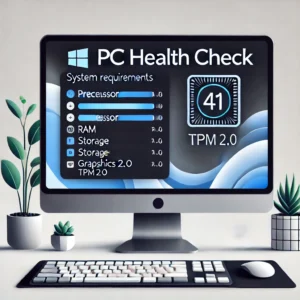
 Upgrading to Windows 11 is an exciting opportunity to experience the latest features and improvements from Microsoft. Microsoft will stop supporting Windows 10 on October 14, 2025.. Follow this comprehensive guide to upgrade your PC safely and successfully, complete with illustrations for each step.
Step 1: Check System Requirements
Before upgrading, ensure your PC meets the minimum requirements for Windows 11.
1. Processor: 1 GHz or faster and Intel Core 8th gen or newer processor or AMD equivalent.
2. RAM: 4 GB or more.
3. Storage: 64 GB or more available space.
4. Graphics Card: Compatible with DirectX 12 or later with a WDDM 2.0 driver.
5. TPM: Version 2.0 enabled.
To check your system compatibility:
• Use the PC Health Check tool from Microsoft: Download it here.
Pro Tip: If your computer does not have an Intel 8th gen processor and an SSD you need to replace your equipment.
Step 2: Back Up Your Data
Ensure your data is safe before proceeding with the upgrade.
1. External Drive Backup:
o Connect an external hard drive.
o Open File Explorer, select important files, and copy them to the external drive.
2. Cloud Backup:
o Use services like OneDrive or Google Drive to upload critical files.
Step 3: Download Windows 11
Visit Microsoft’s official website to download the upgrade files using the Microsoft Creator Tool. It’s easy to use you can put Windows 11 on a clean flash drive of 8GB or more.
1. Go to the Windows 11 download page.
2. Click Download Now for the Microsoft Creator Tool.
3. Run the Installation Assistant and follow the prompts.
Step 4: Perform a Clean Install
A clean install involves booting your PC from the USB drive and performing a fresh installation of Windows 11.
1. Insert the bootable USB drive into your PC.
2. Restart your PC and enter the boot menu (usually by pressing F12, F2, or Esc during startup; refer to your manufacturer’s guide).
3. Select the USB drive from the boot options.
4. When the Windows Setup screen appears:
o Select your language, time, and keyboard preferences, then click Next.
o Click Install Now.
5. On the “Activate Windows” screen, enter your product key or click “I don’t have a product key” to proceed (if you’re reinstalling).
6. Select Custom: Install Windows only (advanced).
7. Delete existing partitions:
o Select each partition and click Delete to remove them. Ensure you’ve backed up all important data before proceeding.
o Select the unallocated space and click Next to install Windows 11.
8. The installation process will begin. Your PC may restart multiple times; ensure it remains plugged in.
Step 5: Complete the Setup
Once the installation is complete:
1. Follow on-screen prompts to set up preferences like language, time zone, and privacy settings.
2. Sign in with your Microsoft account.
Step 6: Verify and Enjoy
After setup, ensure everything is running smoothly:
1. Check for updates:
o Go to Settings > Update & Security > Windows Update.
o Click Check for Updates to install the latest patches.
2. Explore new features like Snap Layouts, Widgets, and the redesigned Start menu.
Congratulations! You’ve successfully upgraded to Windows 11. If you encounter any difficulties, feel free to reach out to On-Site Louisville Computer Repair Company for expert assistance.

Monthly Archives: January 2025
Do I Really Need a New PC for Windows 11?
Microsoft’s Windows 11 has been making waves since its release, offering a sleek new design, enhanced security, and productivity features tailored to modern users. However, the big question on everyone’s mind is: do you need to buy a new PC to use Windows 11? While some users may find their current machines up to the task, others might face the reality of upgrading. Let’s break it down.
Understanding Windows 11’s System Requirements
Before jumping to conclusions, it’s essential to understand what Windows 11 demands from your hardware. Key requirements include:
Processor: 1 GHz or faster with at least 2 cores on a compatible 64-bit processor or System on a Chip (SoC).
RAM: 4 GB or more.
Storage: 64 GB or more.
System Firmware: UEFI, Secure Boot capable.
TPM: Trusted Platform Module (TPM) version 2.0.
Graphics Card: DirectX 12 compatible with WDDM 2.0 driver.
Display: High-definition (720p) display greater than 9″ diagonally with 8 bits per color channel.
While many modern PCs meet these requirements, older systems, especially those lacking TPM 2.0 or Secure Boot, might not be compatible.
How to Check Your PC’s Compatibility
The easiest way to determine if your PC can run Windows 11 is by using Microsoft’s PC Health Check Tool. This free utility scans your system and provides a compatibility report. If your PC doesn’t meet the requirements, it will indicate which components fall short.
Upgrading Your Existing PC vs. Buying a New One
If your current PC doesn’t pass the compatibility test, you have two main options: upgrading certain components or purchasing a new machine. Here’s how to decide:
Option 1: Upgrade Your Existing PC
For Windows 11, the most critical factors are your processor, RAM, and storage. To meet the requirements, your PC must have an 8th generation Intel processor or equivalent AMD processor or newer. If your processor is older, upgrading is typically not practical, as it would require a new motherboard and potentially other components.
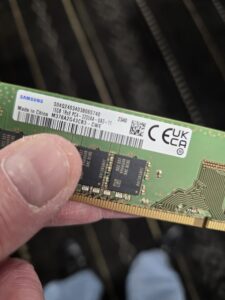
Additionally, ensure your PC has at least 8 GB of RAM and an SSD (Solid State Drive). While RAM upgrades are relatively straightforward, if your system lacks an SSD, switching from a traditional hard drive can dramatically improve performance. Without these hardware basics, upgrading your existing PC may not be worth the effort or cost.
Option 2: Buy a New PC
If your PC is several years old or doesn’t support critical features like TPM 2.0 or a modern processor, it might be time to invest in a new machine. While this can be a significant upfront expense, a modern PC offers:
Enhanced security features.
Better performance and energy efficiency.
Compatibility with the latest software and hardware.
Factors to Consider Before Buying
If you decide on a new PC, think about the following:
Purpose: Are you a casual user, gamer, or professional? Choose a machine that suits your needs.
Budget: There are options for every price range, from budget-friendly laptops to high-performance desktops.
Longevity: Investing in a slightly more powerful machine can ensure it stays relevant longer.
Staying on Windows 10: A Viable Option?
If your current PC can’t run Windows 11 and upgrading or replacing it isn’t feasible, you can stick with Windows 10—for now. Microsoft has committed to supporting Windows 10 with updates and security patches until October 14, 2025. This gives you time to plan your next steps without compromising security.
RSS Feed
