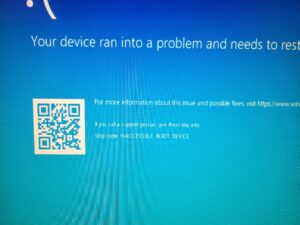
 If you’ve ever booted up your computer and faced a blue screen, you know the feeling that results. Sometimes this is called the Blue Screen of Death (BSOD). Many computer users at some point have experienced it. Will your computer ever boot up properly again? These panicked thoughts are all too common. In fact, not too long ago MY computer blue-screened.
The BSOD has been a feature of all Windows-based operating systems since Windows 3.1. Software developers invented the term ‘blue screen of death’ to accommodate the color of the screen and the finality of the situation . . . but only the situation, not the computer. It refers to the “death of your computer processes” not the “death of your computer.” And, this is almost always the case. Your computer is still alive. A process is dead which can be caused by either hardware or software.
The Blue Screen of Death is more formally and accurately referred to as a STOP error. It’s an error serious enough to ‘stop’ the computer’s processes. Troubleshooting is challenging, since a STOP error requires a restart. It is often necessary to seek out the help of a qualified computer repair shop to assist you in troubleshooting the error. File issues can cause these errors, but hardware problems are also common. These can include a faulty power supply, physical memory issues, and overheating. The causes can be wide-ranging. This is part of the challenge to finding a solution.
In most cases, a STOP error provides an error code. This is the key to rectifying the issue. Unfortunately, some error codes are more difficult to manage than others.
Three of the most common blue screen error codes:
-
- UNMOUNTABLE_BOOT_DEVICE: A corrupt of missing low-level system file is the most common cause for this error message. The issue can be related to a physical failure in the drive, though the problem is most commonly associated with file corruption.
- UNMOUNTABLE_BOOT_DEVICE: A corrupt of missing low-level system file is the most common cause for this error message. The issue can be related to a physical failure in the drive, though the problem is most commonly associated with file corruption.
-
- PAGE_FAULT_IN_NON_PAGE_AREA: This is one of the less descript error messages. This category of error is very general and can be related to numerous types of errors. The full error code can be useful to narrowing down the problem. Troubleshooting this type error can be especially challenging. Chasing down these error codes can be analogous to going down a rabbit hole. Although often the problem can be RAM memory (short term memory). You can check this by removing one RAM memory stick at a time and seeing if this solves the problem. Just make sure your machine is off and unplugged when you remove or install RAM.
- PAGE_FAULT_IN_NON_PAGE_AREA: This is one of the less descript error messages. This category of error is very general and can be related to numerous types of errors. The full error code can be useful to narrowing down the problem. Troubleshooting this type error can be especially challenging. Chasing down these error codes can be analogous to going down a rabbit hole. Although often the problem can be RAM memory (short term memory). You can check this by removing one RAM memory stick at a time and seeing if this solves the problem. Just make sure your machine is off and unplugged when you remove or install RAM.
-
- DRIVER_IRQ_NOT_LESS_THAN_OR_EQUAL_TO: A device driver can be the cause. Usually a forced Windows update can fix driver problems somewhat naturally. This can also be a ram or drive failure.
- DRIVER_IRQ_NOT_LESS_THAN_OR_EQUAL_TO: A device driver can be the cause. Usually a forced Windows update can fix driver problems somewhat naturally. This can also be a ram or drive failure.
-
- CRITICAL_PROCESS_DIED: This error has become increasingly common in modern systems, especially with Windows 10 and Windows 11. It indicates that a critical system process has unexpectedly stopped. This is often caused by corrupted system files, failed updates, or conflicts with antivirus or security software. In many cases, running system file checks or performing a startup repair or a clean OS install can solve the problem. If after a clean OS install you still have the message — it’s hardware.
- CRITICAL_PROCESS_DIED: This error has become increasingly common in modern systems, especially with Windows 10 and Windows 11. It indicates that a critical system process has unexpectedly stopped. This is often caused by corrupted system files, failed updates, or conflicts with antivirus or security software. In many cases, running system file checks or performing a startup repair or a clean OS install can solve the problem. If after a clean OS install you still have the message — it’s hardware.
- DPC_WATCHDOG_VIOLATION: Frequently seen on newer machines using SSDs, this error typically points to driver or firmware issues—especially with storage controllers or outdated drivers. It can also occur after major Windows updates. Updating drivers, SSD firmware, or BIOS/UEFI settings is often required to fix the problem.
Depending on the operating system, a blue screen error consists of a hexadecimal error number, the name of the error in CAPS, and four parameters that can assist the computer technician in identifying and fixing the error. It might also include the address where the error occurred. Be sure to record the error messages; they can be instrumental in finding the right solution.
In most cases, a blue screen error code is not the end of your computer or your data. An experienced error code troubleshooter can, in most cases, solve the problem without a loss of data or computer functionality.
If you find yourself faced with a blue screen, there’s probably no reason to panic. Your local computer expert can probably find the solution quickly and effectively.
In 2026, blue screen errors still occur, but they’ve evolved. Modern systems like Windows 10 and Windows 11 now display more user-friendly crash screens, often including a QR code and clearer messaging. These improvements can help users quickly look up solutions or provide better information to a technician. Additionally, with the rise of SSDs and improved system protections, many crashes today are more commonly linked to driver conflicts, failed updates, or security software issues rather than traditional hard drive failures.
Another important 2026 trend is the increase in blue screens caused by updates and firmware-level issues, especially with newer hardware and BIOS/UEFI changes. We are also seeing more cases tied to corrupted updates, GPU driver instability, and even third-party security tools conflicting with system processes. The good news is that recovery tools have improved significantly—features like automatic repair, system restore, and cloud-based reinstall options make it easier than ever to recover a system without losing data.
For more information on computer repair related topics or information on computer repair in Louisville, Kentucky visit the company website here.