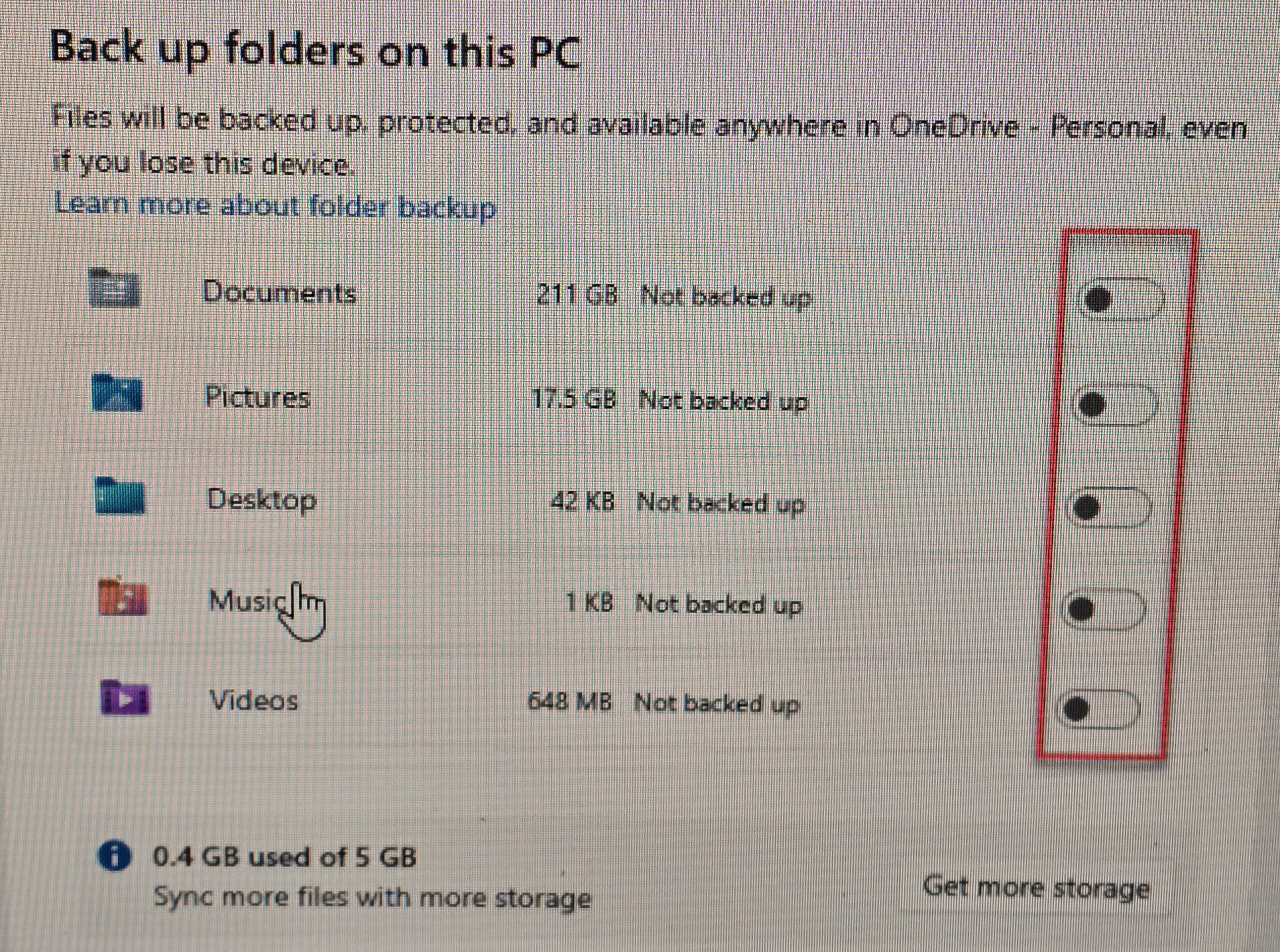
 Every week I have multiple encounters with customers having Microsoft OneDrive problems. OneDrive is often presented as a safety feature, but many users discover it only after something has already gone wrong. Files seem to vanish, folders multiply, or a familiar Desktop suddenly looks completely different. In most cases, the problem isn’t user error — it’s that OneDrive was enabled quietly and began reorganizing files without the user fully realizing what was happening. It gets worse when “Backup” is turned on beccause if backup is ever turned off the files don’t return to their correct and normal location in Windows. They all remain in the OneDrive folder.
Sometime during a Windows setup, a Microsoft Office sign-in, or when a major Windows update occurs — OneDrive is accidentally configured. And this can cause a mess. And, lately, MS is more insistant about turning on backup prompts. OneDrive may automatically begin syncing the Desktop, Documents, and Pictures folders. From that point on, those folders are no longer just local. Files may live on the computer, in the cloud, or only online, and Windows does a poor job explaining which is which.
A file that looks like it’s been deleted may simply be in a different OneDrive folder. A folder that appears twice may actually be the result of OneDrive being turned on, off, and on again. Users often try to fix the situation by dragging files around or toggling OneDrive settings, which can make the mess worse.
Common Ways OneDrive Causes Problems
OneDrive issues tend to follow familiar patterns. Files appear to disappear even though they still exist somewhere. Duplicate folders with slightly different names show up. Syncing stops when storage fills up, sometimes without a clear warning. In multi-computer setups, a change made on one device instantly affects the others, including deletions.
It’s important to understand that OneDrive is a syncing service, not a backup. Syncing means everything stays the same everywhere — including mistakes. If a file is deleted or overwritten, that change is pushed to every connected device.
Why Updates Make Things Worse
Windows updates frequently prompt users to “finish setting up” their device. Clicking through those screens can re-enable OneDrive or folder syncing, even if it was previously disabled. The result can be a moved Desktop, missing icons, or files suddenly stored online instead of locally.
Because these changes happen in the background, users often don’t connect the update to the file problems until much later.
How to Avoid Getting Into Trouble
The safest approach is clarity and consistency. Either OneDrive is used intentionally and understood, or it’s turned off correctly. Many of the worst problems come from partial or accidental use.
If OneDrive is enabled, it’s important to know exactly which folders are being synced and how much storage is available. Relying on OneDrive alone for file protection is risky. A separate backup that keeps older versions of files is still necessary.
It’s also wise to slow down during Windows setup and update screens. These are the moments when OneDrive is most often reintroduced without clear explanation.
Small Businesses Should Be Especially Careful
In business environments, OneDrive problems can have larger consequences. Shared files, accounting data, and office systems don’t handle surprise syncing well. A single misconfiguration can overwrite important files or create conflicts that go unnoticed until work is disrupted.
If OneDrive is used in a business, it should be planned and documented, not enabled by default.
When to Stop and Reassess
If files are missing, duplicated, or behaving unpredictably, it’s often best to stop making changes and assess what OneDrive is actually doing before continuing. Randomly turning settings on and off can permanently overwrite newer data with older versions.
Most OneDrive nightmares aren’t caused by carelessness — they’re caused by software making decisions silently. Understanding that behavior, and deciding whether OneDrive truly fits your needs, is the key to keeping control of your files instead of chasing them.
Final Thoughts
Don’t use Microsoft One Drive and if it’s turned on and you’re not sure how remove it call a professional computer tech to remove it permanently.

Monthly Archives: December 2025
HP Printer Issues in 2025: Lawsuits, Firmware Failures & Ongoing Consumer Headaches
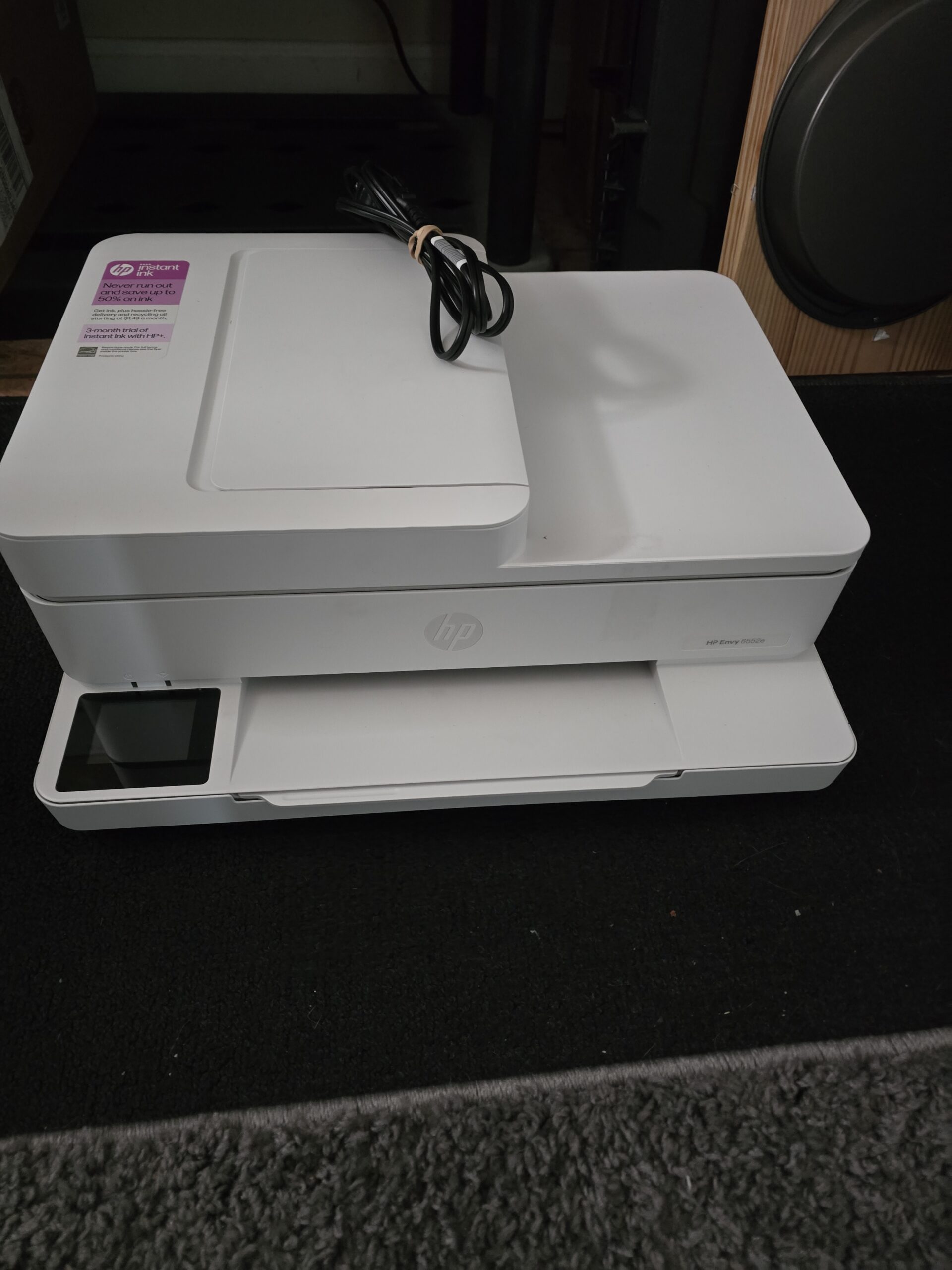 HP computers are OK, but HP printers are not OK. HP is one of the most recognized printer brands in the world — but over the past few years I have been seeing more problems with HP printers and customers have been reporting growing problems that go beyond occasional paper jams or low ink warnings. From controversial firmware updates that allegedly brick printers to lawsuits over ink cartridge restrictions, HP printers have become the subject of significant scrutiny. Here’s a breakdown of what’s happening and why many HP owners are frustrated. I walked out of an on-site service call today due to a printer than would not work and had no solution. It was disabled due to the ink program problem.
1. Firmware Updates That Break Printers
One of the biggest sources of frustration has been a series of firmware updates pushed to HP printers that have caused devices to malfunction or stop recognizing cartridges entirely. In March 2025, HP released firmware version 20250209 for several LaserJet models (like the M232–M237 series). Users began reporting printers displaying Error Code 11 and refusing to print — even with genuine HP toner installed. HP acknowledged the issue and said it was working on a solution, but many owners were left without a functioning printer.
This isn’t an isolated incident — similar updates in past years have also been blamed for bricking printers. Such updates often install automatically, leaving users with little control over when or if they accept them.
2. Lawsuits Over Ink Cartridge Restrictions
A major root of the problems lies in what HP calls Dynamic Security — a firmware-level system that can prevent printers from working with non-HP ink or toner cartridges.
Because third-party ink is usually much cheaper than HP’s own cartridges, many consumers have used compatible cartridges to save money. But HP’s dynamic security system can suddenly block those cartridges from working — sometimes without clear warning.
Class Action
This practice has led to multiple legal challenges:
In January 2024, plaintiffs filed a class-action lawsuit alleging HP used firmware updates to force customers into buying only HP cartridges, effectively creating a monopoly and raising prices unfairly.
In late 2024 and early 2025, a separate class-action settlement was approved that didn’t award monetary damages but required HP to give users the option to decline firmware updates that include dynamic security features.
An ongoing antitrust case in Illinois is still challenging the practice and seeking stronger legal remedies.
ESA Blog
3. Instant Ink Subscription Complaints
Another area of controversy is HP’s Instant Ink program — a subscription service that automatically sends replacement cartridges when your printer reports low ink levels.
While the service sounds convenient in theory, many subscribers have complained that it fails to deliver ink on time, leaves them with printing errors, or even disables ink cartridges if the subscription is canceled.
Class Action
Even outside of lawsuits, online forums are full of stories from users who were suddenly unable to print after canceling Instant Ink or whose printer refused to recognize cartridges purchased separately.
4. Printers Going Offline Connectivity Issues
In addition to firmware and subscription problems, some users report HP printers becoming unusable when offline or disconnected from HP’s cloud servers. In certain cases, a loss of connectivity caused printers to lock up or refuse print jobs until they reconnected — a frustrating issue for small businesses or home users relying on dependable printing.
Reddit
HP’s increasing reliance on internet-connected features — like cloud services and mobile apps — means that losing a connection can sometimes render a printer just a paperweight until the link is restored.
So What’s Going On?
All of these issues stem from a few bigger trends:
More aggressive firmware control: HP’s updates are designed to protect security and HP’s business model, but many users see them as overly intrusive and harmful when they change printer behavior unexpectedly.
Subscription services becoming the norm: Like many tech companies, HP is pushing subscription models (Instant Ink) to generate recurring revenue — but execution has left many customers dissatisfied.
Legal pushback from consumers: As these practices have spread, legal action has followed — and while some settlements have forced clearer disclosures and options to decline updates, HP mostly hasn’t admitted wrongdoing or paid significant damages.
️Tips for HP Printer Owners (and Potential Buyers)
Don’t Buy HP Printers!
Final Thought
HP remains a major player in the printer market, but recent trends have made many customers wary. With class-action lawsuits, problematic firmware updates, and subscription controversies, HP’s printer business faces a serious public perception challenge. I think the only way answer to this right now is to NOT use HP Printers — no matter what.
RSS Feed
