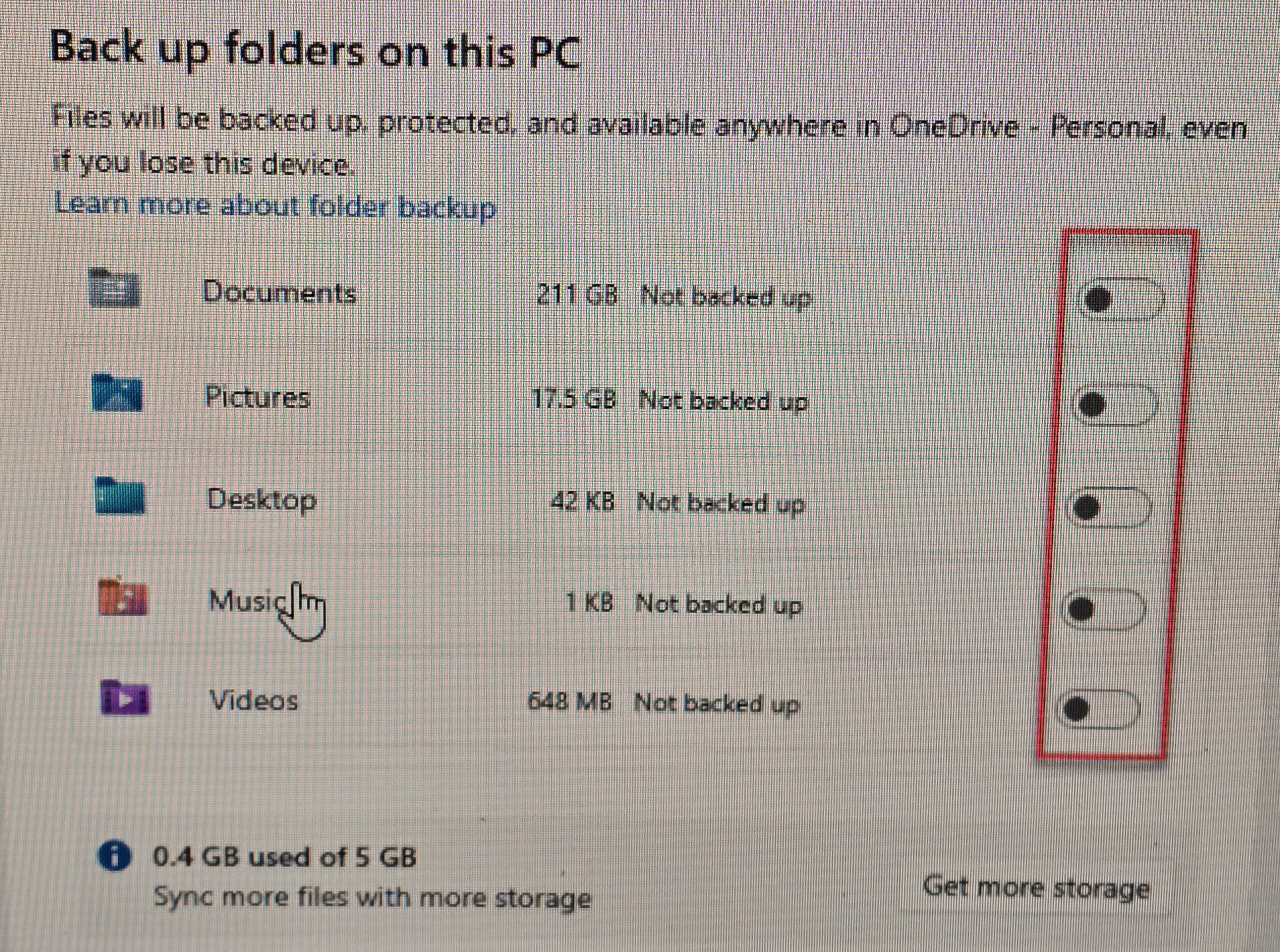
 Every week I have multiple encounters with customers having Microsoft OneDrive problems. OneDrive is often presented as a safety feature, but many users discover it only after something has already gone wrong. Files seem to vanish, folders multiply, or a familiar Desktop suddenly looks completely different. In most cases, the problem isn’t user error — it’s that OneDrive was enabled quietly and began reorganizing files without the user fully realizing what was happening. It gets worse when “Backup” is turned on beccause if backup is ever turned off the files don’t return to their correct and normal location in Windows. They all remain in the OneDrive folder.
Sometime during a Windows setup, a Microsoft Office sign-in, or when a major Windows update occurs — OneDrive is accidentally configured. And this can cause a mess. And, lately, MS is more insistant about turning on backup prompts. OneDrive may automatically begin syncing the Desktop, Documents, and Pictures folders. From that point on, those folders are no longer just local. Files may live on the computer, in the cloud, or only online, and Windows does a poor job explaining which is which.
A file that looks like it’s been deleted may simply be in a different OneDrive folder. A folder that appears twice may actually be the result of OneDrive being turned on, off, and on again. Users often try to fix the situation by dragging files around or toggling OneDrive settings, which can make the mess worse.
Common Ways OneDrive Causes Problems
OneDrive issues tend to follow familiar patterns. Files appear to disappear even though they still exist somewhere. Duplicate folders with slightly different names show up. Syncing stops when storage fills up, sometimes without a clear warning. In multi-computer setups, a change made on one device instantly affects the others, including deletions.
It’s important to understand that OneDrive is a syncing service, not a backup. Syncing means everything stays the same everywhere — including mistakes. If a file is deleted or overwritten, that change is pushed to every connected device.
Why Updates Make Things Worse
Windows updates frequently prompt users to “finish setting up” their device. Clicking through those screens can re-enable OneDrive or folder syncing, even if it was previously disabled. The result can be a moved Desktop, missing icons, or files suddenly stored online instead of locally.
Because these changes happen in the background, users often don’t connect the update to the file problems until much later.
How to Avoid Getting Into Trouble
The safest approach is clarity and consistency. Either OneDrive is used intentionally and understood, or it’s turned off correctly. Many of the worst problems come from partial or accidental use.
If OneDrive is enabled, it’s important to know exactly which folders are being synced and how much storage is available. Relying on OneDrive alone for file protection is risky. A separate backup that keeps older versions of files is still necessary.
It’s also wise to slow down during Windows setup and update screens. These are the moments when OneDrive is most often reintroduced without clear explanation.
Small Businesses Should Be Especially Careful
In business environments, OneDrive problems can have larger consequences. Shared files, accounting data, and office systems don’t handle surprise syncing well. A single misconfiguration can overwrite important files or create conflicts that go unnoticed until work is disrupted.
If OneDrive is used in a business, it should be planned and documented, not enabled by default.
When to Stop and Reassess
If files are missing, duplicated, or behaving unpredictably, it’s often best to stop making changes and assess what OneDrive is actually doing before continuing. Randomly turning settings on and off can permanently overwrite newer data with older versions.
Most OneDrive nightmares aren’t caused by carelessness — they’re caused by software making decisions silently. Understanding that behavior, and deciding whether OneDrive truly fits your needs, is the key to keeping control of your files instead of chasing them.
Final Thoughts
Don’t use Microsoft One Drive and if it’s turned on and you’re not sure how remove it call a professional computer tech to remove it permanently.

RSS Feed
