 Purchasing a new laptop is a significant investment, and with the plethora of options available today, it can be overwhelming to make the right choice. At On-Site Louisville Computer Repair Co., we understand the nuances involved in choosing the perfect laptop that meets your needs. Here’s a detailed guide to help you navigate the essential factors to consider when buying a new laptop.
1. Purpose and Usage
Determine Your Primary Use:
General Use: Browsing, streaming, and basic office tasks.
Professional Use: Graphic design, video editing, software development.
Gaming: High-performance needs for modern games.
Portability: Frequent travel or need for a lightweight device.
Knowing your primary usage helps narrow down your options significantly.
2. Screen Size and Resolution
Screen Size:
11-13 inches: Highly portable, great for travel and basic tasks.
14-16 inches: Balanced between portability and usability, suitable for most users.
17 inches: Desktop replacement, excellent for gaming and professional use.
Resolution:
HD (1366×768): Basic, suitable for general use.
Full HD (1920×1080): Standard for most users, good for entertainment and work.
4K (3840×2160): High-end, best for professionals needing detailed visuals.
3. Processor (CPU)
Intel vs. AMD:
Intel: Widely used, offers a range of processors from budget (i3) to high-performance (i7, i9).
AMD: Competitive with Intel, known for their Ryzen series offering excellent performance, especially for multitasking and gaming.
Performance Tiers:
Entry-level: Intel i3, AMD Ryzen 3 – Suitable for basic tasks.
Mid-range: Intel i5, AMD Ryzen 5 – Good for everyday use and moderate multitasking.
High-end: Intel i7/i9, AMD Ryzen 7/9 – Ideal for demanding applications and gaming.
4. Memory (RAM)
RAM Size:
4GB: Minimum for basic use.
8GB: Standard for most users, sufficient for multitasking and moderate use.
16GB: Ideal for heavy multitasking, gaming, and professional applications.
32GB and above: For high-end professional use, like video editing and 3D rendering.
5. Storage
Types of Storage:
HDD (Hard Disk Drive): Larger storage capacity, slower performance.
SSD (Solid State Drive): Faster performance, quicker boot times, lower capacity compared to HDD.
Storage Capacity:
256GB SSD: Minimum recommended for operating system and basic software.
512GB SSD: Standard for most users, offering a balance between speed and capacity.
1TB HDD/SSD: For users requiring large storage for files and applications.
6. Graphics Card (GPU)
Integrated vs. Dedicated:
Integrated GPU: Sufficient for general use, office tasks, and casual gaming.
Dedicated GPU (NVIDIA/AMD): Required for gaming, graphic design, video editing, and other GPU-intensive tasks.
Performance Tiers:
Entry-level GPUs: NVIDIA MX series, suitable for light gaming and design work.
Mid-range GPUs: NVIDIA GTX series, AMD RX series, good for most modern games and creative work.
High-end GPUs: NVIDIA RTX series, AMD Radeon RX series, for high-end gaming and professional 3D work.
7. Keyboard and Touchpad
Keyboard:
Backlit Keyboard: Essential for working in low-light conditions.
Key Travel and Layout: Consider the comfort and layout of the keyboard, especially if you type a lot.
Touchpad:
Size and Responsiveness: Ensure the touchpad is large enough and responsive for smooth navigation.
Precision Drivers: Prefer laptops with precision drivers for better touchpad performance.
8. Battery Life
Consider Your Usage:
Light Use: 6-8 hours of battery life should suffice.
Heavy Use: Look for laptops offering 8-12 hours, especially if you travel frequently or work remotely.
9. Build Quality and Portability
Build Quality:
Materials: Aluminum or magnesium alloy for durability.
Hinge Quality: Ensure the hinge is sturdy, especially for frequent use.
Weight:
Lightweight (Under 3 lbs): For portability and frequent travel.
Moderate (3-5 lbs): Balances portability and performance.
Heavy (Above 5 lbs): Typically for high-performance laptops, less portable.
10. Connectivity Options
Ports:
USB-C, USB-A, HDMI, SD Card Slot: Ensure the laptop has all necessary ports for your peripherals.
Thunderbolt 3/4: For high-speed data transfer and connectivity with external displays.
Wireless Connectivity:
Wi-Fi 6: For faster and more reliable internet connections.
Bluetooth 5.0+: For better connectivity with wireless devices.
Conclusion
Buying a new laptop involves careful consideration of your specific needs and preferences. By focusing on factors such as purpose, screen size, processor, memory, storage, graphics, keyboard, battery life, build quality, and connectivity, you can find the perfect laptop that meets your requirements.
At On-Site Louisville Computer Repair Co., we’re here to assist with all your laptop needs, from purchasing advice to maintenance and repair. If you have any questions or need further assistance, feel free to reach out to us. Your perfect laptop is just a decision away.
[socialring]

Author Archives: Chris Calkins
Building Your First PC: A Step-by-Step Guide for Beginners
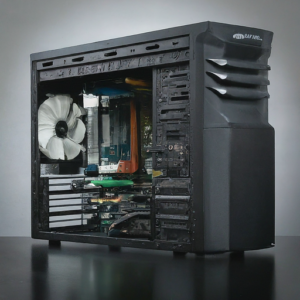 At my computer repair company in Louisville, KY lots of guys call me after their PC building experiment has failed. So, I wrote this guide for people so they can read it before they build their first computer. Building your first PC can be a rewarding experience, offering a deeper understanding of how computers work and allowing you to customize a machine that perfectly fits your needs. Whether you’re a gamer, a creator, or someone who just loves technology, building a PC can be both fun and educational. Here’s a comprehensive step-by-step guide to help you through the process.
HINT: Watch Youtube videos on any section you are not clear about BEFORE you begin. Also, watch some “complete build” videos similar to the one you’re going to attempt. I would say watch at least five videos before you even order your first part.
Step 1: Planning and Choosing Your Components
Determine Your Needs:
Gaming: High-performance CPU, GPU, ample RAM, and efficient cooling.
Content Creation: Powerful CPU, high RAM, fast storage.
General Use: Moderate specs, balanced performance, and affordability.
Select Your Components:
Hint: Go to pcpartpicker.com and use this website to check compatibility. You can enter your components and the tool will check each component to make sure it is compatible with the other parts. Do this before you order parts.
CPU (Central Processing Unit): The brain of your PC. Popular choices include Intel Core i5/i7/i9 or AMD Ryzen 5/7/9.
GPU (Graphics Processing Unit): Essential for gaming and graphic-intensive tasks. Options include NVIDIA GeForce RTX series or AMD Radeon RX series.
Motherboard: Choose a motherboard compatible with your CPU and offering the features you need (Wi-Fi, USB ports, etc.).
RAM (Random Access Memory): At least 8GB for general use, 16GB for gaming, 32GB or more for high-end tasks.
Storage: SSD for fast boot times and quick load speeds, HDD for additional storage. NVMe SSDs are the fastest.
Power Supply Unit (PSU): Ensure it provides enough power for your components. Check for efficiency ratings (80 Plus Bronze, Silver, Gold, etc.).
Case: Choose a case that fits your motherboard (ATX, Micro-ATX, Mini-ITX) and has good airflow.
Cooling: Stock coolers can suffice for basic builds; consider aftermarket air or liquid cooling for high-performance builds.
Peripherals: Monitor, keyboard, mouse, and any other accessories you might need.
Step 2: Preparing Your Workspace
Gather Tools:
Phillips head screwdriver
Anti-static wrist strap (optional but recommended)
Cable ties for managing cables
Organize Your Components:
Lay out all your components and tools on a clean, flat surface. Ensure you have enough space to work comfortably.
Step 3: Getting the Motherboard Ready
Install the CPU:
Open the CPU socket on the motherboard.
Align the CPU with the socket (look for the notches and the golden triangle).
Gently place the CPU into the socket and secure it.
Install RAM:
Open the RAM slots by pushing back the clips.
Align the RAM sticks with the slots and press down until they click into place.
Install M.2 SSD (if applicable):
Locate the M.2 slot on the motherboard.
Insert the SSD at a slight angle, then secure it with a screw.
Step 4: Preparing the Case
Install the Power Supply:
Place the PSU into the designated area of the case and secure it with screws.
Route the necessary cables to where they will be connected later.
Install Case Fans (if applicable):
Attach case fans to improve airflow and cooling. Follow the case’s instructions for placement.
Step 5: Installing the Motherboard
Install the I/O Shield:
Place the I/O shield in the back of the case, making sure it’s aligned correctly.
Mount the Motherboard:
Carefully place the motherboard into the case, aligning it with the standoffs.
Secure the motherboard with screws, ensuring it’s firmly in place.
Step 6: Connecting Components
Connect the PSU to the Motherboard:
Attach the 24-pin ATX power cable and the 8-pin CPU power cable.
Install and Connect Storage Drives:
Mount SSDs or HDDs in their respective bays.
Connect SATA cables from the drives to the motherboard and power cables from the PSU.
Install the GPU:
Insert the GPU into the PCIe slot and secure it with screws.
Connect the necessary power cables from the PSU to the GPU.
Step 7: Final Steps
Connect Front Panel Connectors:
Attach the case’s power button, reset button, USB ports, and audio jacks to the motherboard.
Cable Management:
Use cable ties to organize and secure cables for better airflow and aesthetics.
Final Check:
Ensure all components are securely connected and nothing is loose.
Double-check power connections and ensure the CPU cooler is properly seated.
Step 8: Powering On and Installing the OS
Initial Boot:
Connect your monitor, keyboard, and mouse.
Power on the PC and enter the BIOS by pressing the designated key (usually DEL or F2).
BIOS Setup:
Ensure all components are recognized.
Set the boot priority to your installation media (USB drive or DVD).
Installing the Operating System:
Insert your OS installation media and follow the on-screen instructions to install Windows, Linux, or another OS.
Install necessary drivers for your motherboard, GPU, and other components.
Conclusion
Building your first PC is a satisfying project that offers both practical skills and a deeper appreciation for how computers work. By following this guide, you’ll have a personalized machine tailored to your needs. If you need assistance or run into any issues, don’t hesitate to reach out to On-Site Louisville Computer Repair Co. for professional PC building help. Happy building!
[socialring]
Unmasking Facebook: A Breeding Ground for Fraud
 In the digital age, social media has become an integral part of our lives, with Facebook leading the charge. Launched in 2004, Facebook transformed the way we communicate, share, and connect with people worldwide. However, as its popularity has soared, so too has its darker side. Today, Facebook is plagued by fraud, turning what was once a digital utopia into a cesspool of deceit and manipulation.
The Magnitude of the Problem
Facebook’s massive user base—nearly 3 billion monthly active users—makes it an attractive target for fraudsters. The platform’s sheer scale and the speed at which information spreads contribute to an environment ripe for exploitation. From fake accounts and fraudulent advertisements to scams and misinformation, Facebook is a breeding ground for digital deceit.
Fake Accounts: The Root of the Problem
One of the most pervasive issues on Facebook is the prevalence of fake accounts. These accounts are often created with malicious intent, such as spreading misinformation, engaging in identity theft, or orchestrating scams. According to a 2023 report by Facebook’s parent company, Meta, there were nearly 5% of monthly active accounts that were fake or duplicate, translating to millions of fraudulent profiles.
These fake accounts can be used for a variety of nefarious purposes. Cybercriminals use them to launch phishing attacks, steal personal information, and spread malware. Additionally, fake accounts are often involved in social engineering schemes, where fraudsters manipulate victims into divulging sensitive information or transferring money.
Fraudulent Advertisements: A Growing Concern
Another major issue plaguing Facebook is the proliferation of fraudulent advertisements. Scammers create ads that mimic legitimate businesses to trick users into purchasing counterfeit goods, subscribing to fake services, or clicking on malicious links. Despite Facebook’s efforts to weed out these deceptive ads, many still slip through the cracks, resulting in financial losses and eroding user trust.
In one notable case, a study by the cybersecurity firm Ghostery found that fraudulent ads on Facebook led to millions of dollars in losses for unsuspecting users. These ads often promote too-good-to-be-true deals or miraculous health products, preying on the gullible and desperate.
Scams: From Romance to Financial Frauds
Facebook is also a hotbed for various types of scams, including romance scams, lottery scams, and investment frauds. Romance scams, in particular, have seen a dramatic rise, with scammers creating fake profiles to exploit vulnerable individuals looking for love. They build trust over time and eventually ask for money, often leaving their victims emotionally and financially devastated.
Investment frauds are another significant issue. Fraudsters use Facebook to promote fake investment opportunities, promising high returns with little risk. These schemes often target inexperienced investors, convincing them to part with their hard-earned money.
Facebook Marketplace Scams
Facebook Marketplace, a feature designed to facilitate buying and selling within local communities, has also become a hotspot for scams. Fraudsters use fake profiles to post attractive listings at unbeatable prices, luring in unsuspecting buyers. Once the buyer shows interest, the scammer often insists on upfront payment or deposits, only to disappear once the money is transferred. Conversely, sellers can also fall victim to scams when fake buyers send counterfeit checks or fraudulent payment confirmations. The anonymity and ease of communication on Facebook Marketplace make it an appealing venue for these types of fraud, further contributing to the platform’s overall problem with deceit and manipulation.
Misinformation and Its Consequences
In addition to direct fraud, Facebook is a powerful vector for misinformation. False information spreads like wildfire on the platform, influencing public opinion and sometimes leading to real-world harm. Whether it’s health misinformation, political propaganda, or conspiracy theories, the impact of fake news on Facebook cannot be underestimated.
During the COVID-19 pandemic, for example, Facebook was inundated with false information about the virus, vaccines, and treatments. This misinformation hindered public health efforts, contributing to vaccine hesitancy and undermining trust in medical authorities.
Facebook’s Response: Too Little, Too Late?
While Facebook has implemented measures to combat fraud and misinformation, many critics argue that these efforts are insufficient. The platform’s algorithms, designed to maximize engagement, often prioritize sensational content, inadvertently amplifying false information and deceptive ads.
Facebook has invested in artificial intelligence and human moderators to detect and remove fraudulent content, but the sheer volume of posts makes it a daunting task. Furthermore, the company’s business model, which relies heavily on targeted advertising, creates a conflict of interest, as stricter regulations on ads could impact revenue.
Conclusion: Navigating the Digital Minefield
As Facebook continues to grapple with fraud and misinformation, users must remain vigilant. It’s crucial to verify the authenticity of accounts and advertisements, be skeptical of too-good-to-be-true offers, and critically evaluate the information encountered on the platform. While Facebook may never be completely free of fraud, informed users can better navigate its digital minefield, reducing the risk of falling victim to scams and deception.
In the end, the responsibility lies with both Facebook and its users. The platform must strengthen its efforts to detect and eliminate fraudulent content, while users must exercise caution and critical thinking. Only then can we hope to reclaim Facebook from the clutches of fraud and restore its potential as a force for good in the digital world.
Demystifying 5G vs. 5 Mbps vs. 5 GHz Wi-Fi Bands: Understanding Modern Connectivity
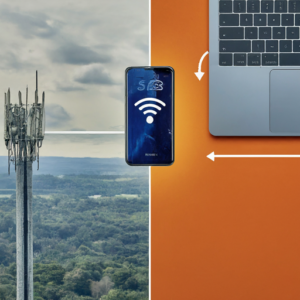 In the rapidly evolving world of connectivity, terms like 5G, Mbps, and Wi-Fi bands (2.4 GHz, 5 GHz, and Wi-Fi 6) are often misunderstood or confused. This guide aims to clarify these concepts and help you make informed decisions about your internet setup and usage.
5G: The Next Generation of Mobile Networks
What is 5G? 5G stands for the fifth generation of mobile networks. It promises significantly faster speeds, lower latency, and greater capacity compared to previous generations (4G, 3G, etc.).
Key Features of 5G:
1. Speed: 5G can provide download speeds up to 10 Gbps (gigabits per second), which is around 100 times faster than 4G.
2. Latency: 5G offers ultra-low latency, around 1 millisecond (ms), making real-time applications like online gaming and remote surgeries feasible.
3. Capacity: With a higher capacity, 5G can support more devices per square kilometer, improving connectivity in densely populated areas.
Common Misconception:
• 5G is often confused with Wi-Fi technologies, but it is a mobile network standard designed for cellular devices, whereas Wi-Fi is used for local area networking within homes and businesses.
Mbps: Measuring Internet Speed
What is Mbps? Mbps stands for megabits per second and is a unit of measurement for data transfer speed. It indicates how many megabits of data can be transmitted in one second.
Understanding Mbps:
• Higher Mbps = Faster Internet: More Mbps means faster download and upload speeds. For example, 1000 Mbps (1 Gbps) means your internet can theoretically download 1 gigabit of data per second.
• Application Needs: Different applications require different speeds. Streaming HD video might require 5-10 Mbps, while 4K streaming or gaming might need 25-50 Mbps.
Common Misconception:
• Mbps is often confused with MBps (megabytes per second). 1 byte = 8 bits, so 1 MBps = 8 Mbps.
Wi-Fi Bands: 2.4 GHz vs. 5 GHz vs. Wi-Fi 6
Wi-Fi Bands: Wi-Fi routers operate on different frequency bands, primarily 2.4 GHz and 5 GHz. Each band has its own characteristics:
1. 2.4 GHz:
• Range: Better range and penetration through walls and obstacles.
• Speed: Generally slower speeds compared to 5 GHz.
• Interference: More prone to interference as many devices (like microwaves and cordless phones) use this frequency.
2. 5 GHz:
• Range: Shorter range and less effective at penetrating walls.
• Speed: Higher speeds compared to 2.4 GHz.
• Interference: Less crowded, thus experiencing less interference and congestion.
Wi-Fi 6 (802.11ax): Wi-Fi 6 is the latest generation of Wi-Fi technology, offering significant improvements over previous standards (Wi-Fi 5/802.11ac):
• Speed: Higher maximum speeds, up to 9.6 Gbps.
• Efficiency: Better performance in crowded environments due to more efficient data handling.
• Latency: Lower latency, improving real-time applications.
• Battery Life: Improved battery life for connected devices via Target Wake Time (TWT).
Common Misconception:
• Wi-Fi 6 is often thought to be a frequency band like 2.4 GHz or 5 GHz, but it is actually a standard that can operate on both bands, enhancing overall performance and efficiency.
Practical Applications: Choosing the Right Setup
1. Home Users:
• Basic Use (Browsing, Streaming HD Video): A 2.4 GHz Wi-Fi network with a speed of 25-50 Mbps should suffice.
• Advanced Use (4K Streaming, Gaming): A 5 GHz Wi-Fi network or Wi-Fi 6 router with speeds of 200-1000 Mbps is recommended for better performance and lower latency.
2. Office/Business Users:
• Multiple Users/Devices: A dual-band router (supporting both 2.4 GHz and 5 GHz) or Wi-Fi 6 router to manage multiple devices effectively.
• High-Speed Needs: Internet plans offering 500-1000 Mbps to support data-intensive tasks and ensure seamless connectivity.
3. Mobile Users:
• 5G Networks: For those requiring high-speed internet on the go, especially in urban areas where 5G coverage is more prevalent. Ensure your device supports 5G.
Conclusion
Understanding the differences between 5G, Mbps, and Wi-Fi bands (2.4 GHz, 5 GHz, and Wi-Fi 6) can significantly impact your internet experience. By choosing the right combination of mobile networks, internet speeds, and Wi-Fi technologies, you can optimize connectivity to meet your specific needs, whether for home use, business, or mobile connectivity. This knowledge empowers you to make informed decisions, ensuring you get the most out of your internet service and devices.
[socialring]
How to Reformat and Reinstall Windows: A Step-by-Step Guide
Reformatting and reinstalling Windows can breathe new life into your computer, resolving persistent issues and improving performance. Whether your system is plagued by malware, running slowly, or you simply want a fresh start, this guide will walk you through the process step by step.
Before You Begin: Backup Your Data
Before starting the reformatting process, it’s crucial to back up your important files and data. This includes documents, photos, music, and any other files you don’t want to lose. You can use an external hard drive, cloud storage, or a USB flash drive for your backups.
Step 1: Create a Windows Installation Media
To reinstall Windows, you’ll need a bootable installation media. You can create this using a USB flash drive or a DVD.
Download the Windows Media Creation Tool: Go to the Microsoft website and download the Windows Media Creation Tool.
Run the Tool: Open the tool and select “Create installation media for another PC.”
Choose Language, Edition, and Architecture: Select your preferences. For most users, the default options are appropriate.
Select Media: Choose “USB flash drive” or “ISO file” (if you want to burn it to a DVD later).
Create the Media: Follow the prompts to create the installation media. If you chose a USB flash drive, ensure it’s inserted; if an ISO file, you’ll need to burn it to a DVD afterward.
Step 2: Reformat Your Hard Drive
Now that you have your installation media, it’s time to reformat your hard drive.
Insert the Installation Media: Insert the USB flash drive or DVD into your computer.
Restart Your Computer: Boot from the installation media. You might need to change the boot order in your BIOS/UEFI settings to do this. Usually, this involves pressing a key like F2, F12, Delete, or Esc during startup.
Start Windows Setup: Once you boot from the installation media, you’ll see the Windows Setup screen.
Choose Your Preferences: Select your language, time, and keyboard preferences, then click “Next.”
Install Now: Click “Install now” to start the installation process.
Enter Product Key: Enter your Windows product key. If your computer came with Windows pre-installed, the key might be embedded in the BIOS/UEFI, and you can skip this step.
License Terms: Accept the license terms and click “Next.”
Custom Installation: Choose “Custom: Install Windows only (advanced).”
Delete Partitions: You’ll see a list of your hard drive partitions. Select each partition and click “Delete” to remove them. Be careful to delete the correct partitions, as this will erase all data on them.
Create New Partition: Select the unallocated space and click “New” to create a new partition. Click “Apply” to confirm.
Step 3: Install Windows
Select Partition: Choose the partition where you want to install Windows and click “Next.”
Install Windows: Windows will start copying files and installing. This process can take some time, and your computer may restart several times.
Setup Windows: After installation, you’ll need to go through the initial setup process. This includes choosing your region, keyboard layout, and connecting to a network.
Sign In: Sign in with your Microsoft account, or create a local account if you prefer.
Finish Setup: Follow the remaining prompts to complete the setup process.
Step 4: Install Drivers and Updates
Once Windows is installed, you’ll need to install your device drivers and run Windows Update.
Windows Update: Go to Settings > Update & Security > Windows Update and check for updates. Install all available updates.
Device Drivers: Visit your computer manufacturer’s website to download and install the latest drivers for your hardware. This includes drivers for your graphics card, sound card, network adapter, and other peripherals.
Conclusion
Reformatting and reinstalling Windows can seem daunting, but following these steps will help you achieve a clean and fresh installation. Always remember to back up your data before starting, and take your time to ensure each step is completed correctly. If you encounter any issues or need professional assistance, On-Site Louisville Computer Repair Co. is here to help. Contact me the owner Chris for expert support and services.
[socialring]
Understanding Laptop Screen Size and Resolution: A Comprehensive Guide
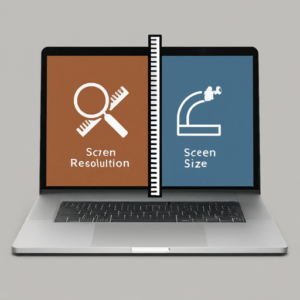 Screen Size
Screen size on laptops refers to the diagonal measurement of the display, typically given in inches. This measurement spans from one corner of the screen to the opposite corner (excluding the bezel). Common laptop screen sizes include:
11-13 inches: Ultra-portable laptops, ideal for travel and light use.
14-16 inches: A balance between portability and screen real estate, suitable for most users.
17 inches and above: Larger screens, often found in gaming laptops or those used for multimedia and design, offering more workspace but less portability.
Resolution
Resolution refers to the number of pixels displayed on the screen. It’s usually represented as width × height (in pixels). Higher resolutions mean more pixels, which translates to sharper and clearer images.
Common resolutions include:
HD (1366 × 768): Basic resolution, sufficient for everyday tasks like web browsing and document editing.
Full HD (1920 × 1080): Standard for many modern laptops, offering good clarity and detail for most uses, including video streaming and gaming.
Quad HD (2560 × 1440): Higher clarity, often found in premium laptops, suitable for detailed work like photo and video editing.
4K UHD (3840 × 2160): Very high resolution, providing extremely sharp images, used in high-end laptops for professional graphics work and immersive gaming.
Relationship Between Screen Size and Resolution
The combination of screen size and resolution affects the display quality and usability:
Pixel Density: Measured in pixels per inch (PPI), it indicates how many pixels are packed into a given area. Higher pixel density means sharper images. For example, a 13-inch laptop with Full HD resolution will have a higher pixel density (and thus sharper image) than a 17-inch laptop with the same resolution.
Scaling: On high-resolution screens, elements like text and icons may appear too small. Operating systems use scaling to adjust these elements to a comfortable size, maintaining clarity while ensuring usability.
Aspect Ratio: The proportion of the screen’s width to its height. Common ratios are 16:9 (widescreen, typical for most laptops) and 3:2 (found in some productivity-focused laptops, offering more vertical space).
Practical Considerations
When choosing a laptop:
Purpose: Consider what you’ll use the laptop for. For general use, Full HD on a 14-15 inch screen is typically sufficient. For professional design work, a higher resolution on a larger screen might be necessary.
Battery Life: Higher resolution screens consume more power. If battery life is a priority, a lower resolution might be beneficial.
Budget: Higher resolutions generally come at a higher cost. Balance your need for screen quality with your budget.
Understanding these aspects helps you choose a laptop that best fits your needs, ensuring you get the right balance of screen size, resolution, and overall usability.
[socialring]
Free Wi-Fi Locations in Louisville & How To Stay Secure on Them.
 Living in a vibrant city like Louisville means being on the go! Whether you’re a remote worker, a student catching up on studies, or just enjoying a coffee break, free Wi-Fi is a lifesaver. But before you dive into that public network, here’s a guide to Louisville’s top free Wi-Fi hotspots, along with some essential security tips to keep your data safe while you surf.
Top 5 Wi-Fi Havens in Louisville:
Coffee Shop Culture: Louisville boasts a thriving coffee scene, and many cafes offer free Wi-Fi for their customers. Try out locally-owned favorites like Heine Brothers’ with its warm atmosphere and focus on ethically sourced beans, or Highlands Coffee Company, known for its spacious seating and delicious pastries.
Libraries on the Loop: Louisville’s library system, Louisville Free Public Library (LFPL), offers a network of branches strategically placed around the city. Not only do they have free Wi-Fi, but LFPL is a treasure trove of resources, from books and audiobooks to computer labs and even 3D printers!
Public Parks with a Tech Twist: Who says you can’t enjoy nature and stay connected? Louisville’s scenic parks like Waterfront Park or Cherokee Park offer free public Wi-Fi in designated areas. Spread out a blanket, soak up the sun, and get some work done with a beautiful view.
Museums on Wi-Fi: Louisville’s vibrant museum scene allows you to explore art, history, and more – and many museums offer free Wi-Fi for visitors. Catch up on emails between fascinating exhibits at The Speed Art Museum, or connect with friends after learning about Louisville’s past at the Frazier History Museum.
Independent Breweries with a Hoppy Connection: Louisville’s craft beer scene is booming, and many independent breweries offer free Wi-Fi to their patrons. Grab a locally brewed pint and connect with fellow beer lovers while you catch up online at places like 3rd Turn Brewing or Mile Wide Brewing Co.
Staying Secure on Public Wi-Fi:
Now that you know where to find free Wi-Fi, here are some essential security tips:
Avoid Sensitive Transactions: Public Wi-Fi isn’t ideal for online banking, shopping, or anything involving sensitive information like passwords.
Use a VPN: A Virtual Private Network encrypts your internet traffic, adding an extra layer of security on public networks.
Beware of Phishing Sites: Don’t click on suspicious links or download unknown files – they could be attempts to steal your data.
Stick to HTTPS: Look for the “https” at the beginning of website addresses – it indicates a secure connection.
Turn Off File Sharing: Disable file sharing on your computer to prevent unauthorized access to your files.
By following these tips and utilizing Louisville’s awesome free Wi-Fi hotspots, you can stay connected and productive while keeping your data safe. So grab your laptop, explore the city, and get ready to enjoy a secure and connected Louisville experience!
[socialring]
The Impact of AI on Future PC Repairs
 Artificial Intelligence (AI) is revolutionizing various industries, and the realm of PC repairs is no exception. As AI technology continues to advance, its integration into PC repair processes promises to bring about significant changes, enhancing efficiency, accuracy, and overall customer satisfaction. In this blog post, we will explore the potential impact of AI on future PC repairs and what it means for both technicians and end-users.
1. Automated Diagnostics
One of the most significant ways AI is transforming PC repairs is through automated diagnostics. Traditionally, diagnosing a computer issue could take hours, requiring a technician to manually check each component and run various tests. AI-driven diagnostic tools can now perform these tasks in a fraction of the time. By analyzing data from thousands of previous repairs and real-time system information, AI can quickly identify the root cause of a problem and suggest the most effective solution.
2. Predictive Maintenance
AI’s predictive capabilities are set to change the way we approach PC maintenance. Instead of waiting for a component to fail, predictive maintenance uses AI algorithms to analyze data from sensors and usage patterns to predict when a part is likely to fail. This allows users to replace components proactively, minimizing downtime and preventing data loss. For businesses, this can mean significant cost savings and increased productivity.
3. Enhanced Troubleshooting
AI-powered troubleshooting tools can guide technicians through complex repair processes. For instance, AI systems can provide step-by-step instructions and real-time feedback, ensuring that even less experienced technicians can perform repairs accurately. This democratization of expertise means that high-quality repairs are more accessible, reducing the need for specialized knowledge and training.
4. Virtual Assistants and Chatbots
AI-driven virtual assistants and chatbots are becoming increasingly common in customer service, and their application in PC repairs is growing. These AI tools can handle a variety of customer inquiries, from basic troubleshooting tips to scheduling repair appointments. By handling routine tasks, virtual assistants free up human technicians to focus on more complex issues, improving overall efficiency.
5. Remote Repairs
Remote repair services are gaining traction, especially in the post-pandemic world where remote work has become the norm. AI can enhance remote repairs by enabling technicians to diagnose and fix problems over the internet. AI-driven remote diagnostic tools can assess a system’s health and identify issues without needing physical access to the device. This can be particularly beneficial for quick fixes and minor issues, reducing the need for in-person visits.
6. Quality Assurance
AI can significantly improve quality assurance in PC repairs. By analyzing vast amounts of data from past repairs, AI can identify common errors and suggest best practices. This continuous learning process helps ensure that repairs are performed correctly the first time, reducing the likelihood of repeat issues and increasing customer satisfaction.
7. Customization and Personalization
AI enables a higher degree of customization and personalization in PC repairs. For example, AI systems can tailor their diagnostic and repair processes based on the specific hardware and software configurations of a user’s computer. This personalized approach ensures that repairs are not only effective but also optimized for the user’s unique setup, resulting in better performance and a longer lifespan for the device.
8. Cost Efficiency
The integration of AI in PC repairs can lead to significant cost savings. Automated diagnostics and predictive maintenance reduce the time and resources needed for each repair, allowing repair companies to handle more cases with the same workforce. Additionally, the improved accuracy and efficiency of AI-driven repairs mean fewer returns and less need for rework, further cutting costs.
Conclusion
The impact of AI on future PC repairs is profound, promising to revolutionize the industry in ways that enhance efficiency, accuracy, and customer satisfaction. From automated diagnostics and predictive maintenance to enhanced troubleshooting and remote repairs, AI is set to make PC repairs faster, more reliable, and more accessible. As AI technology continues to evolve, we can expect even more innovative applications that will further transform the landscape of PC repairs. At On-Site Louisville Computer Repair Company, we are excited to embrace these advancements and continue providing top-notch service to our customers.
Emergency IT Support Small Business Computer Services
Don’t Lose Business – Get On-Site Emergency IT Support Now!
Is your Louisville-area small business experiencing a computer meltdown? Don’t panic! On-Site Louisville Computer Repair Company is here to provide rapid response emergency IT support and get your business back online fast.
We understand that downtime costs money. That’s why we offer on-site repairs within a 60-mile radius of Louisville, KY, minimizing disruption and getting your team productive again ASAP.
Here’s How We Can Help:
Our highly skilled technicians specialize in resolving a wide range of emergency IT issues that can cripple your business, including:
- Server Crashes: Down server? We’ll diagnose the problem and get your critical data accessible again.
- Network Outages: No internet or network connectivity? We’ll troubleshoot the issue to get your communication flowing.
- Critical Software Malfunctions: Essential software crashing or misbehaving? We’ll identify the problem and find a solution.
- Outlook Woes: Emails failing to send or receive? We’ll get your essential communication tool back on track.
- Data Loss Fears: Suspect data loss? We’ll assess the situation and explore recovery options.
- Computer Won’t Start: From faulty hardware to corrupted software, we’ll identify the culprit and get your device booting up.
- Virus and Malware Attacks: We’ll remove threats and ensure your systems are protected.
- Performance Issues: Is your network slow or your system sluggish? We’ll diagnose the slowdown and optimize your IT infrastructure.
Beyond Emergency Repairs: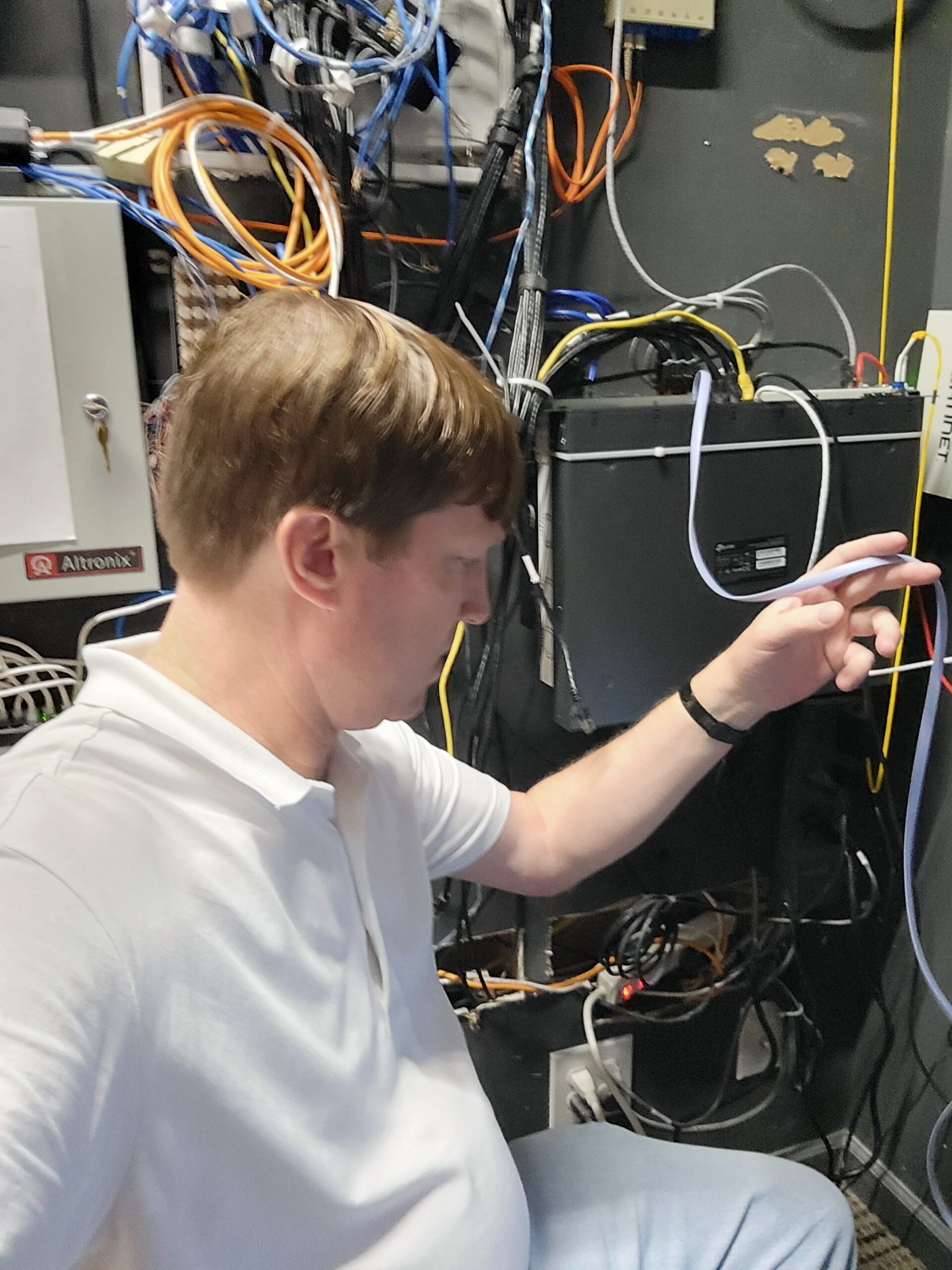
We exist to help businesses that are small enough they cannot afford an IT company but are on a growth trajectory where they need IT support. We offer a complete suite of IT services to keep your small business running smoothly, including:
- Preventive maintenance
- Network security solutions
- Data backup and recovery plans
- Cloud computing services
- Hardware upgrades and replacements
Why Choose On-Site Louisville?
- Fast Response: We prioritize emergency calls and dispatch a technician immediately.
- Experienced Technicians: Our team is highly trained and certified to handle complex IT issues.
- Transparent Communication: We’ll keep you informed every step of the way.
- Affordable Solutions: We offer competitive rates and flexible billing options.
- Guaranteed Customer Satisfaction: We stand behind our work with a 100% satisfaction guarantee.
Don’t Let IT Problems Slow You Down!
Call us now at (502)963-3981 for immediate assistance. Our live support team is available 24/7 to take your call and dispatch a technician within the Louisville area and surrounding 60-mile radius.
Remember, every minute counts! Minimize downtime and keep your business running smoothly with On-Site Louisville Computer Repair Company.
Tech Savvy Seniors: Combating Scams Targeting Louisville’s Elderly Population
 Louisville, Kentucky, is a vibrant city steeped in history and renowned for its Southern hospitality. But this same hospitality can sometimes leave our older residents vulnerable to scams, especially those targeting tech knowledge. With the rise of online communication and digital services, scammers have developed sophisticated methods to exploit trust and steal money from unsuspecting victims.
This article aims to empower Louisville’s tech-savvy seniors with the knowledge to identify and combat these scams. By recognizing the red flags and understanding common tactics, you can protect yourself and your loved ones from falling prey to these deceptive schemes.
Common Scams Targeting Seniors
Phone Scams: Scammers often impersonate legitimate organizations like Social Security, Medicare, or even your local utility company. They may claim there’s a problem with your account or threaten legal action if you don’t make an immediate payment.
Tech Support Scams: You might receive a pop-up notification on your computer warning of a virus or system error. The scammer then offers to fix the problem for a fee, often pressuring you to give them remote access to your device.
Phishing Emails: These emails appear to be from trusted sources like your bank, credit card company, or even a grandchild in trouble. They often contain a link that, when clicked, directs you to a fake website designed to steal your personal information.
Grandparent Scam: This scam involves a scammer calling and pretending to be a grandchild in a desperate situation, needing money urgently. The scammer preys on the grandparent’s affection and concern, urging them to send money quickly without verifying the story.
Tips for Staying Safe Online
Be Wary of Unsolicited Calls: Never give out personal information or financial details over the phone unless you initiated the call yourself. It’s always best to verify the caller’s identity by calling the official number of the organization they claim to represent.
Don’t Click on Suspicious Links: If you receive an email with a link, don’t hover over it with your mouse. Legitimate companies won’t pressure you to click on links in their emails.
Never Give Remote Access to Your Computer: If you receive a pop-up warning about a virus, don’t call the number provided. Restart your computer in safe mode and run a scan with your trusted antivirus software.
Verify Information Directly: If a grandchild or relative contacts you about needing money urgently, don’t send anything until you confirm the story by calling them directly at a known phone number.
Stay Informed: Talk to your friends, family, and trusted local resources like the Louisville Metro Senior Services Department about the latest scams targeting seniors.
Empowering Our Community
By staying informed and adopting safe online practices, Louisville’s tech-savvy seniors can protect themselves and their loved ones from these scams. Remember, knowledge is power. Don’t hesitate to reach out to trusted friends, family, or your local computer repair service provider like On-Site Louisville Computer Repair Co. if you have any questions or concerns. Together, we can build a safer online environment for everyone in our community.
Has your computer been acting strangely lately? Pop-up warnings, sluggish performance, or suspicious emails can all be signs of a scam attempt. We provide highly convenient in home computer service in Louisville, KY. Don’t wait until it’s too late! On-Site Louisville Computer Repair Co. can help you identify and remove malware, secure your online presence, and ensure your computer is running smoothly. We offer senior discounts and can even come to your home or office for your convenience. Call us today at (502) 963-3981 for a free consultation and peace of mind!
[socialring]

RSS Feed
