Recent Computer Based Scams – Phone, Email or Pop-up Type

Recent Computer Based Scams – Phone, Email or Pop-up Type

There are all kinds of computer related scams. You might have received a call from someone falsely claiming to be from the “FBI”, “IRS”, Microsoft, Norton, UPS or othres. You’re told that the only way you can save yourself is to pay an imaginary fine, and then the caller will save you from the authorities, computer infections, etc. Sometimes they approach you from an email or pop-up on a website.
 
Often an email will attempt to convince you it’s FedEx, or Chase Bank – for example– but you don’t have a package scheduled or bank account with Chase Bank.
 
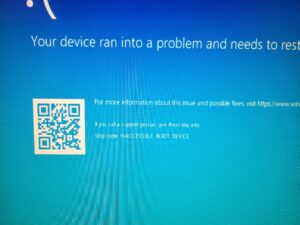
Or you go to a website and something pops up in your face and tells you it’s Microsoft and gives you a 1-800 Number to call,
 
How can this be done? Easily, if you’re silly enough to play along. You’re often then advised to download and install a remote access program and then you have lost control of your computer. You are then given the privilege of paying for this service, usually several hundred dollars. Guess what, now they have your credit card or debit card information, too!
 
How to Identify Computer Scams:
 
1. A company isn’t going to call you to initiate technical support. Think about it. Would Microsoft, or any other large company, care enough to spend resources reaching out to you to solve your computer issue? Unlikely. Try getting tech support when you need it, and you’ll quickly realize how silly it is to believe they’re going to track you down when you need help.

2. Think slowly and logically about emails. Any business email should be suspect.

3. Web or Email based tech support scams aren’t live. You’ll often hear a recorded message telling you to either call a number or get an email that is a pretend email and not from the person it claims.
 
A computer based scam that is initiated online might arrive as a pop-up or redirect you from a webpage to another website.
 
1. Is the URL is nonsense? Instead of a website like www.microsoft.com, you’ll see something like www.12742xmicrosofttechsupport.net.

2. You’ll often have trouble closing the webpage. The window will expand to take over your entire screen. You might lose access to your toolbar, too. The easy solution is to ctrl-alt-delete and click then on the “task manager” option. Simply close your browser from there.

3. You might hear an alarm or other obnoxious sound. This is to create a sense of urgency. Again, you might lose control of the active window. There might be a message informing you there is malware on your computer. Just turn down the volume, and use the ctrl-alt-delete trick.
 
All of these computer based scams ultimately aim to separate you from your money. Trust your instincts, stay calm, and ignore all of these scams. They can’t harm you unless you help them to do so.

The Myth of Computer Backups

Do you backup your computer? Is that what you’re really doing? Most likely, you’re only backing up your data. A complete system recovery requires keeping track of a lot of non-file data, too. This includes the boot sector, partition layout, and file and system metadata. And you want to know a secret?  It’s not really needed.


There are several methods for backing up your data:


  1. RAID. RAID stands for “redundant array of inexpensive disks”. Many computers can be configured to use a second hard drive that will mirror the primary hard drive. Whatever happens to one drive, happens to the other. You always have an instantaneous copy of all of your files. The disadvantage of this is that your backup is kept with your computer system. This is a serious issue in the case of theft, fire, flood, or other disaster.
  2. External hard drive. This is a simple solution that allows you to keep your backup files separate from your computer. This is a simple and inexpensive solution worth considering. It’s possible to use USB sticks to the same end. However, a hard has the potential to store much more data than a single USB stick.
  3. Cloud backup. It’s also possible to back up your computer to a server in a remote location. You’ll always have access to your data, no matter where you are in the world. However, there’s always the risk of someone hacking into your data. There’s also a monthly cost associated with using this type of service. Also, uploading all of your files to the cloud can take a lot of time and destroy your internet and computer performance.


These are the basic options available to the average computer user. Backing up to an external hard drive is the best option for most computer users. It’s a reliable, inexpensive, and portable way to backup your data.

How often do you need to backup your data? That’s up to you, but once a month is sufficient for most situations. Think about how often you’re adding, or altering files on your computer. Pick a backup schedule that makes sense for your situation.


PC vs. Mac: Which Reigns Supreme?

In the ever-evolving landscape of personal computing, the debate between PC and Mac users remains as fervent as ever. Both platforms have their ardent supporters, and each offers a unique set of advantages. Whether you’re a tech enthusiast, a creative professional, or an average user, choosing between a PC and a Mac can significantly impact your computing experience. This article dives into the core differences, strengths, and weaknesses of each, helping you make an informed decision.
 
Hardware and Customization
 
PC:
PCs are renowned for their hardware versatility and customization options. The market offers a plethora of choices from various manufacturers, such as Dell, HP, and Lenovo, catering to a wide range of budgets and performance needs. One of the standout features of PCs is the ability to upgrade components like RAM, storage, and graphics cards easily. This modularity ensures that users can keep their systems up-to-date without investing in a brand-new machine.
 
Mac:
Apple’s Mac lineup, including the MacBook, iMac, and Mac Mini, is celebrated for its sleek design and build quality. Macs are known for their seamless integration of hardware and software, which often results in a more stable and efficient user experience. However, the downside is the limited customization. Upgrading a Mac’s internal components is typically more challenging and, in many cases, impossible for the average user.
 
Operating System
 
PC:
Most PCs run on Microsoft Windows, the world’s most popular operating system. Windows offers a familiar interface and broad software compatibility, making it a versatile choice for various applications, from gaming to business. Windows 10 and the newer Windows 11 have continued to enhance user experience with features like improved security, virtual desktops, and seamless updates.
 
Mac:
Macs operate on macOS, known for its clean interface, robust security, and seamless integration with other Apple products like the iPhone and iPad. macOS is particularly favored by creative professionals for its powerful native applications like Final Cut Pro and Logic Pro. Additionally, macOS is built on a Unix foundation, providing a stable and secure environment ideal for developers and power users.
 
Software and Ecosystem
 
PC:
The PC ecosystem is vast, with a wide array of software available for virtually every purpose. PCs are particularly dominant in the gaming industry, boasting extensive game libraries and superior compatibility with the latest titles. Additionally, PCs support a broader range of professional software, particularly in fields like engineering and data analysis.
 
Mac:
Macs shine in the creative sector, with a suite of high-quality applications for video editing, graphic design, and music production. The Apple ecosystem offers unparalleled synergy between devices, making it easy to transition between tasks on an iPhone, iPad, and Mac. However, Macs often face limitations in software availability, particularly in niche professional areas and gaming.
 
Security
 
PC:
Windows PCs have historically been more susceptible to malware and viruses, primarily due to their widespread use. However, Microsoft has made significant strides in enhancing security features with built-in antivirus programs and advanced threat protection in Windows 10 and 11. Users can further bolster their security with third-party antivirus solutions.
 
Mac:
macOS is renowned for its robust security features. Apple’s controlled ecosystem and Unix-based architecture provide a strong defense against malware. Additionally, Macs come with built-in security tools like XProtect and Gatekeeper, which help prevent unauthorized software from running. While no system is entirely immune, Macs generally experience fewer security threats.
 
Price
 
PC:
One of the most significant advantages of PCs is their price range. PCs cater to all budgets, from affordable options suitable for basic tasks to high-end machines designed for gaming and professional workstations. This flexibility makes PCs accessible to a broader audience.
 
Mac:
Macs are generally positioned as premium products, with a higher entry price point. While the initial investment is substantial, many users justify the cost with the long lifespan, high resale value, and overall performance of Apple devices. Additionally, Apple’s education and financing programs can make Macs more accessible to students and professionals.
 
Conclusion
 
Choosing between a PC and a Mac ultimately depends on your specific needs, preferences, and budget. If you value customization, a vast software library, and affordability, a PC might be the better choice. On the other hand, if you prioritize design, security, and a seamless ecosystem, a Mac could be the ideal fit. Both platforms have their unique strengths, and understanding these can help you make an informed decision that aligns with your personal or professional requirements.
 
No matter your choice, both PCs and Macs offer powerful, reliable options for users in the modern computing world.
 

The Antivirus Software Scandal

There was a time that most computer users were terrified of malware. The only logical response was to install antivirus software on your computer as soon as possible. And there was a good reason; it’s hard to find someone that didn’t suffer from a malware attack at some point. But do you really need antivirus software?


Read on and decide for yourself.


  1. Windows includes free, high quality antivirus software called Windows Defender. You’ve already paid for Windows, whether you realize it or not. If you’re using Windows 10, there isn’t a good reason to spend your money on additional antivirus protection.
  • Historically, Windows antivirus programs were underwhelming, but testing shows the newest version of Windows deals with viruses and other malware just as well as the third-party vendors software.
  1. Antivirus software slows your computer. Antivirus software updates itself frequently. This can bring your computer speed down to a crawl. An antivirus program is always running and hogs system resources.
  2. By default, antivirus programs are always out of date. Antivirus software is developed to deal with existing viruses. When a new virus is released, you’re not protected until the company that developed your antivirus software puts in the time, energy, and money to address it. During that time, your antivirus program is worthless.
  3. The companies that make antivirus software aren’t always trustworthy. There have been several scandals involving antivirus software developers. One popular antivirus company is in hot water for selling user web browsing information to third parties. Another manufacturer of antivirus software has been accused of spying for the Russian government.
  • Antivirus programs have a lot of control over your computer system. They see everything. Do you have complete trust that your information is being kept safe?Everyone must take responsibility for their computer security, but many experts believe that a third-party antivirus program is unnecessary today. It destroys computer performance, and it’s an unnecessary expense.


Do you need antivirus software? No. Be responsible in your internet and email use and continue to improve your digital navigation skills. That means be careful with email attachments, and be careful about downloading any executable files. You don’t have to spend extra money to keep your computer safe – you need to become a better computer user.

Computer Performance Essentials – Why is Your Computer Slow? Part 3: Network

You might not think of your home computer as being part of a network, but it is. Your internet speed, router, network complexity, phone, TV, extenders, additional computers, and other devices can all impact the speed of your computer while using the internet. Let’s see if your network is degrading the speed of your computer.


Your computer network can limit the speed of your computer:


  1. Signal Strength: Up to a certain point, a stronger WiFi signal results in faster upload and download speeds. So, the strength of your WiFi signal can impact your computer’s speed while using the internet.
  2. Download Speed: Even if your WiFi signal is at full strength, your internet connection might be slow. This is one of the easiest issues to check. There are several websites that can do a speed test on your internet connection and provide you with the results. One example is https://www.speedcheck.org/
  3. Extenders: A WiFi extender can be handy for extending the range of your WiFi signal, but extenders can drastically reduce the speed of your internet connection. Some can cut the effective internet speed by as much as 50%. It depends on the design of the extender, but all extenders result in some speed loss.
  4. Number of computers on the same system: Your internet connection, no matter how fast, has a limit on how much information can pass back and forth. With enough computers using the same network, there can be a significant loss of internet speed.
  5. Complexity: How complex is your system? Phones, TVs, virtual assistants, home automation devices, WiFi thermostats, wireless security cameras, and any other device that uses your WiFi connection can reduce the speed of your computer while using the internet.


  • Phones: Many home and business phone systems use the computer router to make and receive calls. This can also reduce speed.
  • Television: With more streaming options available today, many people are using their internet connection to watch TV instead of using satellite or cable TV. This can also slow down your internet access.


If you’re using the internet, your computer is part of a computer network. Every device on that network has the potential to make your computer slower. The strength of your internet connection, the use of extenders, and the download speed of your internet connection can also be factors.

Most casual users fail to take their computer network into account when diagnosing poor computer performance. However, as the internet becomes more relevant, the quality and size of your computer network becomes more relevant.


Computer Performance Essentials – Why is Your Computer Slow? Part 2: Software

It’s not just hardware that can make a computer slow; software can also bring a computer to its knees. While hardware issues are very straightforward, software issues can be more troublesome to identify and rectify. However, if you want to maximize the speed of your computer system, it’s important to take a hard look at any possible software-related issues.


Is software making your computer slower?


  1. Bloatware: Have you ever purchased a new computer or smartphone, only to realize there are a bunch of included programs or apps that you have no use for? Those are perfect examples of bloatware. Often, the manufacturer of those programs or apps pays a fee to the computer or phone manufacturer to have that software included with your device.
  • New computers also include additional programs that the manufacturers believe offer important functionality.
  • Trialware is another type of bloatware included with many new computers. You know those deals where you get three months free and then the payments start.
  • Adware is still another type of bloatware. Everyone has suffered from adware at one type or another. This type of software often results in popup ads or directs you to websites with ads.
  • All types of bloatware can slow down your computer, some dramatically so. Unfortunately, bloatware can often be challenging to remove from your computer system.
  1. Spyware: Spyware is software that monitors your activity and relays that information to another party. The transmitted information can be personal information, such as bank account information, or web browsing activity. The data is frequently sold to marketing and data firms, advertisers, or to those with more criminal intentions.
  • Spyware isn’t just an invasion of your privacy, it can also slow down your computer. Spyware can also be difficult to remove.
  1. Software conflicts: Software conflicts occur when two programs can’t run efficiently at the same time. This is commonly the result of both programs competing for the same resources. It could be that both programs require an excessive amount of memory, for example.
  2. Antivirus software: Antivirus software can be one of the biggest obstacles to computer speed. It takes a tremendous amount of computer resources to constantly scan for viruses. The updates required to keep virus software up to date can also be a burden to speed.
  • There’s a good chance that your operating system includes anti-malware features. A third-party antivirus program is often unnecessary.
  1. Garbage software: Most computers have a lot of software that serves little purpose. Not only does this software take up valuable hard drive space, it often runs in the background and requires RAM and and processing power to maintain. All of this results in a slower computer.
  • Any unused software should be removed. Any programs that needlessly launch at startup should be disabled.
  •  

Unless you’re known as the computer guru of your social circle, these can be difficult issues to resolve on your own. This is especially true when managing any bloatware, spyware, or software conflicts. The most important takeaway is that the software on your computer can negatively affect your computer’s speed.


In part 3, we’ll look at how your network can affect your computer’s speed.


Computer Topics Article: Computer Performance Essentials – Why is Your Computer Slow? Part 1: Hardware

If your computer has become slower over time, there are several possible reasons. In this three-part series, you’ll learn the primary reasons a computer isn’t reaching its full speed potential. First, we’ll examine the hardware-related reasons that might be preventing your computer from keeping up with your workload.


There are several hardware upgrades that can positively impact your computer’s speed:


  1. Processor: If your computer is older, this is one of the likely reasons your computer isn’t satisfying your need for speed. The speed of the latest CPUs increases by a considerable margin each year. An older computer obviously has an older, and slower, central processing unit.
  • Keep in mind, that a motherboard will only accept a particular “family” of central processing units. A processor upgrade might require the installation of a new motherboard in some cases.
  1. Random Access Memory (RAM): While RAM does indeed have a speed rating associated with it, it’s the amount of RAM in your computer that is more important. Many computers have open memory slots that can be utilized to add additional memory. There is also the possibility of replacing memory modules with modules of greater capacity.
  2. Hard Drive Speed. Not all hard drives are created equal. There are two basic designs utilized for modern hard drives: Hard disk drives (HDD) and solid state drives (SSD).
  • Hard disk drives are mechanical and use one or more rotating disks to store information. HDDs operate at either 5,400 or 7,200 RPM, depending on the model. A slower speed drive has the potential to slow down your computer. There are a few models capable of 10,000 RPM, but these are quite rare and expensive.
  • Solid state drives don’t have moving parts and are more reliable than hard disk drives. An SSD uses flash technology similar to the common USB stick. Solid state drives are more expensive than hard disk drives, but are considerably faster. The typical SSD is more than 10-times faster than the average 7,200 RPM HDD when it comes to reading and writing data.
  • To save on cost, putting the operating system on a smaller SSD drive and storing the other programs and data on a conventional HDD is an great option.
  • A hard drive that is near capacity can also hinder a computer’s speed. Your computer needs a fair amount of free hard drive space to operate at peak efficiency.

These are the primary hardware culprits to evaluate if your computer seems to be lagging in performance. Take a look at your processor, the amount of RAM, and the type of hard drive(s) in your computer.


Next, we’ll consider the impact software can have on the speed of a computer system.


Do I Need A Professional In-Home New Computer Set-Up in 2026?


For some people a new computer can almost be as exciting as a new car. In many cases, a new car is more ready to be used ‘out of the box’ than a new computer! New computers have a host of challenges, depending on your needs. A professional computer setup is a great idea for many users. A few of the services that can be included in a new computer setup:


Data Migration: Most of us would love to get all the data, files, software, and photos from our old computer onto the new computer. Without the proper tools and experience, this can be a challenge. There are some ready-made cables and software that claim to do it for you, but is it possible? It is quite easy for items to fall through the cracks. It is also easy to inadvertently delete data before the migration process is completed.


Registration: To have a warranty in place, the computer must be registered properly. This is also true for hardware and software. Many users skip this process.


Create User Accounts: Have you ever wanted to set up your computer for multiple users and still keep your own files and activities private? It is not time-consuming, but there are many options to consider regarding privileges.


Remove bloatware: Most computers have unwanted programs pre-installed. Unnecessary antivirus software trials, etc. Not only are these programs annoying, they can also drain valuable system resources.


Set default web browser, search engine, homepage: Without choosing your default programs, you are forever stuck with the pre-installed defaults. Get everything set up to your personal preferences.


Create a backup strategy: With a simple USB drive and the appropriate strategy, you can avoid that sinking feeling that happens when your computer fails to boot. Avoid catastrophic data loss.


Set up email accounts: Some users are experts at using email but do not have the slightest idea about how to get everything set up.


Set up your favorites or bookmarks in your favorite browser.


Install hardware devices: It is not always easy to get microphones, webcams, speakers, multiple monitors, or wireless printers to behave,


There is more to computer setup than simply plugging it into the wall. A little time and effort on the front end can result in a more stable and enjoyable system and get you off to a great start with your new machine.


In 2026, the setup process has become even more important as computers are increasingly tied to online accounts, cloud services, and security layers. Properly linking your system to cloud storage, syncing files across devices, and ensuring your passwords and authentication methods are secure can make a major difference in both convenience and protection. Many new systems now rely heavily on account-based sign-ins, which can be confusing without guidance.


Security has also evolved significantly. Modern threats are more sophisticated, often appearing as legitimate emails, pop-ups, or system alerts. A professional setup ensures your system is protected from day one with the correct security settings, safe browsing configurations, and up-to-date protections against the latest threats seen in real-world service calls.


Performance optimization is another key factor today. Even brand-new computers can be slowed down by unnecessary startup programs, background apps, and manufacturer-installed utilities. Fine-tuning these settings right away helps your system run faster, quieter, and more efficiently from the start.


Finally, integration with home and business environments is more common and necessary than ever. Whether it’s connecting to wireless printers, smart devices, cloud backups, or office networks, a proper setup ensures everything works together seamlessly. Taking the extra time at the beginning prevents frustration later and allows you to fully enjoy the power and capabilities of your new computer.
What is the Difference Between a Refurbished and Used Computer?

The Differences Between Refurbished and Used Computers
 
There are many times when a new computer is either overkill or simply too expensive. Perhaps your needs or your budget are limited. If you’re interested in using a computer to surf the web, use a word processor or spreadsheet, and stay on top of your email and Facebook accounts, a new computer might be more than you need. A used or refurbished computer is a viable option.
 
It can be a little nerve-wracking to purchase a computer from a stranger on Craigslist. That’s what makes refurbished computers so attractive.
 
While there are no official definitions to separate ‘used’ and ‘refurbished’ computers, there are some generally accepted guidelines. A used computer is considered to be a computer sold ‘as-is’ by a private party. There is typically no warranty included. In most cases, no work has been done to the computer to bring it back to factory standards. You have little recourse if the computer develops an issue.
 
A refurbished computer is analogous to purchasing a certified used car from a dealer. The computer should be  put through a rigorous testing process, parts should be replaced as necessary, and a warranty included. A refurbished computer will be approaching the quality of a new computer at a lower price. It can be the best of both worlds.
 
The hard drive should be wiped clean, and the operating system is re-installed so there is ZERO user history. Refurbished desktop computers also often get a new mouse and keyboard (if not they should).  Any problems are  discovered and corrected.
 
This is very different than purchasing directly from the previous owner. A computer purchased on Ebay or Craigslist from an individual looking to sell might contain a history that you don’t want to be associated with.  Sometimes, people will hold onto a computer until a significant problem occurs and computer problems can be quite challenging to rectify. Spending money to purchase someone else’s problem might not be a good strategy. And, getting a refund may be difficult. Used computers can be a gamble.
 

The Pros and Cons of Buying a Used Computer

Like anything else, purchasing a used or refurbished computer has both advantages and disadvantages. Understanding the pros and cons of purchasing a used desktop or laptop computer can make it much easier to reach the best decision. Good decisions can’t be reached with bad information.
 
Reasons to purchase a used computer:
 
1. Price: This is the most obvious advantage of purchasing a used computer – and the primary motivator for most people. Due to the “slow economy” many people and businesses are looking for used computers as a way to save money. It’s most likely the primary reason you are reading this article and considering a used computer. While older computers typically have lower specifications, they often provide far more capability than the average user requires. Even the most basic computer can be used for word processing, spreadsheets, using the Internet, or viewing photos.
 
• Unless you have a regular need for high-end applications, most desktop and laptop computers are overkill. Further, if you have fast internet speed you can often survive on an older computer with less “spec.”
 
2. Convenience: If you’re purchasing a used computer from a local computer business, it’s much easier to get repairs done. Try taking a new computer back to Wal-Mart for repairs. You’ll likely have to box up your computer and head for the post office. How long can you afford to wait? And yes, new computers sometimes have problems. In buying a used PC from a local shop hopefully you’ll be starting a relationship with a repair person there, also.
 
• A used (or new) computer is much easier to have serviced when purchased from a local provider rather than over the internet.
 
3. You won’t pay for things you don’t need. The primary difference between a current computer model and one that’s 3-years old is a faster processing speed, more ram and better graphics. These improvements aren’t necessary for 75+% of computer users. Why pay for more than you need? Also, many used computers already have expensive office and antivirus software and that is another expense you will not incur.
 
4. Windows 7 unavailable. Many users don’t like Windows 8. If you walk into Best Buy, Office Depot, Staples, etc. the only machines available have Windows 8. If you buy a used computer you can find one with Windows 7.
 
The disadvantages of a used computer:
 
1. Warranty: New computers include a warranty. If you’re purchasing a used computer from an individual or shop, they likely won’t include a warranty; however, purchasing a used computer from a computer business might include a warranty. Remember to ask!
 
2. The latest technology: If you need access to cutting-edge technology a new computer might be a better option. Consider what you truly need before making a decision. If you’re not sure what you need, ask someone with the necessary knowledge.
 
3. Lifespan: A re-furbished computer can potentially last as long as a new computer, but the used computer might naturally be out of date before a new computer. Again, assess your personal requirements and risk tolerance and the cost benefits of both.
 
4. The seller might be selling you a machine that has had a motherboard repair or might have been compromised in some other fashion. Similar to a used car the computer might have a past the seller might not know or be forthcoming about.
 

Follow us on , , , Youtube, LinkedIn, 2026 © All rights reserved. On-Site Louisville Computer Repair Co.