 At some point, all computers become obsolete. The situation with printers isn’t much different. Printers have a finite life and aren’t supported indefinitely. What can be done with old printers and computers? There must be something better than throwing them in the trash. Here are a few ideas to consider.
1. Donate it: Many local schools, daycares, charities, and churches would like to have your old computer or printer. The local school computer lab might like to have it for parts. It’s possible to get a tax write-off, too. Perhaps a friend would like it. There are also international organizations that take donations of computers and some even attempt to rebuild them for underprivileged children. See PC United and Computers for a Cause to read about two of these organizations.
2. Experiment with it. If you’ve ever been interested in an alternative operating system, like Linux, your old computer might be the perfect testing ground. You might want to take your old computer apart and learn about how it works. There might be something interesting inside of that old printer, too. If you’re interested in computer electronics this is a good opportunity to study them a bit. What do you have to lose?
3. Sell them. They might only be worth a few dollars, but something is better than nothing. Try ebay or craigslist. Someone is likely to want your old stuff, for the right price.
4. There are buy-back programs for printers. Hewlett-Packard will buy back printers from any manufacturer. Staples will recycle Dell printers for free and others for a small fee. From time to time, they offer rebate incentives toward a new printer purchase.
5. Dedicate it to a single task. You might want to use that computer only for word processing, or multiplayer gaming, or as a multi-media station. You might want to use it to play older games that only run on DOS on Windows 98. Maybe you do graphics work part-time. It can be handy to have a dedicated computer.
6. Create a home network. An old computer isn’t the best server, but for a small home network, it can be entirely usable. It’s good experience, and the whole family can benefit.
7. Use it as the ‘family’ computer or printer. It can be nice to have a light-duty computer that’s used in front of the TV for simple gaming or Internet surfing. You probably don’t want your 5-year old on your brand new laptop anyway.
8. Use it for parts. If you like to build computers, the old computer can be used for parts. Maybe you only want the case and power supply. Or perhaps the hard drive is relatively new, and you’d like to salvage it. Printer parts are bit more challenging to salvage, but it can be done.
9. Recycle it. Almost every community has a recycling center that takes computers. You can do a Google Search for “computer recycling” and probably get some good results. These organizations will make sure nothing is wasted on the computer or laptop. This might be the best option for the environment.
If another person/organization will be getting your computer, be sure to remove all traces of personal programs/data before it leaves your possession. There is feature in Windows 8 called ‘Remove Everything’ and will remove everything from the hard drive and install a fresh copy of Windows. Other versions of Windows will require other means. If you are not very computer saavy you might need to contact your local computer repair shop and ask if they do secure data destruction before you release your old machine to another person or organization. You don’t want your personal data in the wrong hands. For more information on computer repair in Louisville, KY or related articles you can visit our blog called PC News.

Category Archives: Computer Repair
7 Do-It-Yourself Computer Service Tips

Just like your automobile, your PC requires regular service as well – for both software and hardware components. Computers are surprisingly durable, considering the amount of abuse they seem to take. But they don’t operate at optimal efficiency without a little work. Note: none of these tips is a replacement for an annual virus check and tune-up from your local computer repair shop or computer repair professional.
Here are several items that can be done to keep your computer in good working order:
1. Blow out the cooling fan(s). Have you ever noticed a room fan tends to accumulate dust? Your computer fan is no different. There’s a static charge on all fan blades that attracts dust, which is also charged. This dust can easily be removed with a can of compressed air. For a laptop make sure an angle the spray so that dust is not blown back into the computer. For a desktop computer you have to remove the side of the case.
2. Clean the screen. Over time, the grime that accumulates on the screen can scratch the surface. Remember that LCD screens are not made of glass; the exposed surface is actually plastic. The first step is to turn off the laptop or monitor. Then, lightly remove the dust with a microfiber cloth. There are LCD screen cleaning kits available that include cleaning solutions. You can make your own by mixing water and isopropyl alcohol in a 1:1 ratio. Be sure to use a cloth that won’t scratch your screen. Make sure the screen is dry before turning the power back on. If you use a cleaning solution from the store make sure it is mild and do not spray directory on the screen or monitor.
3. Clean your keyboard. All kinds of particulates and dust eventually find its way into your keyboard. You can clean this following the steps below:
• Spray surface dust off with compressed air.
• For a Laptop turn off the computer and clean the key surfaces with a damp cloth. Be wary of harsh cleaners. Some will dissolve plastic.
• Some laptop keyboards have removable keys so be careful not to pop them off. Clean around the keys with an alcohol soaked q-tip swab.
4. Keep your computer cool. Avoid using your laptop or computer in extremely hot conditions. Computers generate a lot of heat themselves so keep them away from the central heat fan exhaust vents or out of rooms that are very hot for some reason.
5. Avoid installing unnecessary software. Try hitting ctrl-alt-del and look at your task manager sometime. It’s amazing how many programs are running in the background and using important system resources. Don’t add to the mess unnecessarily. If you have programs you’re not using, ditch them. Uninstall them from the control panel. If they won’t uninstall and you suspect they are causing dysfunction on your computer see step 7 below.
6. Run system utility programs on a regular basis. Windows has built in utilities to help you keep your computer in tune. You can use the windows defragmentation tool or the disk clean-up utitlity to clean up your computer. And there are programs such as CCleaner from Piriform available that will remove junk files and help you do your own mini computer tune-up. You can download it here.
7. Run a malware program on a regular basis. Viruses, worms, Trojan horses, and so on can wreak havoc on a computer system. Use an anti-malware program on a regular basis. You can download a free one called Malwarebytes here. Note: If your computer is running very slowly you might have a serious virus infection and should seek the assistance of a qualified computer repair shop or computer repair professional for assistance. You can find more informative articles on basic computer service at my blog entitled PC News or on my website.
Laptop Repair – Should I Fix It or Just Replace?
 Laptop repair is frequently a better option than replacement. And if you find the right computer repair shop, there’s a good chance your laptop can be saved for a modest cost. But it’s not always easy to determine the best solution. Some repairs are almost too expensive to justify. And some laptops are simply at the end of their lifespan. Below are some tips.
Consider the following when deciding to repair or replace your laptop:
1.Determine the source of the problem.
Some laptop issues are an easy fix – some aren’t. The first step is to research computer repair shops online and find one with a good reputation. When you drop off your laptop ask the laptop repair technician to call you with an estimate BEFORE the repair is started. A qualified and competent computer repair technician should be willing and able — after accessing your laptop issue — to help you decide if it is worth fixing or if it’s time to replace.
2.Consider your options. With good information, the available options can be considered.
How serious is the problem? Some problems are a huge hassle and hardly worth the money. Failed components, a hard drive for example, are an easy and relatively inexpensive fix. Laptop screen repair is a fairly inexpensive fix. Conversely, a failed motherboard is quite expensive to replace and can take several weeks.
Is your laptop older than 5 years? Most experts feel that a computer older than five years is nearing the end of life expectancy, and anything less than 3 years should be repaired. But this is only a generalization and there are many other factors to consider.
What is the cost of a new laptop? What would you gain with a new laptop? Do the newer models have features that are important to you? Consumer Reports states that a computer should be repaired if the cost is less than half the cost of a similar, new model. Higher quality and more expensive laptops are generally more worthy of repair.
3. Do Your Homework
Does the repair company have a good reputation? There’s nowhere to hide online. A laptop repair company’s reputation is easy to find with a little digging. A good reputation can be worth more than a good price.
Will they be using new parts or refurbished? Both can be acceptable, just be sure you know what you’re getting and the price is appropriate.
How long will it take? Can you live without your laptop during that time?
Is there a warranty? How long does it last? What does it cover?
Before getting rid of your broken laptop, consider the possibility of repair. It’s possible that your laptop needs a minimal amount of repair or maintenance to get it back in working order. The cost savings can be put to better use. For more information on Laptop Repair in Louisville, KY or for more blog articles like this visit our website. And if you’re uncomfortable with the process feel free to call us for advice before you make a decision. We will be glad to help. For more information on computer repair topics visit our website for all the latest laptop and computer repair news.
Famous Computer Viruses
Melissa
Named after a stripper from Miami, this computer virus was created by David L. Smith from New Jersey. It was first reported on March 26th 1999. The virus was not originally created to cause loss or damage but it did run havoc in the computer world. Regarded to be the fastest spreading virus ever, it was initially sent through e-mail. The email consisted of an attachment called “List.DOC” with a subject line “Important Message From {the senders name}” with a small message which read “Here is the document you asked for… don’t show anyone else.” Once the attachment was opened, the virus would infect the computer and would then access the Outlook address book and send the same message to the first 50 names in the address book. Though the virus does not destroy file or steal data, the ripple of emails forced companies to shut down their email server. Companies like Microsoft and Intel were also affected.
MyDoom
MyDoom is known to be one of the most destructive computer viruses ever and also holds the record of the most rapidly spread virus. This virus would attack the operating system of the computer and then would replicate itself and send itself to different users from the email address book. Its spread through email was successful because it appeared as an email delivery failure report, which when opened and investigated by the user would infect his computer. MyDoom would also send requests to search engines and send emails to the addresses found in the search result. This resulted in crazy traffic on search engine sites like Google and Yahoo. The search engine servers were slowed and had to be shut down, temporarily.
Storm Worm
It is a younger virus when compared to the above two. Found out in late 2006 or early 2007, the Storm Worm virus has around ten million computers on its victims list. A “Trojan Horse” program converts the affected computer into a puppet (a computer that can be controlled remotely). It was originally distributed through email with a subject line of “230 dead as storm batters Europe.” Once the computer was infected by the virus, the computer got attached to a botnet from where it could be controlled by the attacker. These computers were then used to send several spam mails across networks. Though it is very easy to detect this virus and remove it from your computer, often a computer has to be taken to a qualified computer repair professional to have it removed completely.
The FBI Moneypak Virus
The FBI Moneypak virus, also known as the FBI Virus, is one of the latest viruses in the “ransomware” category. It was invented and is kept going by a Russian Gang many of whom have been arrested but the virus keeps popping up anyway, despite arrests. At my computer repair shop in Louisville, KY I have done virus removal for this virus a hundred times in past few years. It is common enough, I going to classify it as famous, or infamous, at this point. The virus, when it enters a computer system — locks it down. The user can see a screen, with the FBI logo on it. The text on the screen states that the computer has been locked down for a supposed criminal code violation. Illegal activities like downloading and distributing copyrighted material is one of the major reasons displayed. Then it asks the user to pay a fine through Moneypak to avoid criminal charges against them. Many users are so scared, apparently, they retrieve a MonkeyPak Card, usually from Wal-Mart and pay the fee. However, the computer does not get unlocked once the money is paid. You need to remove the virus to regain control of your computer. You will find a lot of people offering suggestions on how to remove this virus; however, for complete removal it’s best to take your computer to a local computer repair shop or have a computer repair professional come to your location for removal.
Internet Security Virus 2013
The last on our short list here is a very legitimate looking “fake antivirus” software that may not harm your files but is dangerous nonetheless. It mimics very precisely the exact software that is supposed to be protecting you from it –your antivirus software suite. It disables important functions on your computer that are important in detecting a malware intrusion –than takes over your PC. It normally appears as a pop-up when you are browsing the net; it warns against your computer being infected and asks you to click a link to clean it. Thinking it is your honest antivirus software you click “remove viruses.” When you try to remove these infections you are asked to buy the full version to remove the infections. Very tricky. I’ve seen countless people fall for this and pay the fee only to discover that their money is gone and they still have the virus. To fight removal the virus disables Windows Restore, Windows Task Manager and Registry Editor and sometimes even your internet connection. This virus is almost impossible for even the most advanced computer user to remove and almost always requires professional removal.
For more articles on computer viruses and computer virus removal visit my website or my blog at PC News
Holiday Shopping Online This Year? Stay Safe With These 5 Tips
This holiday season is the first year that more people are expected to shop more online than in actual brick-and-mortar stores. It’s expected that over $63 billion dollars will be spent on holiday shopping in the United States. That’s an increase of over 16% from last year. With so much money being spent online, it begs the question, “How can you protect yourself from identity theft and other cybercrimes?”
1. Use a credit card instead of a debit card. While both offer the same amount of liability protection, you have much longer with a credit card to realize that you have an issue. Both types of cards limit your liability to $50. This is the law. However, you have 60 days to notify your credit card company that something is wrong. Debit card companies limit you to 2 days.
• If you’re a victim of credit card fraud, you’re not out any money. But if someone uses your debit card without your knowledge, your entire bank account could be cleaned out before you know it. It can take weeks to get your money back. What would you do in the mean time?
2. Consider not shopping online in public places. It’s possible for hackers to access your computer if you’re utilizing wireless Internet in public places. Feel free to do your browsing in public places, but save your shopping for a network that requires a password. It’s also important to prevent your wireless devices from automatically connecting to any Wi-Fi signal you happen to stumble upon.
3. Stick to stores you know. If you’ve used an online store successfully in the past, it’s reasonable to assume that you’ll be safe in the future. If you’re unsure about a new store, do an online search. It’s difficult to hide bad news today. The word spreads quickly. If you’re feeling uncomfortable, trust your gut.
4. Look for the symbols of security. A web address that starts with ‘https’ includes an encrypted protocol. You’re probably also familiar with the little padlock that shows up in the address bar, immediately before the ‘https’. This is also a sign that the website has some degree of security and encryption. Depending on the browser, the color of the padlock can mean different things. A green padlock typically means that the web address has been verified using a security certificate. A gray padlock can mean that you’re on the right site (it’s not being spoofed); however, the owner of the website hasn’t been verified. Avoid purchasing on sites that don’t have some sign of security.
5. Leave the pop-ups alone. Control+F4 or ALT F4 will eliminate most pop-ups without having to click on them. Control+W works for Macs. You are NOT going to get a free iPad or $500 gift card. Pop-ups are a common source of computer malware and computer viruses (read more about how to prevent computer viruses here.)
Shopping safely online should be on everyone’s mind. Take care of yourself and your finances by taking the necessary precautions. Few things can spoil the holidays quicker than realizing that someone has used your identity to purchase expensive items. Save yourself the grief and shop intelligently this holiday season.
Mastering the Art of Online Searching: Tips to Find Exactly What You Need
 The internet is a vast and powerful tool, allowing you to find anything from the best chocolate chip cookie recipe to strategies for building wealth. While search engines have become smarter and more intuitive, finding the exact information you need can still be a challenge. If you’ve ever struggled to track down the right answer, you’re not alone. Fortunately, with a few simple search techniques, you can refine your results and get straight to the good stuff.
1. Be Specific with Your Keywords
Vague searches often lead to broad or unrelated results. Instead of searching “history of American cars,” try “Henry Ford impact on American automobiles.” The more precise your keywords, the better your search results will be. Every industry or subject has its own terminology—learning and using it can drastically improve your success.
2. Choose the Right Search Engine
Google may be the go-to for most people, but it’s not always the best option. Different search engines specialize in different types of content. For example:
- Google Scholar (scholar.google.com): Ideal for academic research.
- DuckDuckGo (duckduckgo.com): Focuses on privacy and unbiased search results.
- Wolfram Alpha (wolframalpha.com): Great for solving math problems and answering factual queries.
- Picsearch (picsearch.com): Perfect for finding images with a massive indexed library.
Taking the time to explore alternatives can help you uncover more relevant results.
3. Use Advanced Search Features
Most search engines offer advanced search options that help refine your results. For example, Google allows you to:
- Exclude words by using a minus sign (e.g., “jaguar -car” if you’re looking for the animal and not the car brand).
- Search within a specific site using “site:” (e.g., “Windows 11 tips site:microsoft.com”).
- Find specific file types with “filetype:” (e.g., “marketing strategies filetype:pdf”).
Exploring these features can dramatically improve the accuracy of your searches.
4. Use Quotation Marks for Exact Matches
If you’re searching for a specific phrase, enclose it in quotation marks (e.g., “best ways to improve memory”). This tells the search engine to look for that exact phrase instead of individual words scattered across different pages.
5. Utilize Search Operators
Google offers a variety of search operators to refine results. A few useful ones include:
- Price range: Searching “laptop $600…$1200” will display laptops within that price range.
- Define words: Typing “define:cryptocurrency” will give you an instant definition.
- Related sites: If you like one website and want similar options, use “related:” (e.g., “related:nytimes.com”).
6. Take Advantage of Free Search Courses
Google offers free online courses to improve your search skills. Their “Power Searching with Google” class is a fantastic resource for learning advanced techniques. Simply searching “Google search course” will lead you to their latest offerings.
7. Optimize the Length of Your Search Queries
Search terms should be detailed but not overwhelming. Start with a simple query and refine it if needed. For example, if “best smartphones” brings up too many results, narrow it down by adding specifics like “best smartphones for photography 2024.”
8. Stay Curious and Keep Experimenting
Becoming an efficient online searcher takes practice. The more you experiment with different strategies, the faster and more accurately you’ll find the information you need.
By applying these tips, you can cut through the clutter and get to the right answers quickly. Try them out today and watch your search skills—and your ability to find information—reach new heights!
Top Reasons Motherboards Fail
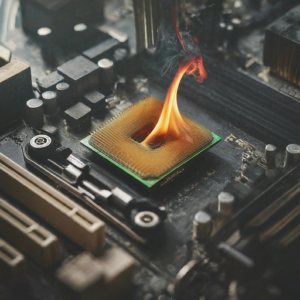 The motherboard is the heart of a computer. As long as your computer’s motherboard is intact – when things go wrong – your computer is often repairable at a reasonable cost. Motherboard repair or replacement, on the other hand, is usually very expensive. That said, there are several things to think about regarding prolonging the life of your motherboard. Here is a list of different reasons your computer’s motherboard might fail — along with suggestions on failure prevention.
PC Builder Damage
At least once a month I get a call from a PC Builder saying he or she just build a computer and it won’t come on. A nontrivial amount of the time the motherboard or CPU has bent pins or other damage such as: scratching or cracking the PCB, bent PCIe lanes, bent over capacitors etc. This could often be mitigated by the building watching Youtube videos about the build rather than forcing it.
Electrical Spikes and Surges
An electrical spike or surge is a short-lived burst of energy in an electric circuit. This can be the result of power hungry appliances, problems with wiring, problems with the power service outside the house, or the result of a lightning strike. Lightning is the #1 culprit of spike/surge motherboard failure I see — and it will often go in through the Ethernet port and bypass a surge protector! This sudden change of voltage can cause damage to the delicate circuits in a motherboard. Connecting your computer to a power outlet that has frequent fluctuations in electrical output may also cause damage to your motherboard. Though at times immediate damage may not be visible, it may harm the motherboard over time. To protect your motherboard from electrical spikes, use a high quality surge protector that can neutralize the effects. Unfortunately, it’s difficult to protect from lightning strikes.
Dust, Pet Hair and Debris
Dust pet hair and debris can be a sure motherboard killer. At my shop in Louisville, KY I can’t tell you how many times I see fans and fan basins clogged with dirt, dust, and debris. When these things collect in your machine, they start blocking the air circulation that keeps the machine cool. It is like harmful fat that blocks your arteries that cause a heart attack. A computer intake pulls all these things in when the fans rotate. This leads to blocking the airflow, which causes overheating.
Cigarette smoke
Tar from cigarette smoke (it’s not the nicotine, by the way) is not good for your health and also for the health of your computer. Cigarette smoke, when combined with dust produces a sticky gooey substance inside a computer. It smells bad and is also very difficult to remove. This tar can cause overheating — which may damage the motherboard. It is recommended that you have a periodic schedule of cleaning the interior of your computer (at a qualified shop) and try and keep it away from cigarette smoke.
Heating Issues
Overheating of the motherboard can occur if multiple operations are performed simultaneously and power supply is continuous (give your computer a periodic rest if gaming, watching videos, etc). Also, clogging of fans can cause a motherboard to overheat. In some cases, overheating may also occur due to fluctuations in power supply or in one of the parts of the motherboard circuit. Finally, using a laptop in your lap or on another soft surface can cover up intakes and exhaust fans causing your machine to heat up. Overheating can be prevented by keeping the fan basins clear, giving your computer a rest after heavy use, using your laptop in the cooler rooms in the house, and using it on a cold hard surface. Temperature monitoring software can be installed to monitor the temperature of your computer internally (Core Temp, Real Temp, SpeedFan).
Impact or Spill
An accidental impact to your motherboard can cause severe damage to the circuits which may cause motherboard failure. I have seen motherboards fail immediately due to impact from drops. Spill damage is also quite common. I have seen every type of liquid kill a motherboard instantly but thicker liquids (e.g., milk) seems to be the worst. Spills can cause your motherboard to short out instantly. Water can also cause damage to the different chips on your motherboard causing your motherboard to fail. If you do spill something into your laptop do NOT turn it on again and take it to a qualified computer repair shop, immediately.
Manufacturer Design Defects
Motherboards are mass produced and there are chances that manufacturing defects occur. Cheap motherboards also tend to fail more quickly. The capacitors installed may be faulty and may cause problems. The bus architecture of the board may have been engineered incorrectly and there might be cooling issues. Most motherboards come with a warranty so it should take care of expenses if problems arise during the warranty period, but that is often only a year and doesn’t cover user generated problems, of course. Sometimes the manufacturers admit to the faulty designs but usually not. Usually computer repair shops can tell if there is a “known issue” because we see the same problems occurring over and over with the same make and model of computer. I can see some trends related to certain generations of computers and it’s not with only one manufacturer. Sometimes these manufacturer defeats aren’t “known” for years (after enough of a make and model show up at the shops and enough complaints are filed that it becomes obvious there is a known issue with a particular make and model) and then it becomes more obvious based on discussions on the internet.
Normal Aging and Wear
Your motherboard will eventually fail (if something else doesn’t fail first.) This is a fact. It is an electric circuit board and has a finite life span. Some good motherboards will give you around fifty thousand hours of work time or even more if taken care of properly. Once they have reached their useful life span, they do fail and you may have to replace it or replace your computer. The good news is when you are aware of the reasons motherboards fail preventative and preparatory actions (see my article on backing up important files) can be taken to minimize the negative impact.
Please visit our website for more useful computer repair and topics.
Three Common Laptop Repairs and How to Avoid Them
At my computer repair shop in Louisville I see these three problems over and over. Sometimes it is the result of normal wear-n-tear. Parts wear out, right? And there are plenty of lemon parts with computers. I’ve seen a new hard drive fail in the first thirty days of use, for example. But sometimes accidents happen. And, often mistakes are made due to the fact that people don’t know how to properly maintain and handle their computer equipment. This article will make you aware of lurking dangers so you can avoid accidents and maintain your equipment properly, and avoid these costly and preventable laptop repairs completely.
DC Jack Repair
DC Jacks or charging ports take a lot of abuse. I know I’ve had several ignitions in my car replaced over the years. When I was a starving college student I remember one winter I would spray deicer in the ignition so my key would work. It got me through the winter, but finally I had to replace the ignition. The DC Jack on a laptop is the hole where the power adaptor or “charger” plugs into the computer. In most laptop units, the DC jack is directly soldered onto the motherboard — which not only makes it delicate but also expensive to repair. Often the entire laptop has to come apart to do the repair as there is no access anywhere around the jack. The three most common reasons the jack breaks is: 1.A child or animal trips on the cord. 2. People jerk the cord out hard and at an angle and do not realize it is not that difficult to break a solder joint and 3. People travel — either across the room or across the city — with the charger still connected to the laptop. Don’t do it!
Screen Repair
Perhaps even more common is laptop screen repair and replacement. I have seen laptop screens break when someone picked up a laptop by the corner of the screen to move it off of the floor up onto a table. Their thumb went right through the screen. I almost did it once myself. It is a very delicate screen. It does not have to be a dropped or take a hard impact to cause a cracked laptop screen. Another common scenario is closing something in the laptop. A mouse, a letter opener, even a flash drive left on the keyboard when the laptop is closed can cause a screen to break or fail. It is an expensive repair depending on the laptop screen and computer make and model. So, be aware of this “soft spot” on your laptop and be extremely gentle with it.
Motherboard Failure
Perhaps the most expensive and devastating, but rather common laptop repair is motherboard repair. This is what I consider a “catastrophic event” in the computer repair business. The entire machine has to come apart, the board taken out, and repaired at the microscopic level with expensive equipment. Sometimes this part simply fails, but often it is the result of what’s known in the industry as a “thermal event.” That is a heat related issue. To prevent this from happening, keep your laptop computer as cool as possible. Despite the name, a laptop should NOT be anyone’s lap. While the exhaust fan for the CPU is often located on the side of a laptop, the air intake is often located on the bottom. If your laptop is on your lap you are probably covering up the air intake for your exhaust fan which is extremely dangerous. You want to keep your laptop on a flat, cold, hard surface at all times! You can install free software such as the core temp monitor (be careful not to get a virus infection when you’re downloading free utilities) to monitor the actual temperature of your laptop from the inside. Also you can leave the battery out. I’ve never even had a battery in my laptop it’s still in plastic. It is not necessary to power a laptop that is plugged in to a wall outlet and only generates more heat. Keep the fan basins blown out with compressed air – especially if your home is dusty or you have dogs or cats. And as the computer starts to age if the heat monitor utility shows your laptop heat is on the rise, you can even go to the power options and turn your processor down a bit. As your laptop ages you probably don’t need your processors to run at 100% constantly. Mine is set to 95% and that alone gave me about a 5 degree drop in core temperature.
My old laptop, which is now my field machine, lived the first years of its life set up in my home office. It hardly ever went mobile (only when I traveled out of town). It is way past average life expectancy and still runs great at ten years old. So, heed the warnings and follow these simple suggestions and avoid these expensive and common laptop repairs in your future. You can find more information on laptop repair here.
How To Set Up Your New Computer
 At On-Site Louisville Computer Repair Co. I often get asked to set up new computers for people. This is a good idea since there is much involved in the process. Nevertheless, there are many people that like to do things themselves, so I wrote this article for you “Do-it-yourselfers” which covers the process. Hope this helps.
Get Your Files off Your Old Machine
If you have files and folders on your old machine you need to put them on a portable storage device, a flash drive, and then move them to your new machine after you set your computer up… I would leave a copy of the files on the flash drive and that is your back-up should you experience a catastrophic machine failure in the future.
Plug In, Go Through Set-up Menu and Run Your Updates:
When you turn your new computer on you will be prompted to choose settings for the computer name, time zone, language, network, updates, etc. This is very intuitive — just fill in the blanks. This is also a good time to register the computer and software. Then you are ready to run updates. Since your machine has been sitting on a warehouse or retailer’s shelf for a while you will have updates due at the time of purchase.
Uninstall Bloatware and Activate Antivirus Software Suite
Bloatware is the software that will come preloaded with your brand new laptop or desktop in the form of 30 day trials or trail subscriptions or other junk. While this software may not be harmful (debatable) most of the times they are just a waste of space. To remove simply go to Control Panel > Add/Remove> Uninstall. If your machine has a one year subscription to an antivirus suite you can activate that at this point. Otherwise you can uninstall the 30 day antivirus trial and read my article on “Five Free Antivirus Suites You Can Try for Zilch.”
Creating a System Restore Disk
You can create a restore disk in case something happens and you need to restore your computer to its factory state. Since most computers come with a recovery partition that allows you to recover your computer to factory state, making is disks is optional; however, there are circumstance where the recovery manager will not function normally, such as destruction of the partition by a virus infections, etc. Therefore many people still choose to create disks in case of emergency. To do this:
♦Go to start menu.
♦In the search bar, type “backup”.
♦Click on the “backup and Restore” option.
♦On the left side of the panel, you will see an option “create a system repair disc”.
♦Click on the option and follow the process.
Configure Power Options:
Familiarize yourself with the power settings and options available in your computer. In Windows Vista and 7 just go to start and search for “Power Options.” You can configure all your power options here including when the screen turns off, when or if the computer sleeps, what happens when you close the lid and what the power button does.
Choose Your Home Page and Make Bookmarks
When you get on the internet with Internet Explorer you probably want the page that comes up to be your favorite search engine, or your Email Login Page (which are often the same place). Most people set their homepage to Google, Yahoo, or Bing. In your browser window go to Tools>Internet Options> and then set your home page to the preferred URL. This is also a good time to visit your Bank Website, Favorite Shopping Site, and other places you visit on a regular basis and add those websites to your favorites, favorite’s toolbar, or bookmarks.
Transfer Your Files From Your Old Machine
Remember the files we pulled off your old machine earlier? Now is a good time insert your flash drive and drag old documents, photos, and music to your new computer. Plug in the flash drive and wait for it to populate “Computer” screen. Then drag a copy of your files, photos and music to the appropriate folder on your new machine and get back to computing as usual on your new computer!
Is it Safe to Bank and Buy on the Internet? Updated 2026

5 Smart Ways to Stay Secure in 2026
Online banking and shopping are no longer just convenient—they’re essential. From paying bills to ordering groceries, most people rely on the internet daily. So obviously I’m alarmed when I constantly see data breaches at my in-home service calls with elderly clients. With that convenience of the internet comes a growing wave of cyber threats, scams, and data breaches. So in this environment it’s essential to be more careful.
So the question still stands: Is it safe to bank and buy online? The answer is yes—if you follow modern security practices.
1. Watch Out for Phishing (Now Smarter Than Ever)
Phishing scams have evolved far beyond the obvious fake emails of the past. Today’s attacks can look incredibly convincing and may come through email, text messages (smishing), phone calls (vishing), or fake login pages that look identical to your bank. Criminals often pretend to be your bank, Amazon, Norton, PayPal, IRS, FedEx, or even Microsoft.
To stay safe, never click login links in emails or texts. Go directly to the website by typing it in or using your bookmark. Be suspicious of urgency like “your account will be locked,” or “your photos will all be deleted and you will not be able to recover” and other nonsense. And always check the sender email carefully for subtle misspellings. If something feels off, it probably is.
2. Always Use Secure Websites (HTTPS Isn’t Enough Anymore)
Seeing “https://” and a lock icon used to be enough, but today even scam sites can have HTTPS. You need to go a step further.
Make sure the domain name is exactly correct with no extra letters or misspellings. Pay attention to browser warnings, avoid clicking ads that lead to login pages, and stick with well-known, trusted retailers and banking apps. The lock icon only means the connection is encrypted—it does not guarantee the site is legitimate.
3. Use Two-Factor Authentication (2FA)
This is one of the biggest improvements in online security. Even if someone gets your password, they still cannot access your account without a second verification step.
Common methods include text message codes, authentication apps like Google Authenticator or Microsoft Authenticator, and biometric logins like fingerprint or face recognition. If your bank or any online account offers 2FA, turn it on.
4. Avoid Public Wi-Fi (or Use Protection)
Public Wi-Fi at airports, hotels, or coffee shops like Starbucks is still a major risk. Attackers can intercept your data, create fake networks, or monitor activity on unsecured connections.
The safest option is to use your home network or your phone’s hotspot. If you must use public Wi-Fi, use a VPN to protect your connection. Never access banking or sensitive accounts on public Wi-Fi without protection.
5. Keep Your Devices and Software Updated
Outdated systems are one of the easiest ways for hackers to get in. Whether you’re using Windows 11, macOS, or a smartphone, updates are designed to fix security vulnerabilities.
Turn on automatic updates, keep your browser current, use modern antivirus protection, and remove old or unused software. Updates may seem inconvenient, but they are one of your strongest defenses.
Final Thoughts
Online banking and shopping are safer than ever, but only if you stay alert and follow good habits. Most cybercrime today relies on tricking people rather than breaking through systems.
If you avoid suspicious links, verify websites carefully, use 2FA, stay off public Wi-Fi for sensitive tasks, and keep your devices updated, you can enjoy the convenience of the internet without putting your money or identity at risk.

RSS Feed
