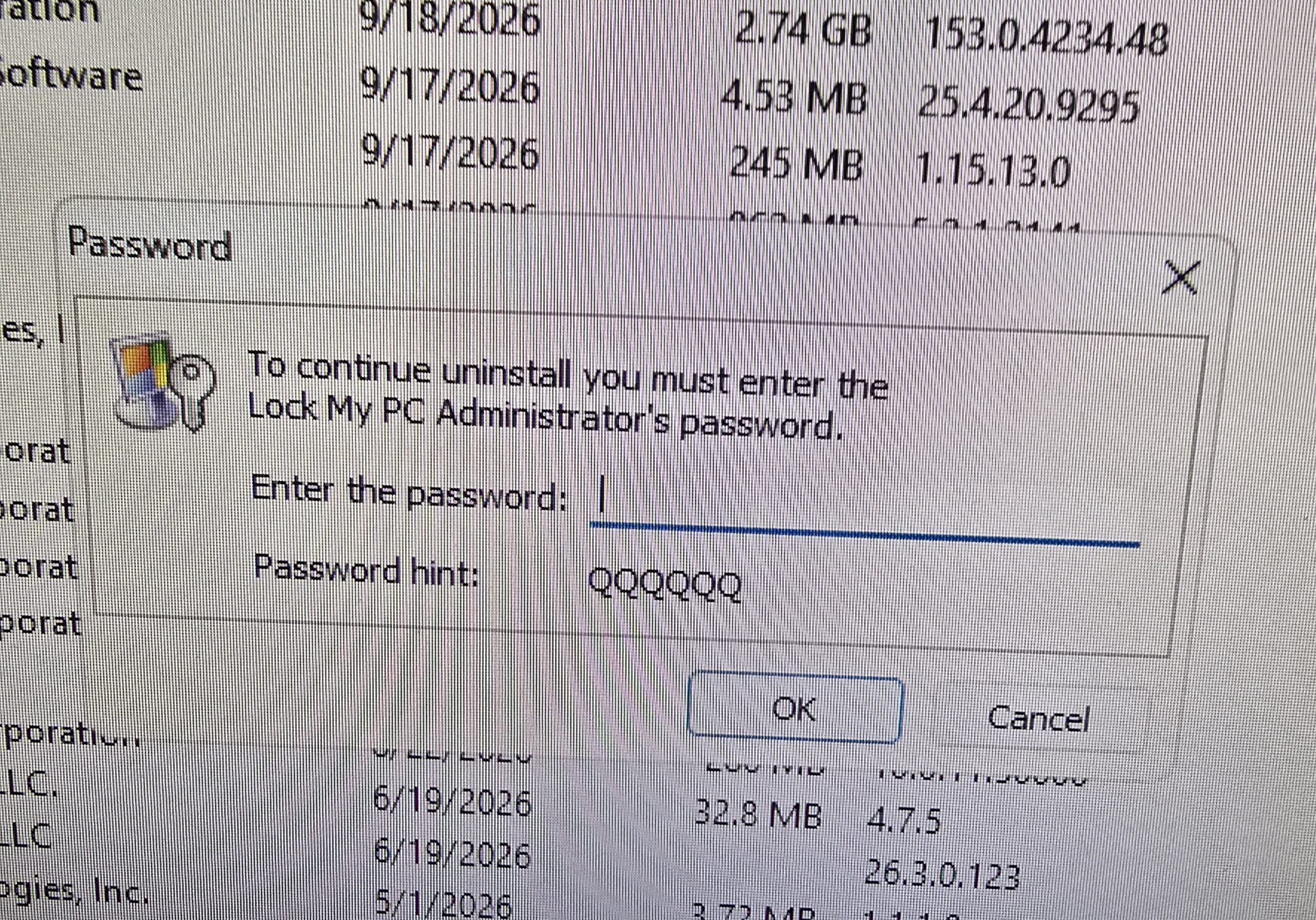
 Problem: Scammers locked a Dell Inspiron 3030 Windows 11 PC with password-protected software so not even Windows could be accessed. Cause: Lock My PC blocked normal access with unknown password, password hint, and also removal. Fix: Backend manual disable and removal. Result: Computer unlocked and usable.
I recently worked on a Windows computer after the owner had been involved in a tech support scam. He stated that after he refused to do what scammers expected they put an app on his computer that locked his machine. It was Dell Inspiron 3030 tower with Windows 11.
When I arrived on-site the scammer had installed Lock My PC Free Edition 4.9.5. You can see the image above I took as soon as I arrived. The program was password protected, which created an additional problem during cleanup: I couldn’t simply uninstall it.
When I attempted to remove Lock My PC through Windows Installed Apps, the uninstaller displayed: “To continue uninstall, you must enter the Lock My PC Administrator’s password.”
There was also a password hint (see photo above it was QQQQQQ I think), but the computer’s owner hadn’t installed or configured the program and obviously didn’t know the password the scammer had used. I tried the usual stuff “123456” etc. Nothing worked.
Rather than trying to guess the password further I tried to remove it with normal windows uninstaller which failed. Then, I booted into safe mode and attempted removal. What transpired is next:
Booting the Computer Into Safe Mode
My first step was to disconnect the computer from the internet and boot Windows into Safe Mode.
To get there, I used:
Shift + Restart
Then after the computer restarts: Troubleshoot → Advanced options → Startup Settings → Restart → Safe Mode
I initially hoped that running the uninstaller from Safe Mode might prevent Lock My PC’s protection from loading.
It didn’t.
Even in Safe Mode, attempting to uninstall Lock My PC produced the same administrator-password request.
That told me I needed to find out what Lock My PC was loading in Windows rather than continuing to fight with its uninstaller.
Finding the Lock My PC Windows Service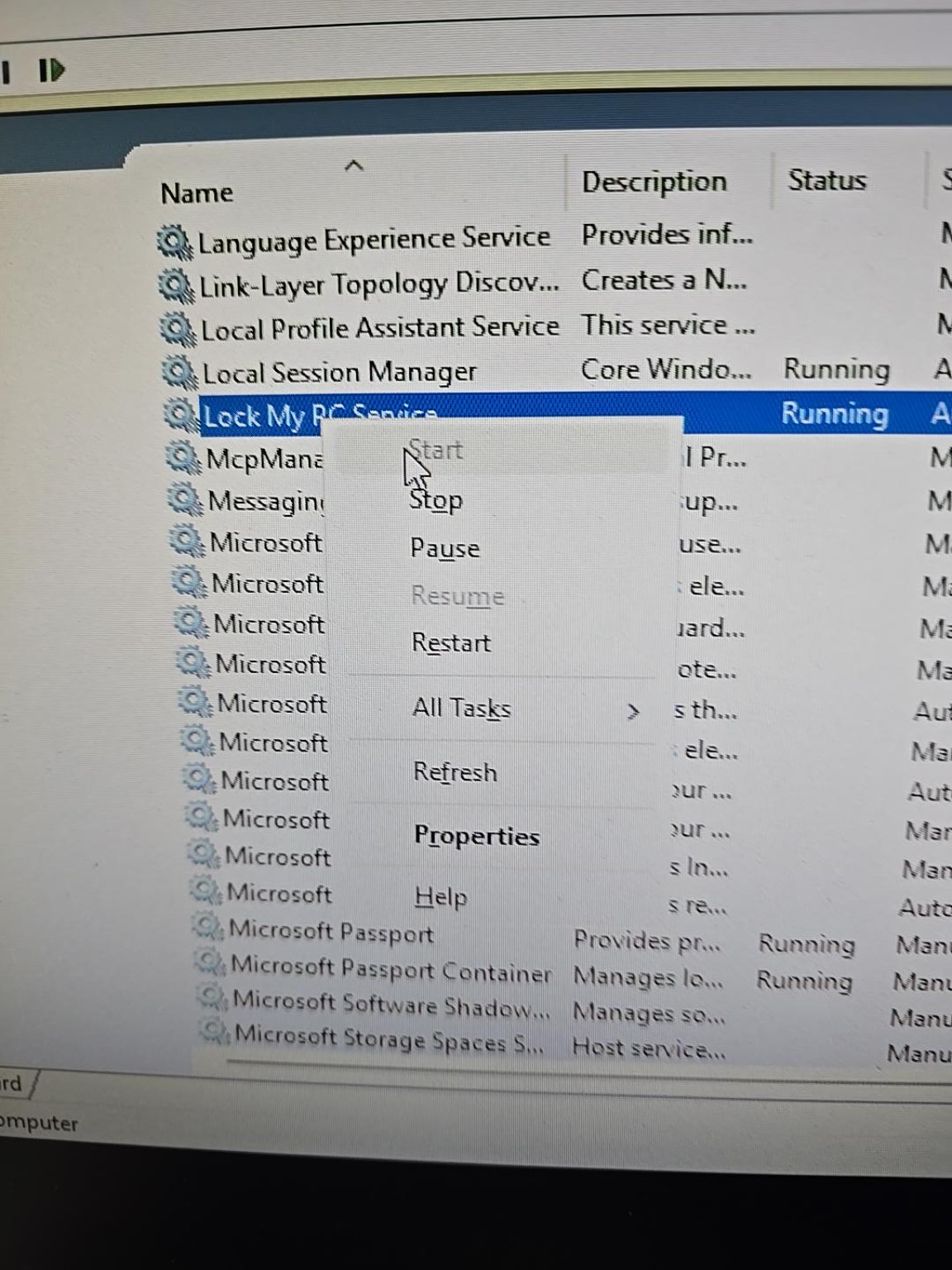
I opened:
Windows Key + R → services.msc
I was looking for anything in the “L’s” related to the software. I found a service named Lock My PC Service. Eureka, that was probably it, I thought.
The service was actually running even though Windows was in Safe Mode. That explains why it won’t uninstall either from Windows Settings as a modern app or through the control panal as traditional software is removed. (I tried both).
Opening the service’s properties provided the information I needed:
Service name: LmpcService
Path to executable: C:\Program Files\Lock My PC 4\LmpcServ.exe
Startup type: Automatic
I stopped the service and changed its Startup Type from Automatic to Disabled.
I then tried the normal Lock My PC uninstaller again.
It still demanded the administrator password.
So the password requirement wasn’t simply being imposed by the running service. It was part of the program’s uninstall process.
Removing the Lock My PC Service Manually
From an Administrator Command Prompt, I used:
sc stop LmpcService
Since I had already stopped the service manually, Windows reported that the service had not been started.
I then entered:
sc delete LmpcService
Windows responded:
[SC] DeleteService SUCCESS
At this point, the Lock My PC service was no longer registered with Windows.
Removing the Lock My PC Program Files
Next I went to the installation directory:
C:\Program Files\Lock My PC 4
The directory contained the Lock My PC executables and supporting files, including LmpcServ, lockpc, LockLib.dll, the LockScreens directory and the unins000 uninstall files.
Because the service had already been removed and the password-protected uninstaller wasn’t useful, I removed the Lock My PC installation directory manually.
Windows initially reported:
Folder In Use – The action can’t be completed because the folder or a file in it is open in another program.
That indicated that a Lock My PC component was still loaded in memory.
After terminating the remaining Lock My PC process, I was able to delete the entire C:\Program Files\Lock My PC 4 folder.
Lock My PC May Still Appear Under Installed Apps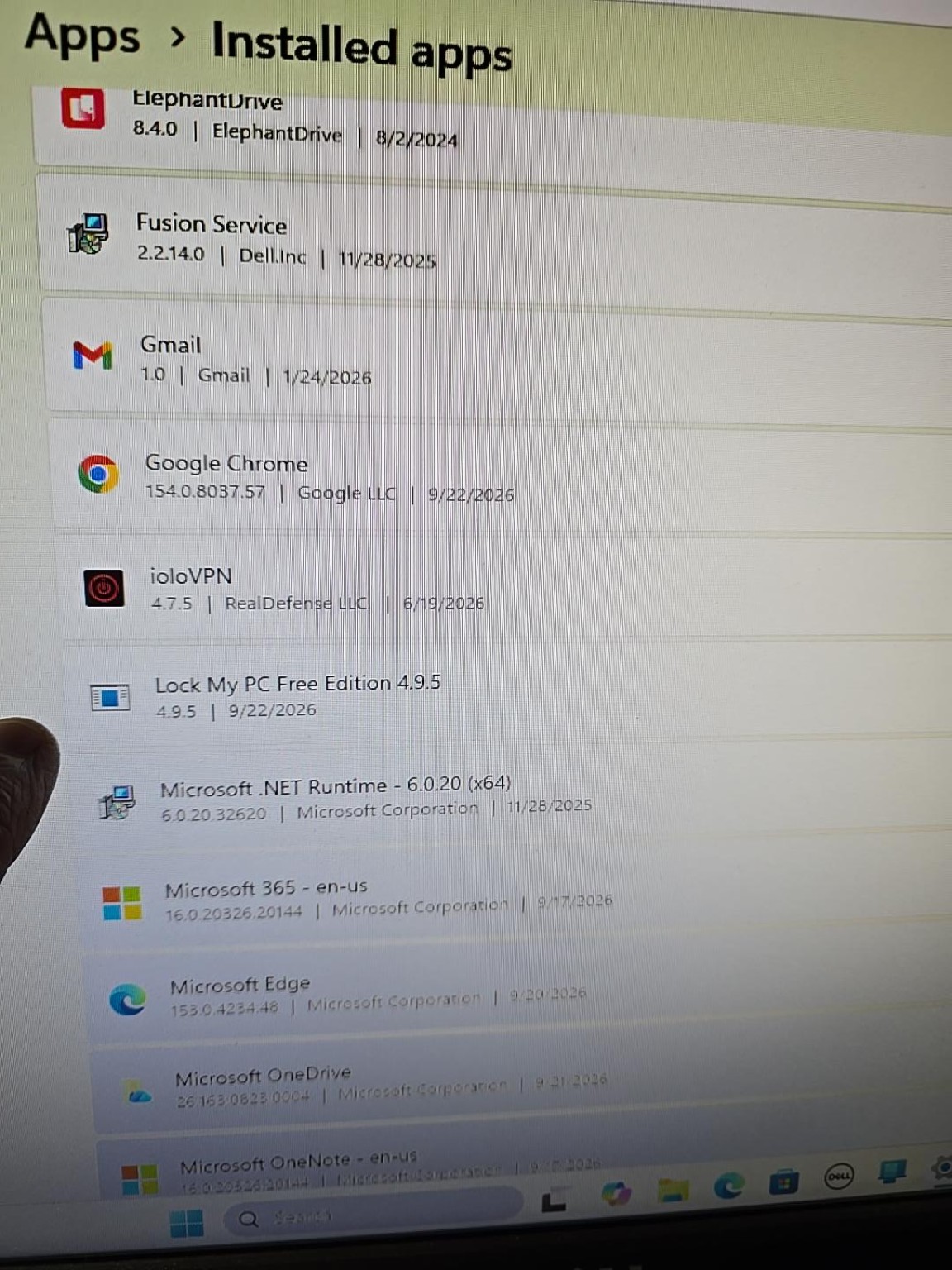
After manually removing the program, Lock My PC Free Edition 4.9.5 still appeared in Windows Installed Apps.
That doesn’t necessarily mean the program is still installed and functioning.
Windows maintains uninstall information separately from the application’s actual program files. Because I deliberately bypassed the password-protected uninstaller, its old uninstall registration remained behind.
The important components; the running service and Lock My PC program files had been removed.
The orphaned Installed Apps entry can subsequently be cleaned up separately.
Removing Lock My PC was only part of the scam cleanup. I would not consider a computer clean simply because Lock My PC was removed.
In this case, its presence was evidence that someone who should not have had control of the computer had been able to install software on it.
After removing Lock My PC, the next job is determining what else was changed or installed during the scam session.
The only other problem I found on the machine was several instances of remote access software the scammers used to access the computer, in this case: AnyDesk, TeamViewer, ScreenConnect/ConnectWise, and UltraViewer, which I removed normally.
I also performed a manual inspection for malware and a malware scan until I was satisfied the machine was infection and remote user free.
Chris Calkins owns On-Site Louisville Computer Repair Co. in Louisville, Kentucky, and writes about the computer, networking and cybersecurity problems he encounters on real service calls.