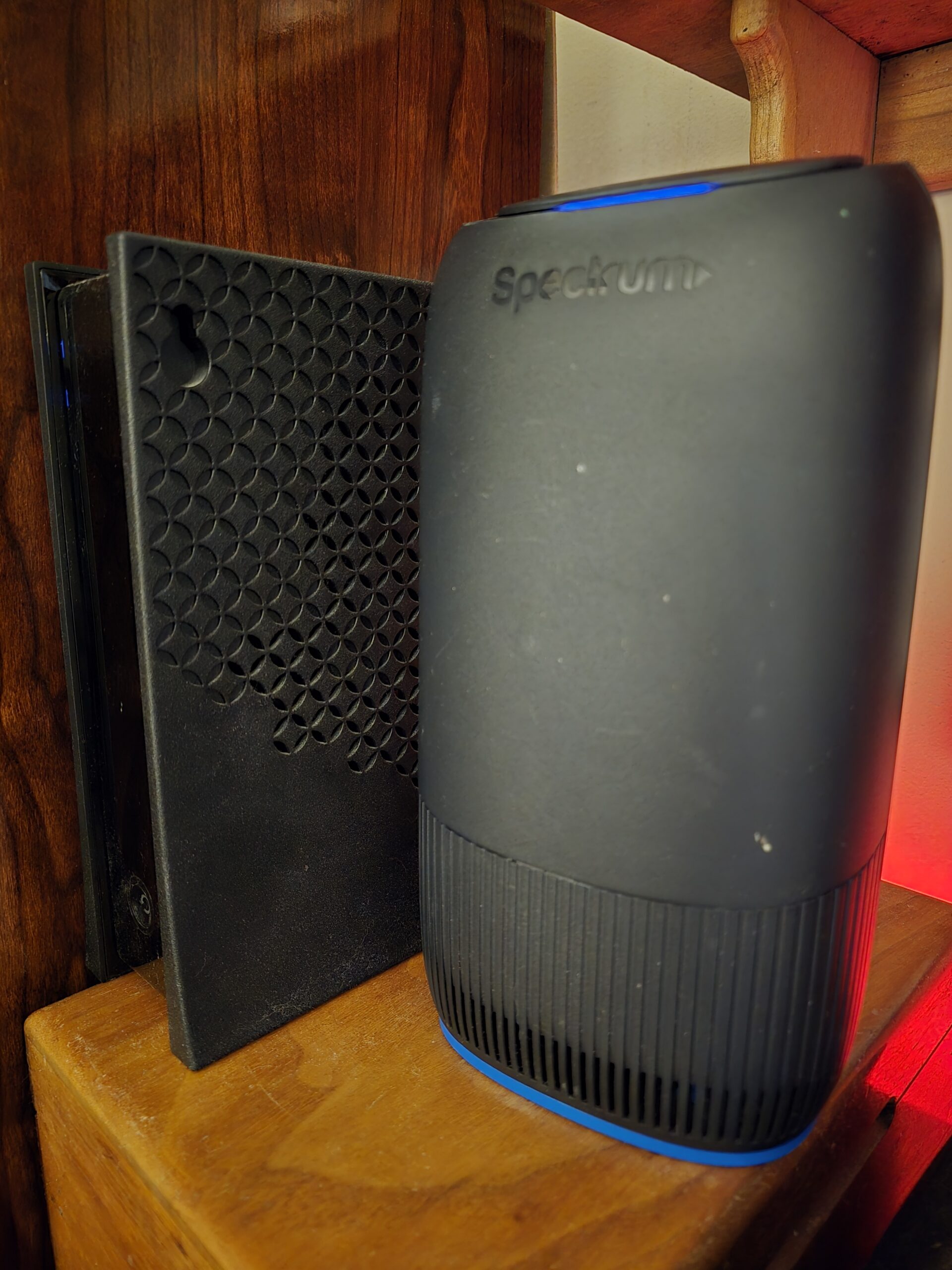
 Problem: 900 Mbps down / 3 Mbps up over Ethernet. Cause: Killer E2600 / LSO interaction. Fix: Disable Large Send Offload v2 IPv4 and IPv6. Result: Normal gigabit upload restored.
If your ethernet connection gets full download speed but your upload speed is extremely slow, the problem may not be your internet provider, router, or ethernet cable. Incidentally, this may also apply to other routers even though this post is specfically a remedy for a problem with the Spectrum Askey SBE1V1K WiFi 7 Router.
I recently encountered a strange example after installing a new Wi-Fi 7 router on a symmetrical gigabit internet connection.
The symptoms were:
Ethernet: approximately 900 Mbps download (deemed normal as paying for 1000 so 90% in normal range [I consider normal range considered 70-100% based on thousand of field tests I have personally conducted over >20 years]) but only 3 Mbps upload.Wi-Fi: approximately 900 Mbps download and nearly 1,000 Mbps upload.
At first glance, an upload speed of only 3 Mbps might look like an ISP or router problem. But some further troubleshooting isolated the problem to the ethernet adapter in the Windows PC.
How I Isolated the Problem:
The first important clue was that Wi-Fi worked correctly. The computer could access nearly the full symmetrical gigabit connection wirelessly.
Next, I connected a laptop to the router using ethernet.
The laptop achieved more than 900 Mbps download and 900 Mbps upload.
That essentially eliminated the internet connection, router, and ethernet cable as the primary suspects.
The problem was specific to the desktop computer’s wired network connection.
The Ethernet Adapter:
The affected computer was using a Killer E2600 Gigabit Ethernet Controller.
I checked the adapter’s advanced settings in Windows Device Manager.
Energy Efficient Ethernet and Advanced EEE were already disabled, so those weren’t responsible.
The setting that made the difference was Large Send Offload v2 (LSO).
The Fix: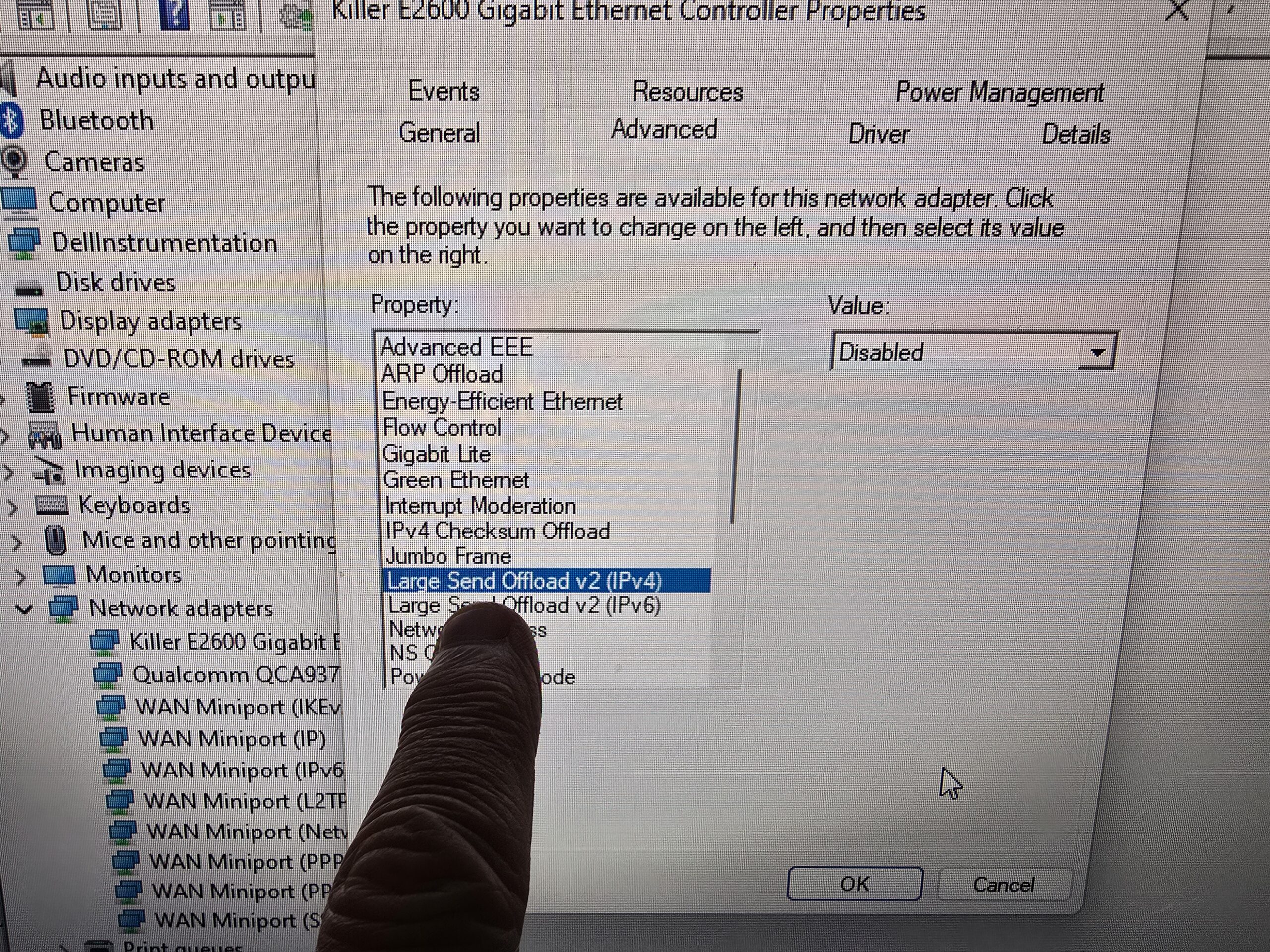
Open:
Device Manager → Network adapters → Ethernet adapter → Properties → Advanced
Locate:
Large Send Offload v2 (IPv4)
Large Send Offload v2 (IPv6)
Set both to:
Disabled
Click OK and allow the ethernet connection to reconnect.
I immediately ran another speed test.
The upload-speed problem was gone.
Instead of approximately 3 Mbps upload, the wired connection was once again capable of taking advantage of the high-speed symmetrical connection.
What Is Large Send Offload?
Large Send Offload is a networking feature designed to reduce CPU workload.
Normally, Windows has to divide large amounts of outgoing network data into smaller packets before transmitting them. LSO allows some of that work to be handed off to the network adapter.
When everything is working correctly, this can improve efficiency.
But network-adapter drivers, hardware, firmware, and networking equipment don’t always interact perfectly. In this case, disabling LSO eliminated an enormous ethernet upload bottleneck.
LSO isn’t inherently bad, and I don’t recommend disabling it on every computer. This is a troubleshooting step for a specific type of networking problem.
How to Tell Whether You Have the Same Problem:
Run a speed test using ehernet.
Run another speed test using Wi-Fi.
If Wi-Fi upload is dramatically faster, connect another computer to the same ethernet cable.
If the second computer gets normal ethernet upload speeds, concentrate your troubleshooting on the original computer.
Check the ethernet adapter’s driver and advanced properties.
As a diagnostic test, disable Large Send Offload v2 for IPv4 and IPv6 and retest.
If nothing changes, you can return the settings to their previous values and continue troubleshooting.
Don’t Automatically Blame Your ISP
This case is a good example of why computer and networking problems need to be isolated systematically.
A connection delivering approximately 1,000 Mbps download but only 3 Mbps upload certainly looked like an internet problem.
But Wi-Fi delivered nearly 1,000 Mbps in both directions, and a second computer delivered more than 900 Mbps in both directions over ethernet.
Those tests narrowed the problem to one computer.
In this case, disabling two Large Send Offload settings in the Windows ethernet adapter immediately solved the problem.
Please feel free to share this post if you found it helpful.
Chris Calkins owns On-Site Louisville Computer Repair Co. in Louisville, Kentucky, and writes about the computer, networking and cybersecurity problems he encounters on real service calls.