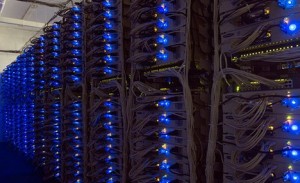
Is it Safe to Bank and Buy on the Internet? Updated 2026


5 Smart Ways to Stay Secure in 2026


Online banking and shopping are no longer just convenient—they’re essential. From paying bills to ordering groceries, most people rely on the internet daily. So obviously I’m alarmed when I constantly see data breaches at my in-home service calls with elderly clients. With that convenience of the internet comes a growing wave of cyber threats, scams, and data breaches. So in this environment it’s essential to be more careful.


So the question still stands: Is it safe to bank and buy online? The answer is yes—if you follow modern security practices.


1. Watch Out for Phishing (Now Smarter Than Ever)


Phishing scams have evolved far beyond the obvious fake emails of the past. Today’s attacks can look incredibly convincing and may come through email, text messages (smishing), phone calls (vishing), or fake login pages that look identical to your bank. Criminals often pretend to be your bank, Amazon, Norton, PayPal, IRS, FedEx, or even Microsoft.


To stay safe, never click login links in emails or texts. Go directly to the website by typing it in or using your bookmark. Be suspicious of urgency like “your account will be locked,” or “your photos will all be deleted and you will not be able to recover” and other nonsense. And always check the sender email carefully for subtle misspellings. If something feels off, it probably is.


2. Always Use Secure Websites (HTTPS Isn’t Enough Anymore)


Seeing “https://” and a lock icon used to be enough, but today even scam sites can have HTTPS. You need to go a step further.


Make sure the domain name is exactly correct with no extra letters or misspellings. Pay attention to browser warnings, avoid clicking ads that lead to login pages, and stick with well-known, trusted retailers and banking apps. The lock icon only means the connection is encrypted—it does not guarantee the site is legitimate.


3. Use Two-Factor Authentication (2FA)


This is one of the biggest improvements in online security. Even if someone gets your password, they still cannot access your account without a second verification step.


Common methods include text message codes, authentication apps like Google Authenticator or Microsoft Authenticator, and biometric logins like fingerprint or face recognition. If your bank or any online account offers 2FA, turn it on.


4. Avoid Public Wi-Fi (or Use Protection)


Public Wi-Fi at airports, hotels, or coffee shops like Starbucks is still a major risk. Attackers can intercept your data, create fake networks, or monitor activity on unsecured connections.


The safest option is to use your home network or your phone’s hotspot. If you must use public Wi-Fi, use a VPN to protect your connection. Never access banking or sensitive accounts on public Wi-Fi without protection.


5. Keep Your Devices and Software Updated


Outdated systems are one of the easiest ways for hackers to get in. Whether you’re using Windows 11, macOS, or a smartphone, updates are designed to fix security vulnerabilities.


Turn on automatic updates, keep your browser current, use modern antivirus protection, and remove old or unused software. Updates may seem inconvenient, but they are one of your strongest defenses.

Final Thoughts


Online banking and shopping are safer than ever, but only if you stay alert and follow good habits. Most cybercrime today relies on tricking people rather than breaking through systems.


If you avoid suspicious links, verify websites carefully, use 2FA, stay off public Wi-Fi for sensitive tasks, and keep your devices updated, you can enjoy the convenience of the internet without putting your money or identity at risk.

[socialring]

How to Transfer Photos From a Smartphone to a PC

With a smartphone, clicking and transferring pictures is an easy task! Just keep clicking and when done transfer them to your computer. Only how to do it?  Transferring pictures from a Smartphone to computer can be done in a number of ways . . . here are the most popular below.
 
Send As Multimedia Messaging Service (MMS)
 
Ever texted someone a picture?  You just used MMS. Smartphones have an option to send images via MMS usually just by touching the image you wish to send and following some simple menu commands. To send the image to your computer, instead of filling the cell number, you will need to fill your Email in the send section. Once sent, you can login to your email and quickly download the photo, which comes as an attachment.
 
USB Cable Method
 
All Smartphones should come with an USB cable, which connects to any computer directly. If not you can call your cell phone provider and request a USB transfer cable.  Your phone needs to be ON, when you plug the cable into your phone and computer. A new drive will come up (or populate in the “my computer” window of your PC where your other drives can be accessed), then search your phone for images right from your computer.  You open the files in your phone, just like you would open a flash drive — two quick left clicks. Then drag and drop pictures wherever you store your photos on your computer.
 
Memory Card Method
 
Most smartphones have an internal memory card called a micro SD chip; check if your phone has one by removing the back cover and looking for a small chip with a memory designation such as “2gb” on it. If you need help you can visit your cell phone provider and they will help you for no charge.   Pictures which you would like to transfer can be plugged directly into your computer usually SD to Micro SD adapter which can be purchased for about $10 almost anywhere with an electronics department.
 
Sync Method
 
Sync your phone and computer and the photographs will be automatically transferred to the computer. If you have syncing enabled on your phone once you plug your phone to your computer it will quickly prompt the computer to open the specific photo application that displays the pictures on the Smartphone. Select to upload photos and place them in your photo folder on your PC>
 
Bluetooth Method
 
Activate the Bluetooth of your Smartphone. It is usually found in Settings or Control. Ensure that Bluetooth is turned ON in your computer. Bluetooth settings are usually in the system tray of tiny icons in the bottom right hand corner of your taskbar.  With Mac’s it is located on the upper toolbar, ride side. Open the pictures gallery in your Smartphone and select send or copy option. Next choose the Bluetooth option. After confirming that you intend to enable Bluetooth, you will find the menu usually pops up automatically. Click ‘look for devices’ and select your Computer name or ID from the list. A request will be immediately sent requesting communication from your computer and phone.  Then simply then simply drag your pictures to the appropriate folder on your computer.
 
[socialring]

Five Reasons Your Computer Might Be Running Slowly

Here at my shop in Louisville, KY I have lots of people call with a “slow computer” complaint. Any person who owns a computer knows that the speed often slows over time. While some can easily overcome these problems, many cannot. My computer, because of my heavy use, often requires daily maintenance. Thankfully for me this is almost always only a software issue (I did upgrade my ram when I purchased my laptop and I have upgraded my Internet Service twice). However, hardware can also be causing a problem. Below I have listed some of the reasons your computer might be running slowly and some tips on how to fix it.
 
Your Computer Is Out of Tune
 
Computers have a habit of getting “out of tune” I call it as time goes by. By this I mean that your computer becomes bogged down by fragmentation, partial uninstalls, software glitches and conflicts, registry errors, temporary file buildup, toolbars, browser add-ons and other clutter and problems. Windows has built-in utilities to solve some of these problems but others require aftermarket utilities and some computer know-how. For starters, pay attention to your browser and make sure toolbars haven’t been installed inadvertently (I avoid most toolbars altogether). Look in your control panel and uninstall software you’re not using anymore or any that looks suspicious. If you don’t know what a program is “Google” or “Bing It.” Run the free utility CCleaner from Piriform to fix your registry and clean up your temporary files. It’s also a smart idea to take your computer to a qualified repair shop for a tune-up on an annual basis. The computer repair professional should be able to give you insight on how you’re doing with keeping your PC in good running condition and should be able to tell you, based on examining your machine, how often you need to bring it in for a tune-up in the future.
 
You Don’t Have Enough Mbps (Megabits Per Second) From Your Internet Service Provider
 
Ever been in a situation when you are trying to catch up on your favorite soap, online documentary or YouTube Video and all you get is “buffering.” It’s frustrating isn’t it? Do you have endless “hour glassing” every time you try to do something on the web? You might not be getting what you’re paying for from your Internet Service Provider. Or you might not have enough service for your computing needs. For example, it takes about 3-6 Mbps service to stream a YouTube Video without buffering. Today’s busy households require, in my opinion, at least 10Mbps Service. Once you upgrade your service you also need to test your Internet Speed to make sure you are getting it. You can do this by going to speedtest.net and using the free on-site utility. And you shouldn’t have to download anything to do it. Simply hit “begin test.”
 
You Need More Random-Access Memory (RAM)
 
RAM is a type of data storage in your PC which directly affects speed. When you launch an application or software on your computer, RAM is responsible for running the software. If you do not have RAM your computer might not be able to open and run multiple applications or meet the demands you place on it. This problem can easily remedied by purchasing and installing additional RAM for your computer. When you purchase RAM, it is important to check with the salesperson which type of memory is compatible with your PC. If you don’t know how to upgrade your RAM call a qualified computer repair shop in your area.
 
Your Processor is Out of Date
 
Another hardware component closely related to computer performance is the processor. As new programs and software are created and take more and more updates, they requirements to run them increases. Often, people are trying to run newer or resource intensive applications on older machines with a processor that can’t handle the new software efficiently.
 
You Have Infections
 
People are often shocked to learn that computer viruses are almost inevitable. And, you can even get them while browsing on sites that you think are safe. I can’t tell you how many times people are stunned when I tell them they have over 100 infections on their machine . . .or I tell them I can see infections from across the room. They have no idea they have computer viruses. The best way to prevent this is to use anti-virus software with “real time” protection and research articles on “How to Prevent Computer Viruses.” There is an article on the blog about this subject and also many articles online about virus prevention. Learning better, safer, web browsing habits on a regular basis is nice addition a computer user’s skillset. And definitely a skill you will want to master if you want your computer to run better . . . and faster.
 
[socialring]

Four Important Steps To Become a Better “Web Browser” Yourself

Nearly 100% of all computer virus infections and scams come from internet activity – nowhere else. Malicious software doesn’t magically install itself on your computer nor does it usually enter though a flash drive or disk. It comes in through the internet. Where else, right? There are many ways that you can improve security when it comes to your online activities. It is imperative to develop these habits now as doing so will help protect you from increasing problems with unsecure utilities, software and viruses that might seriously affect your security and computer health in the future.
 
Monitor Browser Health
 
Your web browser is your gateway to the internet world. Therefore its health and security is your first line of defense against threats coming in from the internet. There are three common web browsers that most people use today. MS Internet Explorer (IE), Mozilla Firefox and Google Chrome. IE comes with your OS and can’t be uninstalled. It should be an adequate browser if kept clean and free of corruption and infection. From the menu or command toolbars you can check your add-ons and see if anything unexpected is ominously lurking in your browser. Oftentimes people inadvertently install add-ons (usually toolbars) while downloading utilities they think might be useful. These add-ons can seriously compromise browser security and affect browser performance, as well. To see if you have add-ons go to: Tools >Manage Add-ons >Toolbars and Extensions. Here you can disable the add-ons and then remove them from the control panel. If you see many add-ons that you do not recognize you should reset IE completely. To do this go to: Tools >Internet Options >Advanced >Reset. It is easy to do and you do not lose your bookmarks/favorites. Afterward remove unwanted software from the control panel.
 
Be Aware of Phishing Scams
 
Phishing schemes commonly delivered in the form of email is a type of scam where you are potentially tricked into downloading junk utilities or software (which often asks you for money later) a virus, or providing sensitive information. These messages are made to look as though they have originated from your bank, social media or payment sites such as Paypal or other legitimate people or companies. The phishing message often contains a link that will then lead to a counterfeit version of the site or ask you to open an infected attachment or download an infected utility. Or it might contain an attachment that it says you should open to continue. Don’t allow your curiosity to kill your computer. Delete all unsolicited mail. Never click links in emails or open email attachments unless you recognize the sender. And don’t give your credit card information over the internet unless you do it directly on a website (not from your email Inbox or a pop-up message) and you’re sure you trust the company.
 
Avoid Most Free Utilities
 
It’s very tempting to install that snazzy fish tank screen saver you see flashing on the sidebar of your favorite social site. DON’T DO IT! These types of free utilities usually come with a catch. In order to use them you give up something . . . usually your browser health or internet security in return for the favor. Video players, music converters, game toolbars, chat applets, screen savers, pc optimizers and cleaners and the like are all very tricky utilities to use without getting toolbars and viral infections. Next time you want to get that utility that makes your Facebook like an Electric Light Orchestra concert . . . .think twice about it. . .
 
Run a Malware Removal Tool Regularly
 
Even though you may think you’re protected because you have antivirus software you’re not. It is about as effective as a safety on a gun – not very effective at all. Especially where people are not adequately trained on computer systems or there are multiple users on a single machine. In this case, I often find that the computers have multiple virus infections present. It is important to run a virus removal utility such as AdAware or Malwarebytes (both of which are free) on a regular basis in addition to updating your Antivirus Software. Antivirus software alone is not enough. Yes you read that right. The antivirus software that you are relying on to protect you from virus infections is inadequate to protect you in all circumstances. Therefore I recommend you use separate virus removal software for removal on a regular basis. Caution: Be careful when installing a malware removal tool that you do not install another full antivirus suite. If you have any question uninstall the malware removal utility when finished. For more free information on computer repair topics you can visit my website here or blog called PC News.
 
[socialring]

Did You Know Your Computer Probably Has a Virus?

A Computer virus is software embedded with a particular code intended to hack a system or network so as to steal, corrupt, or control against the will of the user. The origin of viruses can be traced back to the advent of the computer itself. Although you might not be aware of it you probably have viruses on your computer as you read this. Here are some simple tips to help keep malicious software away and keep your computer running the way it is supposed to.

Ensure Your Firewall Is On

Firewalls prevent unwanted programs from getting access to your computer from outside. According to Wikipedia “a firewall is a software or hardware-based network security system that controls the incoming and outgoing network traffic by analyzing the data packets and determining whether they should be allowed through or not, based on a rule set.” A firewall establishes a barrier between a trusted, secure internal network and another network that is not assumed to be secure and trusted. If you are using Windows it is best to turn Windows Firewall on. It’s a simple settings issue in the control panel.

Use Effective Antivirus Software

There is preventative medicine for these virus infections in the form of anti-virus software – which is abundantly available. There are both paid and free versions of them which you can either buy or download freely from the internet. The key here is that the software has “real time protection.” which should prevent many viruses from populating on your machine and keep you fairly protected. Notice that I have underlined “many” and “fairly” in the previous sentence. A variety of viruses can skirt anti-virus software with relative ease; therefore, it is imperative that computer users monitor their behavior – adopting and developing good web browsing and “computer hygene habits” in order to ensure immunity from viral threats.

Use An Antimalware Utility Regularly

While antivirus software seeks to prevent viruses “on the front end” or before they populate on a computer. Anti-malware utilities remove virus infections after a machine is infected. There are plenty of anti-malware programs that you can run on a weekly basis to remove small viruses that might have slipped in. Two that I use include Malwarebytes and Spybot Search and Destroy. Note: Many viruses require professional virus removal to be removed completely.

Run Updates

It is quite obvious that viruses like any other programs continually seek new ways to hack systems and hence the resistance of the operating system needs to be reviewed and updated regularly. Manufacturers of such operating system meticulously do that; therefore, you should download and install the latest patches and updates released by the operating system manufacturer.

Learn Good Web Browsing Habits and Computer Hygiene

Last and perhaps most important: strive to improve web browsing habits and PC maintenance and hygiene regimens. A gun has a safety and roadways have guardrails but they provide limited protection. Ultimately, we are responsible for our own computer health. A few things you can do to improve web browsing habits are to avoid websites with numerous pop-ups related to them. Don’t open suspicious emails, and be wary about free so-called “useful utilities” (media players, picture viewers, Facebook enhancers, “game helpers”, coupon printers, etc.). Learn to do things such as keep your browsers free of extra toolbars and add-ons, keep temporary files deleted, and keep files and folders organized on your machine so you can recognize any changes, etc. For more information on how to keep your computer “in tune” and virus free visit my website and blog here.

[socialring]

Installations

uk-call-center

We do every kind of computer system installation to suit your business technology needs. We’ll install workstations, phone systems, networks, servers and POS systems according to the requirements of your business environment.
 
Whether you need a simple set-up with a two workstations or a more complicated installation involving rack servers or even a camera system, we’re ready to help your business function at its best. No matter how big or small your needs are, we have you covered.
 
Enhancing Efficiency and Unleashing Potential: How Computer Service Providers Elevate Business Systems For Customers Today
 
Introduction:
 
In today’s digital age, businesses heavily rely on computer systems to improve day-to-day operations, streamline processes, and achieve ultimate efficiency. However, as technology evolves rapidly, ensuring that computer systems and software remain up-to-date becomes imperative for staying competitive. This article explores the role of computer repair or service companies and IT departments in updating computer systems and software at businesses, emphasizing their ability to provide unique solutions tailored to their clients’ needs.
 
Understanding the Business’s Requirements
 
Before initiating any update, a computer repair or service company, or an IT department, must first comprehend the unique requirements and goals of the business. By conducting thorough consultations and analysis, they develop a comprehensive understanding of the current system’s strengths, weaknesses, and the desired upgrades. This information acts as a foundation for devising a customized plan to transform the business’s computer systems.
 
Evaluating Hardware and Software Infrastructure
 
A significant aspect of updating computer systems entails assessing the existing hardware and software infrastructure. This evaluation allows professionals to identify devices that need replacing, potential software incompatibility issues, and hardware upgrades required to achieve optimal system performance. By ensuring that the recommended updates align with the business’s budget and long-term goals, these experts create a unique blueprint for system enhancements.
 
Developing Tailored System Updates
 
A computer repair or service company, or an IT department, goes beyond basic system upgrades and aims to provide truly unique enhancements. Leveraging their knowledge and experience, they offer comprehensive solutions tailored to the specific requirements identified earlier. This can include the installation of updated operating systems, anti-virus software, firewalls, and other essential tools. Additionally, they may customize these tools to suit the industry-specific needs of the business, thus making the system truly unique.
 
Implementing Robust Data Security Measures
 
Updating computer systems and software involves not only enhancing functionality but also ensuring data security. Computer service providers or IT departments focus on implementing robust data security measures to safeguard sensitive information from cyber threats and potential breaches. This may involve integrating multi-factor authentication, encryption protocols, and security policies aligned with industry practices. By combining technological advancements with unique security measures, businesses can build a comprehensive defense system that sets them apart from competitors.
 
Continuous Monitoring and Support
 
After successful updates, computer service providers or IT departments offer ongoing monitoring and support to maintain the unique system. Regular system checks, software updates, and troubleshooting enable them to address any unforeseen issues promptly. By proactively assessing the system’s performance, they can identify areas for improvement, ensuring that the computers and software systems always operate at peak efficiency.
 
Conclusion
 
Computer service companies and IT departments play a crucial role in maintaining and updating computer systems and software at businesses. By gaining a deep understanding of the business’s specific requirements, analyzing existing infrastructure, and developing tailored solutions, they can create truly unique enhancements. Incorporating advanced security measures and providing continuous support further solidifies these systems, empowering businesses to excel in an increasingly digital landscape. Embracing the expertise of computer service providers or IT departments allows businesses to adapt, thrive, and innovate in an ever-evolving technological landscape.

POS Repair


lenovosmall2

We can set you up to do break/fix calls on your current POS system or install a brand new one that is trouble free. Because of our established relationships with suppliers of POS equipment we can even offer you a POS system free of charge! Let us show you your options for a new installation, a replacement of your current system or for all your POS repair needs in Louisville, KY.


Whether you’re running a retail store, restaurant, or service-based business, having a reliable POS system is critical to keeping your operations running smoothly. Our team will assess your specific needs, recommend the best solution for your business, and ensure everything is configured for maximum efficiency and ease of use, so you can focus on serving your customers instead of dealing with technical issues.

Servers and Networks

At On-Site Louisville Computer Repair Co. we truly shine when it comes to troubleshooting and installing your file server (commonly just called a server). We do server repair, server service and network service for your business and are ready to deploy fast and on weekends and holidays to rescue your server if it goes down. We are experts at repairing and maintaining your existing server system and we can do a completely new server installation to meet your organization’s needs.
 
We can also help to eliminate a lot of the high cost that is typically involved in a new server installation by providing you with free open source server software. We take pride in being able to work with your budget to develop a server system that meets your requirements without breaking the bank. Call us today at (502) 963-3981 for a free consultation about any of your server or computer networking needs.


Business Computer Service Topics – Do I Need A Server?
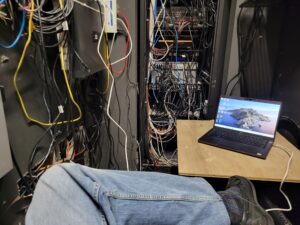
 
Many small business owners wonder if getting a server makes sense for their situation. Most experts state that any business with more than 5 employees would be better off with a dedicated server network. Installing a server network is not simple, but the benefits are worth the effort. Many businesses make the mistake of adding additional workstations to an existing peer-to-peer network.
 
Many business owners are under the impression that a server is the same as a normal desktop personal computer. However, there are significant differences. Desktop computers are designed to operate complex GUI operating systems, like Windows. Servers are designed to store, manage, and process data 24/7. Servers are created to have a much higher degree of reliability.
 
You might need a file server if:
 
• You have employees that work remotely. It’s important that traveling or work-at-home employees be able to access important resources and information.
 
• Employees are sharing files between multiple computers. The most useful application of this is “live accounting” where invoices get processed in real time no matter what workstation they’re processed from.
 
• A crashed hard drive would result in the loss of critical data. Servers are perfect for dealing with this problem.
 
Consider these advantages:
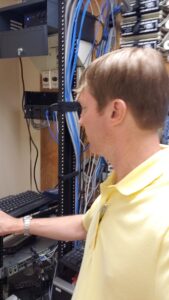
 
1. Centralized Storage and Shared Resources: There’s no better way to share resources than with a server. This includes access to printers, fax machines, RAID storage, network attached storage devices, cd/dvd towers, etc.
 
2. Malware Management: A single malware solution is much cleaner, and less expensive, than separate programs on multiple computers. Workstation and server protection can be found in a single package and administered centrally.
 
3. Centralized Backup: Hopefully, you already backup your business’s data on a regular basis. But backing up multiple computers can be troublesome and time consuming. Having all the data in a central location makes the backup process quicker and more reliable. This can be done automatically during off-work hours.
 
4. Improved Reliability: Nearly everything about a server increases reliability and decreases downtime. For example, servers often have redundant power supplies. Instead of a single hard drive, servers have multiple hard drives in a RAID configuration. Many components are also hot swappable, so drives and power supplies can be replaced without disrupting users on the system.
 
5. File/Network Security: Security is perhaps the most important feature of a server. Users can be assigned different access rights. Only the right people have access to sensitive data. Human resources don’t need access to sales figures.
 
The right server and operating system are necessary to gain all the advantages. The choices in operating systems are rather limited. Windows and Linux-based systems are the primary options. Choosing a the right server is heavily dependent on the on a variety of factors, including storage and processor needs, applications, and form factors. A small business server doesn’t require a lot of money or dedicated IT personnel to operate and maintain anymore. If you already have 5+ employees, it might be time to consider a server-based network.
 
For information about file server installation, server repair, server back-up, cloud back-up, data back-up, internet security and generally developing a redundant system to protect your business data and prevent down time call the server specialists at On-Site Louisville Computer Repair Co. today.
 
For more information click here: Computer Server Repair Louisville, KY.

© 2026 All rights reserved. On-Site Louisville Computer Repair Co. | Follow us on: Google Maps | Facebook | Twitter | YouTube | LinkedIn